
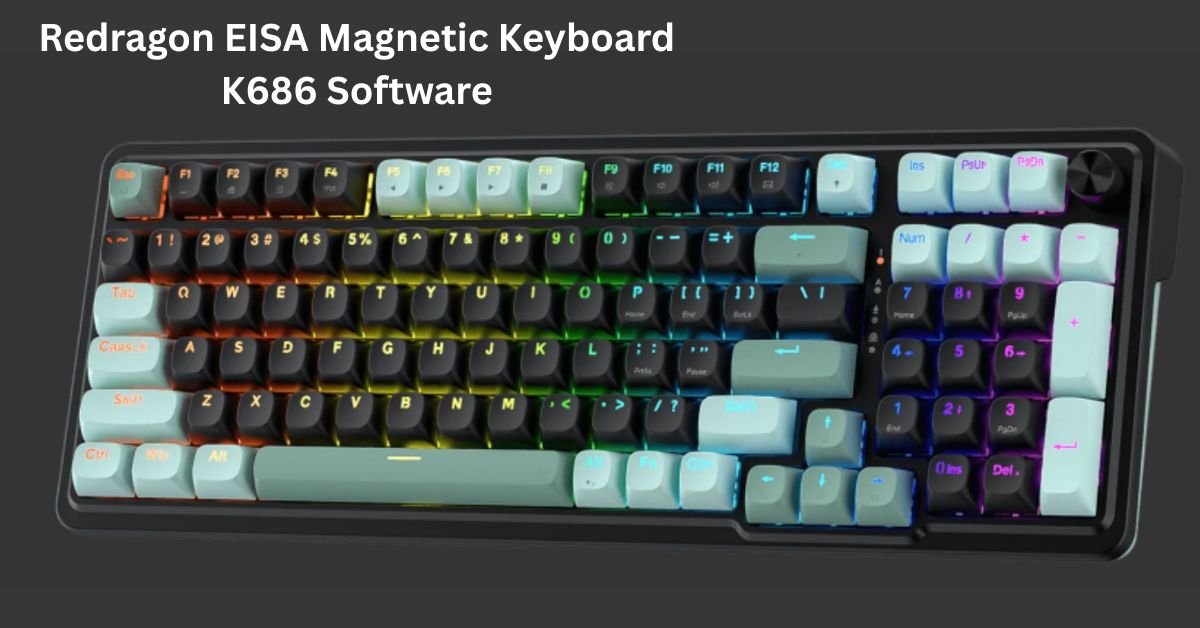
Magnetic hall-effect keyboards have completely transformed the competitive gaming landscape. By replacing traditional mechanical contact leaves with magnetic sensors, keyboards like the Redragon K686 EISA (K686 HE) offer rapid response times, micro-adjustable actuation points, and features like Dynamic Rapid Trigger.
However, hardware is only half the battle. To unlock the full potential of the K686’s UltraMag magnetic switches and 8,000Hz hyper-polling rate, you need to master the Redragon EISA Magnetic Keyboard K686 Software.
This complete setup and software guide covers downloading the official drivers, configuring per-key actuation depth, setting up macro bindings, and tweaking your RGB lighting for peak performance.
What Is the Redragon EISA K686 Magnetic Keyboard?
The Redragon K686 EISA (often labeled as the K686 HE / EISA Pro) is a 96% compact (98-key) magnetic mechanical keyboard. Unlike standard mechanical keyboards with static 2.0mm activation points, the K686 relies on Hall Effect sensors.
Key Technical Specifications
- Switch Type: Redragon UltraMag Magnetic Switches (Linear)
- Actuation Range: Adjustable from 0.1 mm to 3.4 mm
- Polling Rate: Up to 8,000Hz (0.125ms latency)
- Structure: Gasket-mounted with 5-layer sound-dampening foam
- Special Features: Rapid Trigger (RT), SOCD/Snap Tap modes (PRCS Team Wipe Engine), Dedicated Knob Control
Because every single keystroke’s travel distance is tracked magnetically, the software acts as your control center. Without it, the K686 functions merely as a standard mechanical board, leaving its best performance features untapped.
How to Download and Install Redragon K686 Software
Redragon offers two ways to configure the K686 keyboard: the desktop executable suite (Windows) and a web-based driver interface for cross-platform support (macOS/Linux/Windows).
Step-by-Step Installation
1.Connect via USB-C Cable:Do not attempt initial setup over 2.4GHz or Bluetooth.
Set the physical switch on the side of your keyboard to OFF / Wired mode. Connect the detachable USB-C cable directly to a USB 3.0 or higher port on your PC motherboard.
2.Download the Official Driver:Avoid third-party software hosts.
Navigate to the official Redragonshop Downloads Page. Locate EISA K686 PRO / K686 HE Software under the Drivers section and download the ZIP file. Alternatively, launch the Redragon Web Driver in a Chromium-based browser (Chrome, Edge, Opera).
3.Extract and Run as Administrator:
Unzip the downloaded folder. Right-click the .exe setup file and select Run as Administrator to install the software drivers properly.
4.Verify Firmware Version:
Open the application. Upon launch, check for any pending firmware updates. Flashing to the latest firmware resolves known signal jitter and ensures accurate Rapid Trigger registration.
Core Features of the Redragon K686 Software
Once you open the software, you’ll see five primary configuration tabs:
+-----------------------------------------------------------------+
|                    REDRAGON K686 SOFTWARE                       |
+-------------+------------------+--------------+-----------------+
| Key Binding | Actuation / RT   | Macro Editor | RGB Lighting    |
+-------------+------------------+--------------+-----------------+
| Configures  | Adjusts actuation| Custom macro | Custom colors,  |
| key maps    | (0.1mm–3.4mm)    | recording    | speed, & modes  |
+-------------+------------------+--------------+-----------------+
1. Per-Key Actuation Adjustment
Traditional switches require you to push the key down halfway (~2.0mm) before the computer registers an input. The K686 magnetic software allows you to alter this travel distance per key:
- Ultra-Fast (0.1 mm – 0.5 mm): Ideal for movement keys (
WASD) in fast-paced competitive games like Valorant or Apex Legends. - Balanced (1.5 mm – 2.0 mm): Best for core typing keys to avoid accidental misclicks during chat or work sessions.
- Deep Actuation (2.5 mm – 3.4 mm): Ideal for high-impact abilities or ultimate keys (e.g.,
RorF) that you don’t want to trigger accidentally.
2. Rapid Trigger (RT) Setup
Rapid Trigger completely changes how keys reset. Instead of waiting for a key to pop back up past a fixed reset point, Rapid Trigger deactivates the key the exact instant it moves upward, even by 0.1 mm.
Standard Switch:  [Press] -> [Actuate at 2.0mm] -> [Release past 2.0mm] -> [Deactivate]
Rapid Trigger:    [Press] -> [Actuate] -> [LIFT ANY DISTANCE (0.1mm)] -> [Instant Deactivate]
Recommended Rapid Trigger Profile for FPS Games:
- WASD Keys: Actuation Depth =
0.4mm| Press Sensitivity =0.1mm| Release Sensitivity =0.1mm - Jump (Spacebar): Actuation Depth =
1.0mm| Press Sensitivity =0.2mm| Release Sensitivity =0.2mm
3. PRCS Team Wipe Engine (SOCD / Snap Tap)
The Redragon EISA software includes PRCS Technology. Similar to Razer’s Snap Tap or Wooting’s SOCD (Single Outstanding Direction), this feature determines what happens when you press two opposing directional keys simultaneously (like A and D):
- Last Input Priority: Pressing
Dinstantly overridesAwithout needing to fully releaseA, letting you execute counter-strafe stops instantly in CS2 or Valorant. - Neutral Mode: Pressing both keys cancels input out entirely.
4. Macro Management & Custom Key Remapping
The software allows full key remapping. You can remap any standard key to execute media controls, launch applications, or run complex combo macros recorded with low-latency timing.
5. RGB & Knob Customization
You can control the built-in per-key RGB backlighting via software or hardware combinations:
- Software Control: Choose from 16+ preset lighting patterns, set individual key static colors, or sync colors with your gameplay rhythm.
- Physical Control Knob: Long-press the physical aluminum knob on top of the K686 for 3 seconds to toggle between Volume Adjustment Mode and Backlight Brightness/Pattern Mode.
Optimal Software Profiles for Work and Play
To help you get started quickly, here are three pre-configured setup guidelines you can apply inside the Redragon software:
| Setting Profile | Actuation Point | Rapid Trigger On/Off | Target Use Case |
| Tactical FPS (Valorant/CS2) | 0.2mm – 0.5mm | ON (0.1mm Sensitivity) | Ultra-fast counter-strafing, peek control, rapid resets |
| MOBA / Battle Royale | 1.0mm – 1.5mm | ON (0.3mm Sensitivity) | Spells, items, rapid skill-spamming without accidental inputs |
| Daily Typing / Productivity | 1.8mm – 2.2mm | OFF | Smooth, quiet typing without accidental key presses |
Troubleshooting Common Redragon K686 Software Issues
1. Software Says “Device Not Detected”
- Fix: Check your connection mode switch on the left side of the keyboard. The software only detects the K686 in Wired USB mode. Set the switch to
OFF, reconnect the cable directly to a motherboard USB port, and restart the software.
2. Keys Are Too Sensitive / Registering Phantom Touches
- Fix: If your actuation point is set too low (e.g., 0.1mm), natural hand rest weight or table vibrations can trigger keystrokes. Raise your baseline actuation to 0.5mm – 0.8mm and perform a Magnetic Sensor Recalibration inside the software settings tab.
3. Web-Based Software Won’t Connect
- Fix: Make sure you are using a Chromium browser (Chrome, Edge, Brave). Firefox and Safari do not support WebHID protocols natively. Grant WebHID permissions when prompted by your browser.
Frequently Asked Questions (FAQs)
Can I save my software settings directly to the keyboard hardware?
Yes. The Redragon K686 features onboard memory. Once you save your actuation, keybind, and lighting settings using the software, you can close the app or plug the keyboard into another computer—your profiles will stay intact.
Do I need to keep the software running in the background while gaming?
No. Thanks to onboard profile storage, the software only needs to be open when you want to change settings or adjust your Rapid Trigger values.
Does the Redragon K686 software work on macOS?
The downloadable .exe software suite is Windows-only. However, Mac and Linux users can access all customization features using the web-based Redragon WebHID driver inside Google Chrome or Microsoft Edge.
Can standard mechanical switches be installed in the K686?
No. The K686 HE uses Hall Effect magnetic sensors soldered to the PCB. It is only compatible with Hall Effect magnetic switches (like Redragon UltraMag switches), not traditional 3-pin or 5-pin mechanical switches.
Conclusion
The Redragon EISA K686 Magnetic Keyboard delivers high-end hall-effect performance at a accessible price point. By pairing its 8,000Hz polling rate and magnetic switches with properly tuned software settings, you gain a distinct operational advantage in both competitive gaming and daily work.
Download the driver, set your movement keys to Rapid Trigger, and fine-tune your actuation points to experience what this keyboard can really do.
