
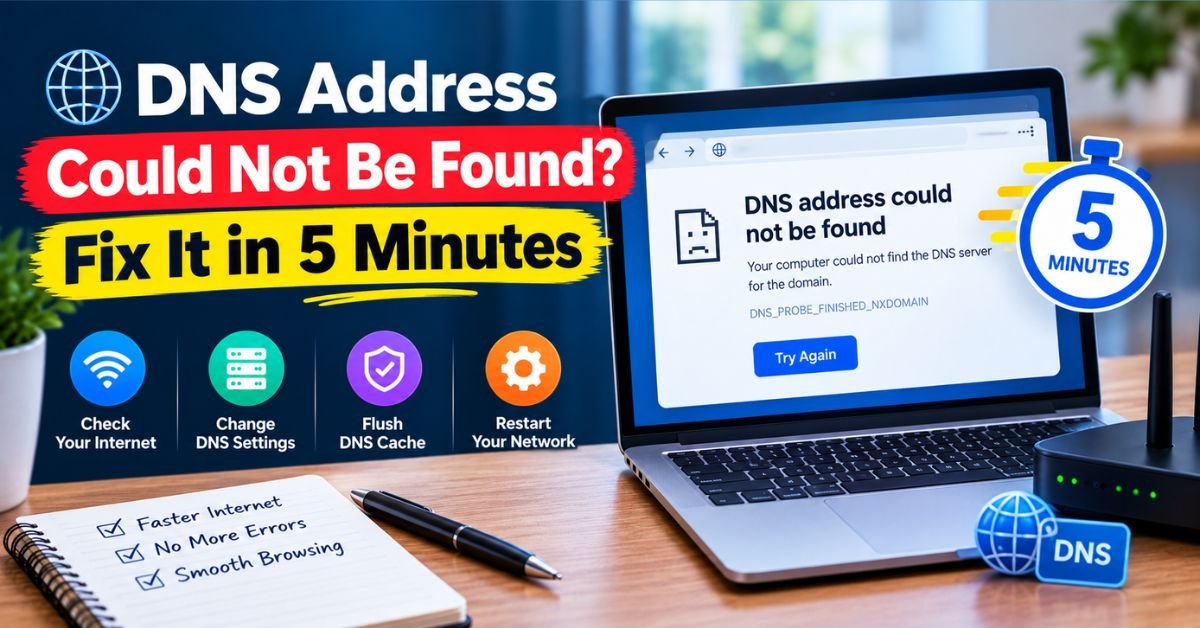
You type a web address, hit Enter, and Chrome throws up a blank page that says “This site can’t be reached. The server DNS address could not be found.”
It’s frustrating, but it’s one of the most fixable errors on the internet. In most cases, the problem sits on your device or your router, not on the website. This guide explains what the error means, why it happens, and how to fix it in the order that saves you the most time.
What Does “DNS Address Could Not Be Found” Mean?
DNS (Domain Name System) works like a phone book for the internet. You type a name like example.com, and DNS translates it into the numeric IP address your device needs to load the site.
When your browser says the DNS address could not be found, that lookup failed. Your device asked a DNS server, “Where does this site live?” and got no usable answer.
Chrome usually pairs the message with the code DNS_PROBE_FINISHED_NXDOMAIN. “NXDOMAIN” stands for “non-existent domain,” meaning the DNS server responded that it has no record for that name.
Quick reality check: The error doesn’t always mean your internet is down. Other sites often load fine while one refuses to open. That pattern points to a DNS problem, not a connection problem.
How the Error Looks in Different Browsers
| Browser | Error Message You’ll See |
| Google Chrome | “This site can’t be reached. Server DNS address could not be found.” (DNS_PROBE_FINISHED_NXDOMAIN) |
| Microsoft Edge | “Hmmm… can’t reach this page. Couldn’t find the DNS address.” |
| Mozilla Firefox | “Hmm. We’re having trouble finding that site.” (Server not found) |
| Safari | “Safari can’t find the server.” |
| Android Chrome | “Webpage not available. DNS_PROBE_FINISHED_NXDOMAIN” |
The wording changes, but the cause is the same: the name never resolved to an IP address.
Why Does the DNS Address Error Happen?
Before you start changing settings, it helps to know the usual suspects. Here are the most common causes, roughly in order of how often they show up.
- A typo in the URL. A missing letter or wrong extension (.com vs .net) is the simplest cause.
- A corrupted local DNS cache. Your device stores old lookup results. If one is stale or damaged, it keeps returning the wrong answer.
- An unreliable DNS server from your ISP. Default ISP servers can be slow, overloaded, or occasionally down.
- Router glitches. Routers cache DNS data too, and they need a restart now and then.
- VPN, proxy, or firewall interference. These tools reroute or block DNS requests.
- Browser extensions or security software. Ad blockers and “safe browsing” tools sometimes block lookups.
- A misconfigured hosts file. Malware or old software can leave entries that override DNS.
- The website itself. The domain may have expired, the nameservers may be misconfigured, or the site may be brand new and still propagating.
Step 1: Rule Out the Easy Stuff First
Start here. These checks take under two minutes and solve a surprising number of cases.
Quick checklist:
- [ ] Double-check the spelling of the URL.
- [ ] Try the site on another device using the same Wi-Fi.
- [ ] Try the site on your phone with Wi-Fi turned off (mobile data).
- [ ] Open a different website to confirm your internet works.
- [ ] Try an incognito or private window.
How to read the results:
- Site works on mobile data but not on Wi-Fi: The problem is your router or ISP’s DNS. Jump to Steps 3 and 5.
- Site fails on every device and network: The problem is likely with the website. Jump to the website owner section below.
- Site fails on one device only: The problem is local to that device. Continue with Steps 2 through 7.
Step 2: Restart Your Router and Modem
Routers hold a DNS cache and can get stuck on bad data. A proper restart clears it.
- Unplug the router and modem from power.
- Wait 30 seconds. Don’t rush this. The capacitors need time to drain.
- Plug in the modem first, wait for its lights to stabilize, then plug in the router.
- Wait two minutes, then reload the page.
Step 3: Flush Your DNS Cache
Flushing the cache wipes stored lookup results so your device asks for fresh ones.
Flush DNS on Windows 10 and 11
- Press Windows key, type cmd, right-click Command Prompt, and choose Run as administrator.
- Run this command:
- ipconfig /flushdns
- You should see “Successfully flushed the DNS Resolver Cache.”
- For a stronger reset, also run:
- ipconfig /release
- ipconfig /renew
Flush DNS on macOS
Open Terminal and run:
- sudo dscacheutil -flushcache; sudo killall -HUP mDNSResponder
Enter your Mac password when prompted. You won’t see a confirmation message, and that’s normal.
See More: Fix Zenvekeypo4 Software Issue: Safe Troubleshooting Guide
Clear Chrome’s Internal DNS Cache
Chrome keeps its own DNS cache separate from your operating system.
- Type chrome://net-internals/#dns in the address bar.
- Click Clear host cache.
- Restart Chrome.
Step 4: Switch to a Faster Public DNS Server
If the error keeps returning, your ISP’s default DNS server is a likely culprit. Switching to a public DNS provider often fixes it permanently and can speed up page loads.
Popular Public DNS Options
| Provider | Primary DNS | Secondary DNS | Best For |
| Google Public DNS | 8.8.8.8 | 8.8.4.4 | Reliability and wide compatibility |
| Cloudflare | 1.1.1.1 | 1.0.0.1 | Speed and privacy focus |
| Quad9 | 9.9.9.9 | 149.112.112.112 | Blocking known malicious domains |
| OpenDNS | 208.67.222.222 | 208.67.220.220 | Optional content filtering |
How to Change DNS on Windows
- Open Settings > Network & Internet.
- Select Wi-Fi (or Ethernet), then your connection, then Hardware properties.
- Next to DNS server assignment, click Edit and choose Manual.
- Turn on IPv4, enter a preferred and alternate DNS from the table above, and save.
How to Change DNS on Mac
- Open System Settings > Network and select your connection.
- Click Details > DNS.
- Click the + button and add your chosen DNS addresses.
- Remove old entries if you want a clean setup, then click OK.
Pros and Cons of Using Public DNS
| Pros | Cons |
| Often faster and more reliable than ISP defaults | Your queries go to a third party instead of your ISP |
| Fixes many NXDOMAIN errors immediately | Some ISP-specific services (like local CDN routing) may work slightly less well |
| Optional security filtering (Quad9, OpenDNS) | Corporate or school networks may block manual DNS changes |
| Easy to reverse | Privacy policies differ between providers, so read them |
Pro tip: Set the change at the router level if you want every device in your home to benefit.
Step 5: Reset Your Network Stack (Windows)
If flushing didn’t work, the network settings themselves may be corrupted. Run these commands one at a time in an administrator Command Prompt:
- netsh winsock reset
- netsh int ip reset
- ipconfig /flushdns
Restart your computer afterward. The reset doesn’t take effect until you reboot.
Step 6: Disable VPN, Proxy, and Security Software Temporarily
These tools sit between you and the DNS server, so they’re common troublemakers.
- Turn off your VPN and reload the site. If it loads, switch VPN servers or update the VPN app.
- Disable your proxy. On Windows, go to Settings > Network & Internet > Proxy and turn off manual proxy settings.
- Pause your antivirus or firewall for a minute as a test. If the site loads, add an exception rather than leaving protection off.
Turn everything back on after testing. Leaving security tools off is not a fix.
Step 7: Check Browser Settings and Extensions
Your browser can cause DNS trouble on its own.
In Chrome:
- Go to Settings > Privacy and security > Security.
- Scroll to Use secure DNS. Try toggling it off, or switch to a specific provider from the dropdown.
- Disable extensions one at a time (especially ad blockers, VPN extensions, and privacy tools).
- Clear cached images and files under Settings > Privacy and security > Delete browsing data.
If the site loads in another browser, the culprit is Chrome’s configuration or an extension.
Step 8: Inspect the Hosts File
The hosts file lets your computer override DNS for specific sites. Old software or malware can leave entries that block or misdirect a domain.
Windows: Open Notepad as administrator and open C:\Windows\System32\drivers\etc\hosts.
Mac: In Terminal, run sudo nano /etc/hosts.
Look for lines (without a # at the start) that mention the domain you’re trying to reach. If you find one you didn’t add, delete that line and save the file.
Step 9: Diagnose With nslookup
If you want proof of where the failure occurs, use nslookup. It asks a DNS server directly and shows what comes back.
Open Command Prompt or Terminal and run:
- nslookup example.com
Replace example.com with the problem domain.
What the results tell you:
| Result | Meaning | Next Move |
| Returns an IP address | DNS works from your device | Clear browser cache or check extensions |
| “Non-existent domain” | The DNS server has no record | Try a different DNS server; check the domain itself |
| “DNS request timed out” | Your DNS server isn’t responding | Change DNS servers or restart your router |
| Works with nslookup example.com 8.8.8.8 but fails without it | Your default DNS is the problem | Switch to public DNS permanently |
That last row is the quickest way to confirm your ISP’s DNS is at fault.
Fix the Error on Mobile Devices
Android
- Toggle airplane mode on and off for 10 seconds.
- Go to Settings > Network & internet > Private DNS. Set it to Automatic, or enter dns.google as a provider hostname.
- In Chrome, clear cache under Settings > Privacy and security > Clear browsing data.
- Forget the Wi-Fi network and reconnect.
iPhone and iPad
- Toggle airplane mode on and off.
- Go to Settings > Wi-Fi, tap the info (i) icon next to your network, and choose Configure DNS > Manual. Add 8.8.8.8 and 1.1.1.1.
- If that fails, choose Forget This Network and rejoin.
- As a last resort, go to Settings > General > Transfer or Reset iPhone > Reset > Reset Network Settings. This erases saved Wi-Fi passwords, so have them handy.
If You Own the Website: Why Visitors See This Error
Website owners get this error report from visitors too, and the causes are different. If your own site shows “DNS address could not be found,” check these:
- Expired domain registration. Log into your registrar and confirm the domain is active and auto-renew is on.
- Wrong or missing nameservers. Confirm the nameservers at your registrar match those your host or DNS provider gave you.
- Missing A or CNAME records. If the DNS zone has no record pointing to your server, the domain won’t resolve.
- Recent DNS changes. Propagation can take from a few minutes up to 48 hours. Lowering the TTL (time to live) before planned changes shortens the wait.
- DNS provider outage. Check your provider’s status page.
Useful tools: Use DNSChecker.org or whatsmydns.net to see how your domain resolves from servers around the world. If some regions resolve it and others don’t, propagation or a partial outage is the likely cause.
Quick Troubleshooting Order (Cheat Sheet)
Follow this sequence and stop when the site loads:
- Check the URL spelling.
- Test another device and mobile data.
- Restart the router and modem.
- Flush the DNS cache (system and Chrome).
- Switch to Google, Cloudflare, or Quad9 DNS.
- Reset Winsock and the IP stack (Windows).
- Disable VPN, proxy, and security tools temporarily.
- Review browser extensions and Secure DNS settings.
- Check the hosts file.
- Run nslookup to confirm where the lookup fails.
- Contact your ISP if public DNS also fails on your network.
- Assume the website is down if it fails everywhere.
When to Call Your ISP
If every device on your network fails to resolve multiple sites, even after switching to public DNS, the problem may sit deeper. Call your provider and tell them specifically: “DNS lookups are failing on my connection even with third-party DNS servers.” That phrasing skips the scripted “restart your router” advice and points support toward a real line or gateway issue.
FAQs
How to fix “DNS address cannot be found”?
Restart your router, then flush your DNS cache. If the error stays, switch your DNS server to 8.8.8.8 or 1.1.1.1. Check the URL spelling and test the site on mobile data. If it loads there, the problem is your network, not the website.
Is 8.8.8.8 or 1.1.1.1 better?
Both work well. 1.1.1.1 (Cloudflare) is usually faster and more privacy-focused. 8.8.8.8 (Google) is a bit more established and very reliable. If one gives you trouble, try the other.
How do I turn off DNS blocking?
Find what’s doing the blocking and disable it there. Check your router’s parental controls or DNS filter, your VPN or antivirus web protection, and Chrome’s Secure DNS setting. If you use OpenDNS, NextDNS, or Pi-hole, remove the blocked domain from its list or change your DNS server.
How to tell if DNS is being blocked?
Run nslookup example.com and compare it with nslookup example.com 8.8.8.8. If your default server returns 0.0.0.0 or “non-existent domain” but Google’s DNS returns a real IP address, your DNS is blocking or filtering that site. Another sign is that the site opens on mobile data but not on your Wi-Fi.
How do I flush DNS and reset it?
- Windows: Open Command Prompt as administrator and run
ipconfig /flushdns. For a full reset, also runnetsh winsock reset, then restart your PC. - Mac: Run
sudo dscacheutil -flushcache; sudo killall -HUP mDNSResponderin Terminal.
