
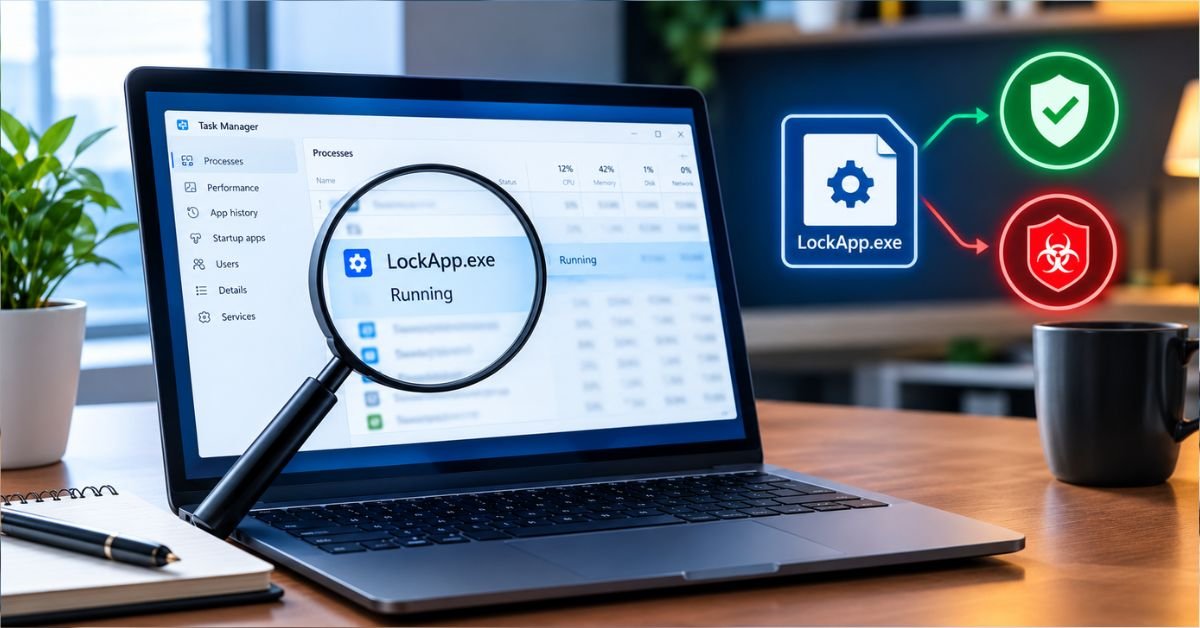
You open Task Manager and spot LockApp.exe sitting in the list. You’ve never heard of it, and now you’re wondering whether it’s a virus.
Short answer: LockApp.exe is a legitimate Microsoft process. It runs the Windows lock screen on Windows 10 and Windows 11. This guide covers what it does, how to confirm yours is genuine, and how to fix the problems it can cause.
What Is LockApp.exe?
LockApp.exe is the executable behind the Windows lock screen. It’s the full-screen display you see when you press Windows + L, wake your PC from sleep, or boot up before signing in.
That screen shows your background image, the time and date, and app notifications. Windows runs it as a built-in app package called Microsoft.LockApp.
In Task Manager, you’ll usually see it labeled “Windows Default Lock Screen.”
Quick facts:
- Publisher: Microsoft Corporation
- Typical location: C:\Windows\SystemApps\Microsoft.LockApp_cw5n1h2txyewy\
- Part of: Windows 10 and Windows 11
- Safe to keep: Yes, if it runs from the location above
What Does LockApp.exe Actually Do?
The lock screen looks simple, but a few jobs sit behind it.
Displays your lock screen content. This includes your chosen picture, a slideshow, or Windows Spotlight images pulled from Microsoft.
Shows status and notifications. Calendar events, mail counts, and other app alerts can appear here without unlocking your PC.
Hands off to the sign-in screen. When you press a key or click, LockApp.exe slides away and the password or PIN prompt takes over.
Stays quiet when idle. Once you’re signed in and working, the process typically sits suspended and uses almost no CPU or memory.
Is LockApp.exe a Virus?
The real file is not a virus. But malware authors like to copy the names of trusted Windows processes, so it’s worth a 60-second check.
How to Verify LockApp.exe Is Genuine
- Press Ctrl + Shift + Esc to open Task Manager.
- Find LockApp.exe (check the Details tab if you don’t see it).
- Right-click it and choose Open file location.
- Confirm the folder path matches C:\Windows\SystemApps\Microsoft.LockApp_cw5n1h2txyewy.
- Right-click the file, choose Properties, open the Digital Signatures tab, and confirm the signer is Microsoft Windows.
Genuine vs. Suspicious: Side-by-Side
| Check | Genuine LockApp.exe | Suspicious Copy |
| Folder | C:\Windows\SystemApps\Microsoft.LockApp_… | System32, Temp, AppData, Downloads, or Desktop |
| Digital signature | Signed by Microsoft Windows | Missing, invalid, or a different publisher |
| Idle behavior | Suspended or near 0% CPU | Constant CPU, disk, or network activity |
| When it runs | Lock screen and startup | Runs while you’re actively working, with no lock screen showing |
| Spelling | LockApp.exe | Lookalikes such as LockApps.exe or Lock-App.exe |
If anything in the right column matches, run a full scan with Microsoft Defender Offline or a trusted antivirus tool.
LockApp.exe vs. LogonUI.exe vs. Winlogon.exe
People often mix these three up. They work together, but each has a different job.
| Process | Role | What You See |
| LockApp.exe | Draws the lock screen | Wallpaper, clock, notifications |
| LogonUI.exe | Draws the credential prompt | Password, PIN, or fingerprint box |
| Winlogon.exe | Manages sign-in and sign-out | Nothing directly; it coordinates the other two |
So if your lock screen looks broken, LockApp.exe is the suspect. If the password box misbehaves, look at LogonUI.exe instead.
Common LockApp.exe Problems (and How to Fix Them)
Problem 1: High CPU or Memory Usage
This is rare, but it happens. The usual causes are a glitchy Windows Spotlight download, a corrupted lock screen image, or a bad update.
Try these fixes in order:
- Switch the lock screen to a static picture. Go to Settings > Personalization > Lock screen, then change “Personalize your lock screen” from Windows Spotlight to Picture.
- Install pending Windows updates. Many lock screen bugs are patched quietly in cumulative updates.
- Restart the PC. A full restart (not just sleep) resets the process.
Problem 2: Black Screen or Frozen Lock Screen
You wake the PC and get a black screen, a stuck image, or a lock screen that won’t dismiss.
- Press Ctrl + Alt + Delete to force the secure sign-in screen.
- Update your graphics driver from your GPU maker’s site (NVIDIA, AMD, or Intel). Display driver bugs cause many of these cases.
- Turn off Fast Startup: open Control Panel > Power Options > Choose what the power buttons do, then uncheck Turn on fast startup.
Problem 3: LockApp.exe Crashes or Shows an Error
Corrupted system files are the most likely cause. Run these commands in an elevated Command Prompt (right-click Start, then choose Terminal (Admin) or Command Prompt (Admin)):
sfc /scannow
DISM /Online /Cleanup-Image /RestoreHealth
Let both finish, then restart.
If the problem continues, re-register the lock screen app. Open PowerShell as administrator and run:
Get-AppxPackage -AllUsers Microsoft.LockApp* | Foreach {Add-AppxPackage -DisableDevelopmentMode -Register “(_.InstallLocation)\AppXManifest.xml”}
Restart afterward. This rebuilds the app registration without touching your files.
Problem 4: Spotlight Images Won’t Change
If your lock screen is stuck on one image, reset Spotlight:
- Switch the lock screen background to Picture.
- Restart your PC.
- Switch it back to Windows Spotlight.
- Give it a few hours to download fresh images.
Troubleshooting Checklist
- [ ] Verified the file path and digital signature
- [ ] Ran a Microsoft Defender scan
- [ ] Installed all Windows updates
- [ ] Updated the graphics driver
- [ ] Switched Spotlight to a static picture
- [ ] Ran SFC and DISM
- [ ] Re-registered the Microsoft.LockApp package
Can You Disable or Remove LockApp.exe?
You can bypass the lock screen, but you probably shouldn’t delete or break the file.
Don’t delete it. The file lives in a protected system folder, and tampering with it can cause sign-in problems. Windows updates may also restore it.
You may have seen a popular trick: take ownership of the Microsoft.LockApp_cw5n1h2txyewy folder and rename it. It can skip the lock screen on some Windows 10 setups, but it’s unsupported and can backfire after updates.
Safer Ways to Skip or Reduce the Lock Screen
| Method | Pros | Cons |
| Switch to a static picture | Lightweight, fully supported | Lock screen still appears |
| Group Policy: “Do not display the lock screen” | Official, reversible | Only honored on Windows Enterprise and Education editions |
| Renaming the LockApp folder | Skips the screen on some builds | Unsupported, may break after updates, requires ownership changes |
| Auto sign-in or a shorter timeout | Less friction | Weakens security, especially on laptops |
For most home and small-office users, the best fix is the simplest one: leave LockApp.exe alone and change the lock screen settings instead.
Pros and Cons of LockApp.exe
Pros
- Adds a security layer between the screen and your sign-in prompt
- Shows useful glanceable info, like time and notifications
- Uses almost no resources when idle
- Is customizable with your own images or Spotlight
Cons
- Adds an extra click before you can sign in
- Can misbehave after bad updates or driver issues
- Can be confused for malware because it appears in Task Manager
Should You End the LockApp.exe Task?
You can, and Windows will simply restart it the next time you lock your PC. But there’s rarely a reason to.
If it’s running at high CPU, ending it can be a quick stopgap. Treat that as a symptom and use the fixes above to find the root cause.
Key Takeaways
- LockApp.exe is the Windows lock screen process, and it’s safe when it runs from the SystemApps folder with a Microsoft signature.
- Verify before you panic. Check the location, signature, and behavior.
- Most problems come from Spotlight glitches, drivers, or corrupted files, and SFC, DISM, and re-registering the app fix the majority of them.
- Don’t delete it. Adjust your lock screen settings instead.
Frequently Asked Questions
What does LockApp.exe do?
It runs the Windows lock screen. It shows your wallpaper, clock, and notifications before the sign-in prompt appears, then hands control to the password or PIN screen.
Is LockApp.exe safe?
Yes, if it runs from C:\Windows\SystemApps\Microsoft.LockApp_cw5n1h2txyewy and carries a Microsoft digital signature. A copy in Temp, AppData, or Downloads is a red flag, so scan it right away.
Is app lock safe or not?
It depends on the tool. Apps from reputable developers with clear privacy policies and good reviews are generally safe. Avoid free “app lockers” that demand admin rights, show aggressive ads, or come from unknown sites, since some bundle adware or spyware. Windows already has built-in protection, such as BitLocker and Windows Hello, that covers most needs.
Why is LockApp.exe suspended?
Windows puts it to sleep once you sign in because the lock screen isn’t needed. This saves CPU and memory, and it wakes the moment you lock your PC. Seeing “Suspended” in Task Manager is normal.
How can I lock my PC?
- Press Windows + L for the fastest way.
- Press Ctrl + Alt + Delete, then choose Lock.
- Click Start, select your profile icon, then choose Lock.
- Set an automatic lock under Settings > Accounts > Sign-in options > Dynamic lock (it locks when your paired phone moves away).
Which is the best app lock for PC?
There’s no single winner, so match the tool to the job:
- Whole PC: Windows Hello (PIN, fingerprint, or face), which is built in and free.
- Locking folders or files: BitLocker (Pro editions) or VeraCrypt (free, open-source).
- Locking individual apps: Windows has no native option, so use a well-reviewed third-party tool, or create a separate standard user account for others to use.
For most people, a strong PIN plus automatic lock is safer and simpler than any extra app.
