You open the Start menu expecting your usual apps, and the “Most used” list is just gone. Maybe a Windows update reset it. Maybe a setting flipped without you noticing. Either way, you can usually get it back in a few minutes.
This guide walks through every fix I’d try, starting with the quickest. It covers the Settings toggles, the Registry and Group Policy options, and what to do if the list still refuses to show up.
What the “Most Used” List Actually Is
Windows 11 keeps track of how often you launch desktop apps and uses that history to surface your frequent ones in the Start menu. You don’t build the list yourself. You can’t drag apps into it or change their order.
That detail explains most of the confusion. If Windows isn’t allowed to track your launches, the list stays empty no matter how much you use your apps.
It also helps to know how this list differs from the other app areas in Start:
| Feature | Who controls it | Best for |
| Pinned | You | Apps you open every day and want in a fixed spot |
| Most used | Windows, based on your launches | Surfacing habits you haven’t pinned |
| Recommended / Recent | Windows | Recently added apps and recently opened files |
If you want a layout that never changes, pinning is the better choice. If you’d rather let Windows adapt to how you work, tracking needs to be on.
Why the List Disappears
A few things cause this over and over:
- The “Show most used apps” setting got switched off, often after a feature update or a privacy cleanup tool.
- Windows isn’t allowed to track app launches in your privacy settings.
- A policy is hiding the list, which is common on work and school PCs.
- A tweak or debloat script changed a Registry value.
- The Start menu components are damaged, which is rarer but does happen.
- Your Windows build moved or renamed the setting. Microsoft has redesigned Start more than once.
Method 1: Turn On “Show Most Used Apps”
Start here, because this fixes it for most people.
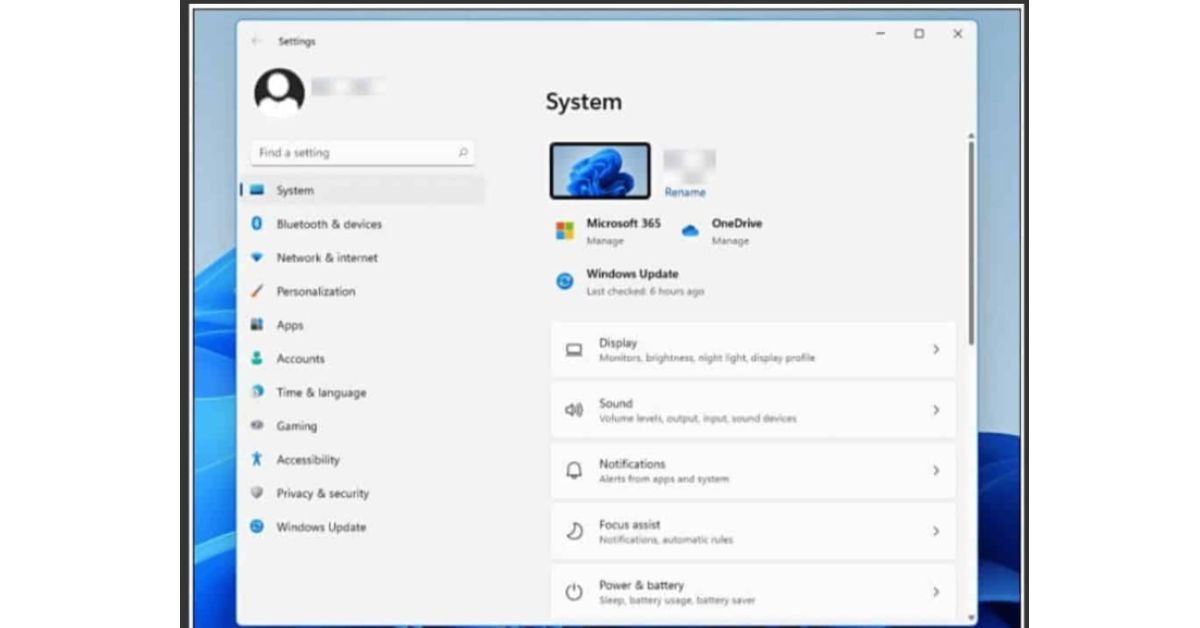
- Press Windows + I to open Settings.
- Go to Personalization, then Start.
- Switch Show most used apps to On.
- While you’re on that page, it’s worth enabling Show recently added apps too.
Open Start again and check your app list. Depending on your Windows 11 version, the list may appear under All apps or in the main app view of the newer Start menu design. Labels also shift a little between builds, so if the exact wording isn’t there, look for the nearest “most used” or “frequently used” option on that page.
If the toggle is grayed out, something is controlling it from the outside. Skip ahead to Method 4.
Method 2: Allow App Launch Tracking
This is the step people miss most often. Plenty of readers turn on the Start setting, see an empty list, and assume the fix didn’t work. The real problem is a separate privacy switch.
- Open Settings and go to Privacy & security, then General.
- Turn on Let Windows improve Start and search results by tracking app launches.
- Restart your PC.
Without this permission, Windows has nothing to build the list from.
Method 3: Fix It in the Registry Editor
If Settings looks right and the list is still missing, a hidden Registry value may be the cause. Debloat scripts and “privacy” utilities like to change this one quietly.
Create a restore point before you edit anything. A wrong change in the Registry can cause bigger problems than a missing Start list.
- Press Windows + R, type regedit, and hit Enter.
- Browse to HKEY_CURRENT_USER\Software\Microsoft\Windows\CurrentVersion\Explorer\Advanced.
- Look for a DWORD value named Start_TrackProgs.
- Double-click it and set the value to 1. A value of 0 turns tracking off.
- If the entry doesn’t exist, right-click an empty area, choose New > DWORD (32-bit) Value, name it Start_TrackProgs, and set it to 1.
- Close the editor and restart.
For a faster refresh without a full reboot, open Task Manager with Ctrl + Shift + Esc, right-click Windows Explorer, and choose Restart.
Method 4: Check Group Policy
A grayed-out toggle usually points to a policy. This method only applies to Windows 11 Pro, Enterprise, and Education, because Home doesn’t include the Group Policy Editor.
- Press Windows + R, type gpedit.msc, and press Enter.
- Go to User Configuration > Administrative Templates > Start Menu and Taskbar. Some versions list related options under Computer Configuration as well.
- Find the policy that deals with the “Most used” list or frequent programs.
- Set it to Not Configured or Disabled, depending on how the policy is worded on your build.
- Open an elevated Command Prompt, run gpupdate /force, and restart.
If this is a work or school computer, think twice before overriding it. Your organization may have hidden the list on purpose, and your IT team can tell you whether that can change.
Method 5: Reset the Start Menu
If every setting checks out and the list still won’t appear, the Start menu itself may be misbehaving.
Right-click the Start button, choose Terminal (Admin), and run:
Get-AppxPackage Microsoft.Windows.StartMenuExperienceHost | Reset-AppxPackage
Restart your PC and test again.
Still nothing? Check your system files. In the same admin terminal, run sfc /scannow and let it finish. Then run DISM /Online /Cleanup-Image /RestoreHealth and restart once more.
As a last resort, create a new local user account and see whether the list works there. If it does, your original profile is the problem, and moving your files to the new account is often easier than repairing the old one.
Can You Get Your Old History Back?
Usually, no. Windows rebuilds the list from new launch activity, so if the old data was reset or deleted, those rankings are gone. After you re-enable tracking, expect the list to fill in over a few days of normal use.
If you don’t want to wait, pin your top apps in the meantime. Search for the app in Start, right-click it, and choose Pin to Start or Pin to taskbar.
Quick Checklist
Run through this if you want a fast pass:
- [ ] Show most used apps is on (Settings > Personalization > Start)
- [ ] App launch tracking is on (Privacy & security > General)
- [ ] Start_TrackProgs is set to 1 in the Registry
- [ ] No Group Policy is hiding the list
- [ ] Windows is fully updated
- [ ] You restarted your PC or Windows Explorer after changes
- [ ] You’ve opened a few apps since turning tracking back on
- [ ] The Start menu reset and system file checks are done, if needed
Is the Most Used List Worth Having?
It depends on how you work. Here’s the trade-off:
| Pros | Cons |
| Adapts to your habits with no setup | You can’t reorder it manually |
| Surfaces apps you forgot to pin | Rebuilds slowly after a reset |
| Saves you from searching for frequent tools | Relies on launch tracking, which is a privacy trade-off |
| Works alongside pinned apps | May show apps you’d rather not display |
If you share a PC or prefer less tracking, leaving the list off and pinning your apps by hand is a perfectly reasonable setup.
Mistakes That Waste Time
- Skipping the privacy toggle. It’s the most common reason the list stays empty.
- Running debloat scripts without reading them. Many of them switch tracking off silently.
- Editing the Registry without a backup. It takes a minute to set up a restore point and can save you hours.
- Expecting instant results. The list needs some real usage before it shows anything.
Frequently Asked Questions
Why is “Show most used apps” grayed out in Windows 11?
A Group Policy or Registry policy is usually controlling it. That’s common on work and school computers. On a personal PC, a tweak tool may have applied the policy. Check the Registry and Group Policy steps above.
How do I get my frequently used apps back on the Start menu?
Turn on Show most used apps under Settings > Personalization > Start, then enable app launch tracking under Privacy & security > General. Restart and use your apps as usual, and the list will fill in as Windows records your launches.
Can I manually add programs to the Most Used list?
No. Windows builds the list on its own from your launch history. If you want specific apps in a fixed spot, pin them to Start or the taskbar.
Does turning off the Most Used list delete my programs?
No. It only changes what the Start menu displays and whether launches are tracked. Your installed programs stay where they are, and you can still reach them through search or All apps.