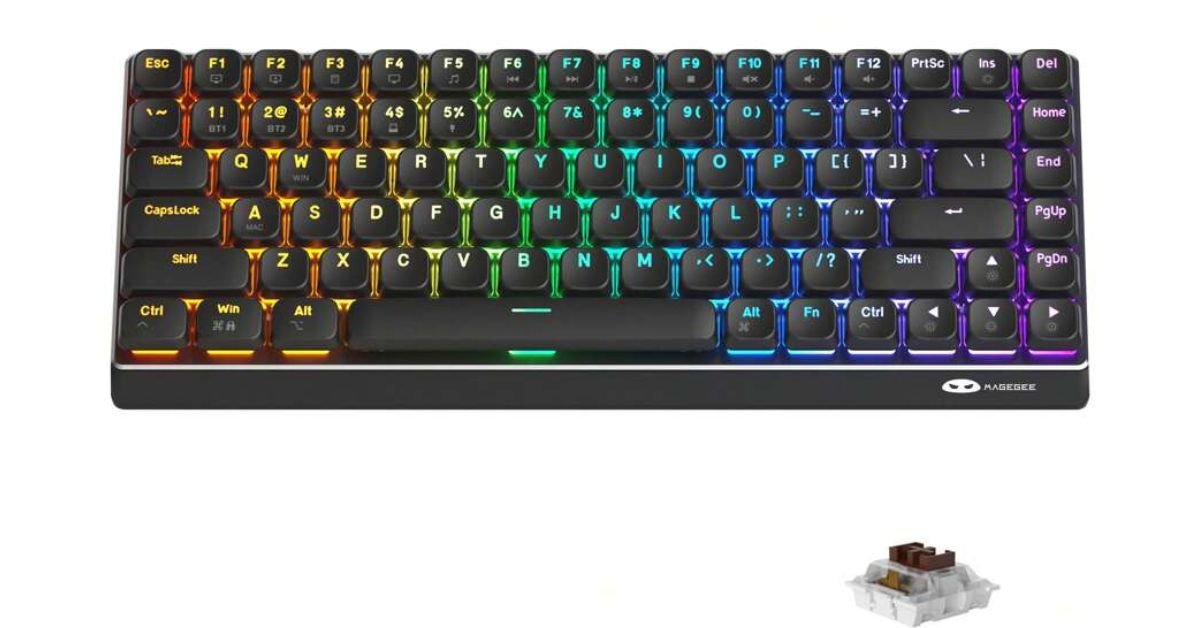
If you just picked up a MageGee mechanical keyboard, you have probably typed magegee keyboard software into Google looking for a simple answer. Where do you download it? Does every model need it? Is it safe to install? This guide walks through all of that in plain language, based on how these keyboards actually work in 2026.
MageGee builds budget-friendly mechanical keyboards that are popular with gamers, students, and remote workers who want RGB lighting and hot-swappable switches without spending a fortune. But the software side of these keyboards confuses a lot of buyers, mostly because MageGee does not use one single app for every model. Let’s clear that up.
What Is MageGee Keyboard Software Used For?
The magegee keyboard software (technically a driver, not a full app for most models) lets you customize how your keyboard behaves beyond what the physical function keys already do. On models that support it, you can remap keys, adjust RGB lighting patterns, set macros, and switch between different profiles for gaming or typing.
Not every MageGee keyboard needs this software to function. Most models work fine straight out of the box using Fn key combinations for lighting and media controls. The driver becomes useful when you want deeper customization, like assigning a single key to trigger a multi-step macro, or when you want to fine-tune RGB zones instead of using the built-in presets.
In short: the software is optional for basic use but genuinely helpful if you want to get the most out of your keyboard’s hardware.
Which MageGee Models Support the Software?
Not all MageGee keyboards come with driver support, and this is where a lot of buyers get confused. Current models with dedicated Windows drivers include the AIR68, Knight68, Knight75, Captain72, Captain75, Captain87, Light100, Light87, SKY81, and SKY98.
Models Without Dedicated Software
Entry-level models, like the K1 or basic wired combo keyboards, typically rely entirely on Fn-key shortcuts for lighting and multimedia functions. There is nothing to install, and nothing you are missing out on beyond what the physical keys already offer.
Checking Your Exact Model
Before downloading anything, check the label on the bottom of your keyboard for the exact model number. MageGee’s driver page organizes downloads by model name, and installing the wrong one can cause the keyboard to stop responding correctly until you reset it.
How to Download MageGee Keyboard Software Safely
This part matters more than most guides mention. Because MageGee products get resold on marketplaces like Amazon, Newegg, and TikTok Shop, a lot of third-party sites now host “MageGee driver” downloads that are not official. Some of these bundle unrelated software or ask for information the real driver never would.
The safest path is always the same:
- Go directly to the official MageGee support or drivers page.
- Search for your exact model number rather than a general “MageGee software” listing.
- Download the Windows driver only if your model has one listed.
- Avoid third-party download aggregator sites entirely, even if they rank high in search results.
For Mac users, MageGee does not maintain a native driver. Their official support pages point Mac owners toward QMK-based tools instead, since most of their mechanical boards use standard HID input that macOS already recognizes without extra software.
Step-by-Step Installation Guide
Once you have confirmed your model supports a driver, installation is fairly straightforward.
Step 1: Download the Correct File
Match the model number exactly. A Captain75 driver will not work correctly on a Captain87, even though the naming looks similar.
Step 2: Unzip and Run as Administrator
Most MageGee drivers come as a compressed folder. Right-click the setup file and choose “Run as administrator” to avoid permission errors during installation.
Step 3: Restart Your Keyboard Connection
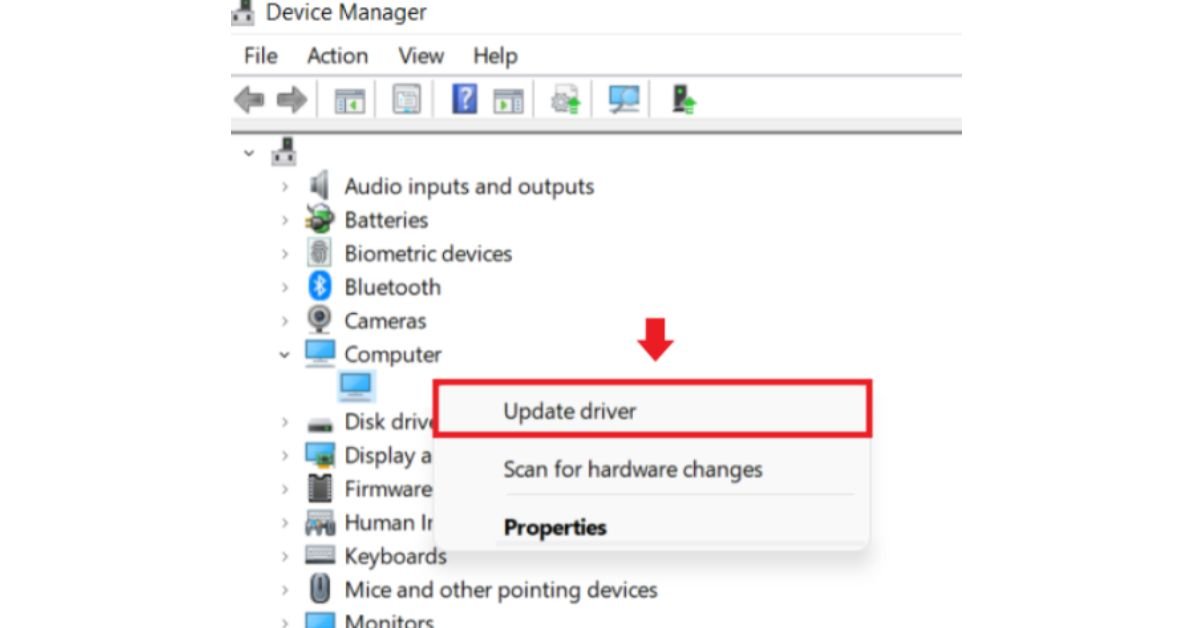
After installation, unplug the keyboard (or turn off wireless mode) and reconnect it. This forces Windows to recognize the new driver profile properly.
Step 4: Open the Software and Create a Profile
Once the app opens, you can start building lighting profiles, remapping keys, or setting up macros. Save your settings before closing the app, since some models store profiles on the keyboard itself while others save them locally on your PC.
Key Features of MageGee Keyboard Software in 2026
The feature set has improved noticeably over the last couple of years, especially on the wireless AIR68 and Knight series.
- Key remapping across multiple layers, useful for gaming setups
- RGB customization with per-key or zone lighting control
- Macro recording for repetitive tasks or combo inputs
- Profile switching so you can save separate setups for work and gaming
- Polling rate adjustment on select wireless models for lower input lag
What’s Still Missing
Compared to premium brands, MageGee’s software still lacks cloud profile syncing and cross-device profile sharing. If you switch computers often, you will need to reconfigure your settings manually or export a profile file and transfer it yourself.
MageGee Keyboard Software: Pros and Cons
| Aspect | Pros | Cons |
|---|---|---|
| Cost | Free with keyboard purchase | No premium support tier |
| Compatibility | Covers most current wireless models | Older models often excluded |
| Interface | Simple, beginner-friendly layout | Fewer advanced options than rivals |
| Mac Support | QMK fallback available | No native Mac app |
| Updates | Regular driver refreshes | Updates not always announced clearly |
Common Problems and How to Fix Them
A lot of the frustration people run into has less to do with the software itself and more to do with connection or mode settings.
Keyboard Not Detected After Installing Driver
Try a different USB port, preferably one directly on your motherboard rather than a hub. If you’re on a wireless model, confirm it’s set to the correct connection mode (Bluetooth vs. 2.4GHz dongle) before opening the software.
Software Won’t Save Custom Lighting
This usually happens when the keyboard disconnects mid-save. Keep the keyboard connected and avoid switching modes while the software window is open.
Function Keys Stop Working Correctly
A factory reset often resolves this. On most current models, holding Fn + Esc for three to five seconds restores default settings, after which you can reinstall the driver if needed.
Is It Safe to Use MageGee Keyboard Software?
Generally, yes, as long as you download it from the official source. The driver does not request unusual system permissions, and it functions similarly to input drivers from other budget peripheral brands. That said, treat any keyboard software the same way you’d treat any third-party app: keep your antivirus active, avoid downloading from unofficial mirrors, and only grant it the access it actually needs.
If you’re setting up a work computer, it’s worth checking your company’s software policy first, since some IT departments restrict driver installations from unmanaged devices. For a deeper look at how peripheral software fits into a broader productivity setup, Resovent has covered similar topics around optimizing everyday tech tools for both home and office use.
MageGee Keyboard Software vs Other Budget Keyboard Brands
Compared to other budget mechanical keyboard brands offering their own configuration tools, MageGee sits in a reasonable middle ground. It is not as feature-rich as software from higher-end gaming brands, but it covers the essentials most casual users actually want: lighting, basic remapping, and macros. If your priority is a plug-and-play experience with occasional customization, it gets the job done without a steep learning curve.
Key Takeaways
- The magegee keyboard software is a model-specific driver, not a universal app for every keyboard MageGee sells.
- Basic models work fine without any software installation at all.
- Always download drivers from MageGee’s official site to avoid bundled or fake software.
- Mac users should rely on QMK-based tools rather than expecting a native driver.
- Most connection issues come from wrong USB modes or an interrupted save, not a broken driver.
Conclusion
The magegee keyboard software is a genuinely useful tool once you know which models actually support it and where to download it safely. For most people, it’s a quick one-time setup that unlocks lighting customization and a few handy macros, nothing overly complicated. If your keyboard came without driver support, don’t worry. The Fn-key shortcuts already built into the board cover the basics just fine. Whichever model you own, sticking to official downloads and keeping your drivers updated will save you a lot of unnecessary troubleshooting down the road.
Frequently Asked Questions
1. Does MageGee software work on Windows 11? Yes, current drivers are built to run on Windows 10 and 11 without compatibility issues.
2. Can I use MageGee keyboard software on a Chromebook? No, Chromebooks are not supported since the driver requires a full Windows or Mac environment.
3. Will installing the driver void my keyboard warranty? No, installing official MageGee software does not affect your warranty coverage.
4. Can I use two MageGee keyboards with the software at the same time? Some models allow multiple device detection, but performance depends on your specific keyboard model.
5. Does the software affect keyboard battery life on wireless models? Active RGB lighting configured through the software can reduce battery life faster than default settings.