If you’ve searched for this, you’ve probably seen the scary threads: SSDs vanishing mid-transfer, drives reformatting themselves to RAW, games “uninstalling” overnight. It’s not internet hysteria. There’s a specific Windows 11 update at the center of it, and knowing exactly which one and how to protect yourself is the difference between a minor scare and losing years of files.
The short answer: KB5063878, the August 2025 security update for Windows 11 24H2, is the update most widely linked to SSD failures. Here’s everything you actually need to know, based on what Microsoft, drive manufacturers, and independent testers have confirmed so far.
What’s Actually Going On With Windows 11 and SSD Failures
In mid-August 2025, Windows 11 users started posting the same story on Reddit, X, and Microsoft’s own support forums: they were installing a game, copying a folder of videos, or extracting a large ZIP file, and partway through, their SSD simply disappeared from File Explorer. Sometimes a restart brought it back. Sometimes it didn’t, and the drive showed up as unallocated space, wiped clean.
A Japanese hardware tester was the first to nail down a repeatable pattern rather than a one-off complaint. Their method: copy a large game folder, then write roughly a 60GB archive of many video files to the target SSD, then decompress it. Out of 21 drives tested, 12 reproduced the failure.
That test matched what a lot of frustrated users were already reporting: it wasn’t random. It tended to happen under a specific set of conditions.
Which Windows 11 Update Is Causing This — The Exact KB Number
This is the part people search for most, so here it is plainly.
| Detail | Information |
|---|---|
| Update ID | KB5063878 |
| Windows version affected | Windows 11, version 24H2 |
| Resulting OS build | 26100.4946 |
| Release date | August 12, 2025 (August Patch Tuesday) |
| Also implicated | KB5062660 (an earlier preview update with related code) |
| Official purpose | Security patch, including protections against Lumma stealer malware |
A related preview update, KB5062660, released a few weeks earlier, is also named in reports because it shares some of the same underlying storage code. If your system has either installed, you fall into the affected group.
The Exact Conditions That Trigger the Failure
Not every SSD user hit this bug — that’s an important detail Microsoft leaned on heavily in its response. The failures cluster around a specific combination of factors:
- The drive is running Windows 11 24H2 with KB5063878 installed
- You’re writing a large amount of data continuously — generally 50GB or more in one go
- The target drive is more than 60% full
- The write happens in a single sustained burst rather than smaller batches (a big game install, a large video export, extracting a huge archive)
- The drive uses certain Phison NAND controllers, especially DRAM-less models, though some enterprise HDDs showed similar symptoms too
Think of it like a highway on-ramp that’s fine at normal traffic but backs up badly the moment too many cars merge in at once. A few gigabytes here and there never triggers it. A 65GB game update onto a drive that’s already 80% full is exactly the scenario people kept reporting.
Signs Your SSD Might Be Affected
Before you panic and start backing up your entire drive at 2 a.m., know what the actual symptoms look like:
- File Explorer suddenly can’t see the drive mid-transfer
- The drive’s SMART data becomes unreadable (tools like CrystalDiskInfo show it as “unknown” or blank)
- A “disk write error” appears while installing or updating a game
- The system throws an Event ID 129 error in Event Viewer
- Windows crashes with a black screen and “Your device ran into a problem and needs to restart”
- After rebooting, the drive is either back to normal, missing entirely, or shows as raw/unformatted space
If you’re only seeing the occasional slow file copy or a beachball moment, that’s almost certainly unrelated — normal SSD or thermal behavior, not this bug.
Which SSDs Are Most at Risk
Reports and independent testing point most strongly at drives built on Phison controllers, particularly budget and DRAM-less models. Here’s a rough risk breakdown based on what’s been reported publicly:
| Risk Level | Drive Type | Notes |
|---|---|---|
| Higher risk | DRAM-less SSDs with Phison controllers | Most reproducible failures in testing |
| Moderate risk | Mid-range NVMe SSDs, various brands | Some reports, less consistent |
| Lower but not zero risk | High-end NVMe drives with DRAM cache | Fewer reports, some enterprise HDDs also flagged |
| Reported unrecoverable case | Western Digital SA510 2TB | Could not be restored even after reboot, per test data |
If you’re not sure what controller your SSD uses, check the manufacturer’s spec sheet or product page for your exact model — it’s usually listed under “controller.”
Microsoft’s Official Position (and Why It’s Confusing)
Here’s where it gets genuinely murky, and you deserve the full picture rather than just the alarming half.
Microsoft initially acknowledged it was aware of user reports and began collecting details from affected customers. Then, in early September 2025, the company told outlets including Windows Latest that its internal testing found no evidence directly linking KB5063878 to storage failures. Microsoft’s telemetry, they said, showed only a limited number of affected devices relative to the total install base.
Phison, whose controllers show up disproportionately in the failure reports, took a more cautious tone — acknowledging the reports and saying it was actively working with Microsoft to investigate, without confirming a root cause.
So you have three overlapping possibilities that haven’t been fully separated:
- A genuine software bug in how KB5063878 handles buffered writes under heavy load
- Marginal or aging hardware that was already close to failure, with the update’s changed write behavior pushing it over the edge
- A coincidence amplified by how visible social media makes any spike in complaints look
What’s not in dispute: a meaningful number of real users, on real hardware, lost access to their drives after installing this specific update, and some lost data permanently. Whether Microsoft ever issues a formal acknowledgment or not, the practical advice is the same.
How to Protect Your SSD Right Now — Step by Step
You don’t need to panic-uninstall Windows Update or swap out a perfectly good drive. You need a few sensible habits until this is fully resolved.
Step 1: Check what update you’re running.
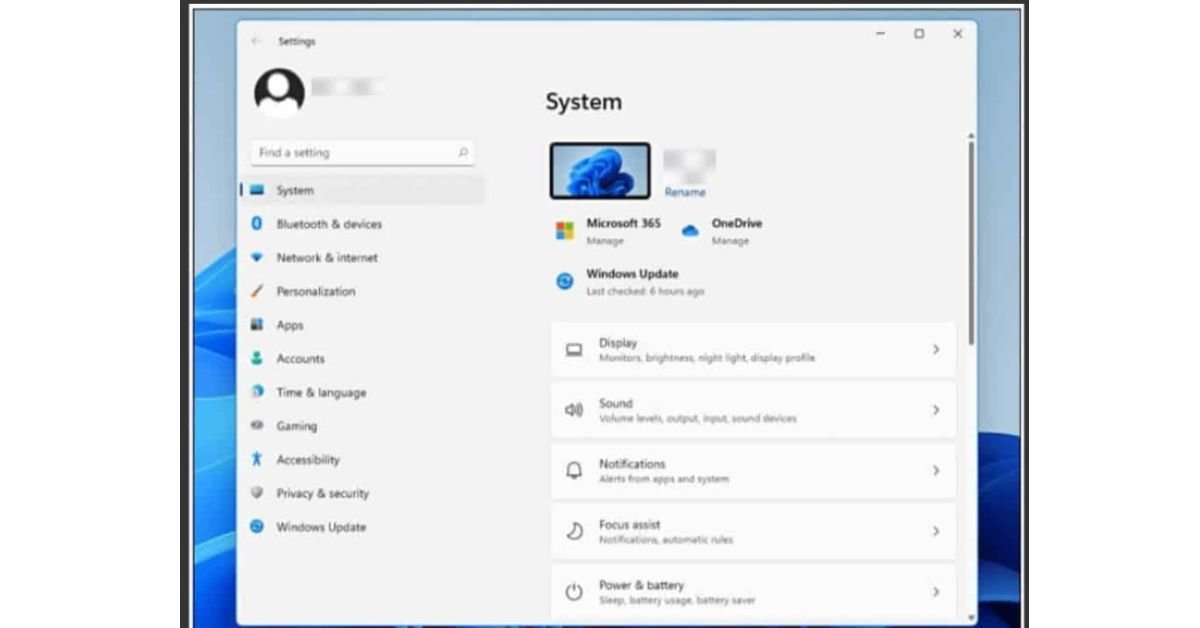
Go to Settings → Windows Update → Update history, and look for KB5063878 or KB5062660 in the list.
Step 2: Back up anything irreplaceable, today.
Not “eventually” — today. Copy your important files to an external drive or cloud storage. This is the single most effective protection, regardless of whether the update turns out to be the cause.
Step 3: Avoid massive single-batch writes.
If you’re installing a huge game, moving a large media library, or extracting a big archive, break it into smaller chunks rather than one continuous transfer. A 100GB game install becomes several 20-25GB stages instead of one long write.
Step 4: Keep drives under 60% capacity where practical.
This one condition shows up in nearly every reported case. If your primary SSD is nearly full, offload older files to secondary storage.
Step 5: Check your SSD’s health regularly.
Free tools like CrystalDiskInfo let you monitor SMART data and catch early warning signs before a full failure.
Step 6: Update your SSD firmware.
Manufacturers occasionally release firmware updates specifically to improve compatibility with OS-level changes like this one. Check your drive maker’s support page for your exact model.
Step 7: Consider pausing updates temporarily if you’re already affected.
If you’re on 24H2 with the problematic KB installed and haven’t had issues yet, you can pause updates for a few weeks from Settings → Windows Update → Pause Updates, giving Microsoft time to ship a proper fix without exposing yourself further in the meantime.
How to Recover a Drive That Has Already Disappeared
If you’re past prevention and dealing with a drive that vanished, here’s the practical order of operations:
- Restart the PC first. In a meaningful share of reported cases, the drive reappeared after a simple reboot.
- Check Disk Management, not just File Explorer — the drive sometimes shows up there as “unallocated” even when File Explorer sees nothing.
- Don’t write anything new to the drive if it does reappear as unallocated or RAW. Writing new data can overwrite recoverable file structures.
- Try a reputable recovery tool to check whether files are still intact before reformatting.
- If the drive is genuinely unrecoverable and under warranty, contact the manufacturer — several users report successful warranty replacements tied directly to this issue.
- Uninstall the update if you haven’t already, via Settings → Windows Update → Update history → Uninstall updates, then select KB5063878.
Should You Uninstall or Avoid KB5063878?
This depends on your risk tolerance and how you use your PC.
Consider uninstalling or pausing the update if:
- You regularly move large files, install big games, or work with large video projects
- Your primary drive is often above 60% capacity
- You’ve already noticed odd storage behavior since updating
- You’re on a DRAM-less SSD with a Phison controller
It’s probably fine to keep it if:
- You mostly browse, work in office apps, and rarely do large sustained writes
- Your drive stays well under capacity
- You’re already backing up regularly and can tolerate the small residual risk
Keep in mind that KB5063878 is a security update addressing real vulnerabilities, including protections against active malware. Removing it isn’t risk-free either — it’s a genuine trade-off, not a one-sided decision.
Frequently Asked Questions
Does the Windows 11 update destroy an SSD?
No, it doesn’t physically burn or permanently break the hardware in most cases. However, affected updates can cause SSDs to crash, fail under heavy data transfers (>50GB), disappear from File Explorer/BIOS, or corrupt file systems.
Which Windows 11 update is causing issues?
KB5063878 is the primary cumulative update linked to major SSD disappearing and corruption bugs.
What kills SSD drives?
The main non-software causes of physical SSD failure are excessive heat (overheating), power surges/sudden loss, exceeding write limits (TBW lifetime), and manufacturing defects in drive controllers (like DRAM-less Host Memory Buffer issues).
Is there a problem with Windows 11 version 25H2?
Yes, early releases of 25H2 carried over certain NVMe drive controller incompatibilities (particularly with some WD and Phison drives) and game crashing issues, requiring motherboard BIOS updates and firmware patches to resolve.
The Bottom Line
The Which Windows 11 Update Is Killing SSDs most consistently tied to SSD failures is KB5063878, released in the August 2025 security patch cycle for Windows 11 24H2, with the earlier KB5062660 also implicated. The failures aren’t random — they cluster around large, sustained writes to drives that are more than 60% full, especially on certain Phison-controlled SSDs. Microsoft disputes a direct causal link, but the volume and consistency of user reports make caution the sensible default regardless of where the official investigation lands.
You don’t need to throw out your SSD or swear off Windows updates. Back up what matters, avoid marathon file transfers onto a nearly-full drive, keep an eye on your SSD’s health, and stay current on Microsoft’s advisories. That’s realistically enough to keep this from ever becoming your problem.
read more: Why is Windows 9 skipped? The Real Story Behind Windows 10/How HCS 411gits Software Built: Architecture Guide