
Leaving your computer unattended even for a coffee refill exposes sensitive emails, private documents, and logged-in accounts to anyone walking by. Locking your display instantly secures your workstation without closing your open windows or stopping background tasks.
Whether you need a quick hotkey for your operating system, an automated timer, or physical hardware controls to lock down a public display, here is everything you need to know.
Quick Hotkeys: How to Lock Your Screen Instantly
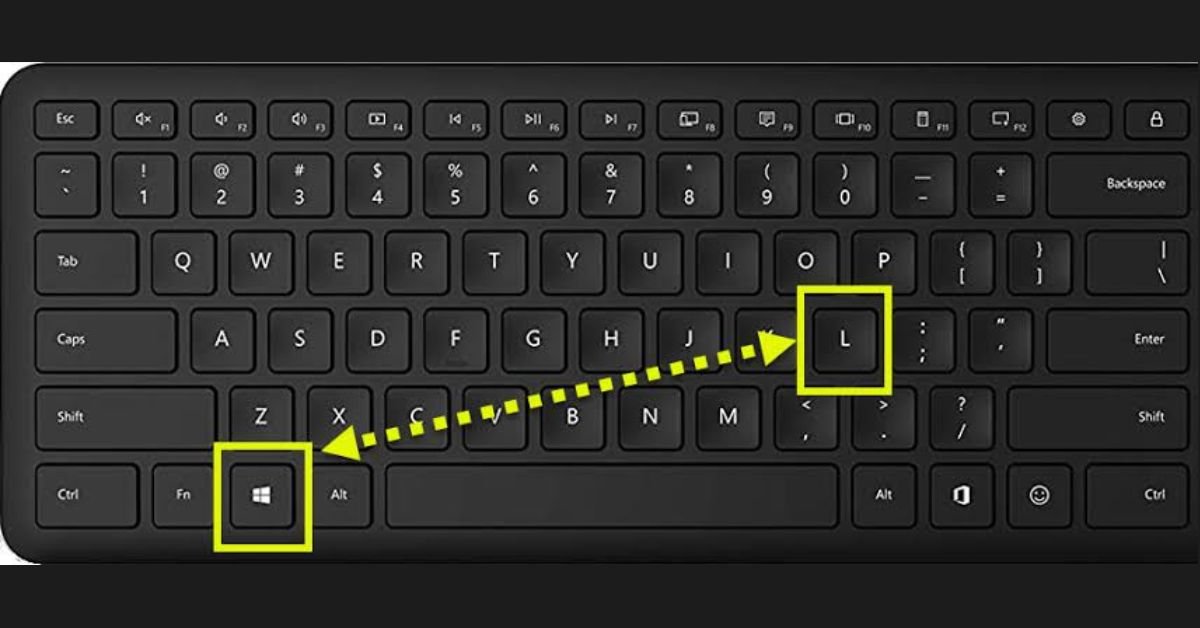
Keyboard shortcuts are the fastest way to lock your screen before stepping away from your desk.
Windows 10 and Windows 11 Shortcuts
Win+L: The universal Windows shortcut. Pressing the Windows logo key alongside L instantly drops your system to the lock screen.Ctrl+Alt+Delete: Press all three keys simultaneously, then select Lock from the system menu.
macOS Shortcuts
Cmd+Control+Q: Immediately locks your Mac display on modern macOS versions.Shift+Cmd+Option+Q: Logs out your user account completely (use this only if you want to close all active apps).- Touch ID Lock: If your Mac keyboard has a Touch ID button, a quick firm press locks the screen instantly.
Linux (Ubuntu/GNOME) Shortcuts
Super(Windows Key) +L: Locks the desktop screen on GNOME environment builds.Ctrl+Alt+L: Standard shortcut across many legacy desktop environments like XFCE and MATE.
Operating System Lock vs. Physical Monitor Locks

Users asking how to lock a monitor often mean one of two things: securing desktop software access or disabling physical screen hardware.
| Feature / Goal | Software Screen Lock (OS Level) | Hardware OSD Lock (Physical Monitor) |
| Primary Purpose | Prevents unauthorized desktop and file access | Prevents tampering with screen brightness/settings |
| How It Works | Requires password/PIN/biometrics to unlock | Disables physical buttons on the monitor frame |
| Best For | Office security, remote work, privacy | Kiosks, retail displays, shared office setups |
| Setup Time | Instant (Keyboard shortcut) | 5–10 seconds (Button combination) |
Setting Up Automatic Lock Timers
Manual shortcuts work only if you remember to use them. Setting up automatic lock timers ensures your screen secures itself if you get called away unexpectedly.
Auto-Locking on Windows
- Open Settings (
Win+I) and navigate to Accounts > Sign-in options. - Under If you’ve been away, when should Windows require you to sign in again?, select Every Time or When PC wakes from sleep.
- Go to System > Power & battery and set your Screen and sleep timer to 2–5 minutes.
Dynamic Lock (Windows Exclusive)
Windows can automatically lock your PC when you step away using Bluetooth proximity.
- Pair your smartphone to your PC via Settings > Bluetooth & devices.
- Go to Accounts > Sign-in options > Dynamic lock.
- Check the box for “Allow Windows to automatically lock your device when you’re away.”
Auto-Locking on macOS
- Open System Settings and click Lock Screen in the sidebar.
- Set Require password after screen saver begins or display is turned off to Immediately.
- Set Turn display off on battery/power adapter to your preferred idle duration.
How to Lock Physical Monitor Buttons (OSD Lock)
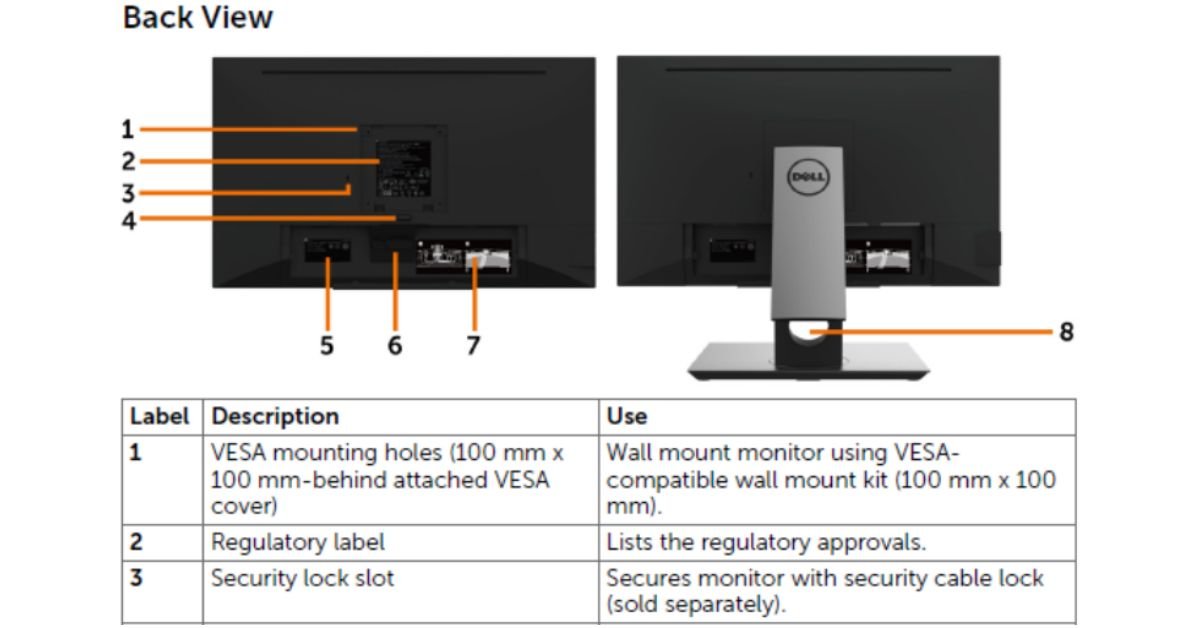
If you are setting up monitors in a school, retail kiosk, or shared office, people might tamper with brightness, contrast, or input sources. You can lock the On-Screen Display (OSD) menus on most major monitor brands.
- Dell Monitors: Press and hold the Exit button (or Menu button) for 10 seconds. A padlock icon will appear on screen indicating the OSD menu is locked. Repeat to unlock.
- HP Monitors: Press and hold the Menu button for 10 seconds to toggle the main control lock.
- LG Monitors: Press the Joystick/Menu button, open settings, navigate to General, and toggle OSD Lock to On.
- Samsung Monitors: Press and hold the Left/Right navigation buttons or the Jogg button for 10 seconds until the screen displays “OSD Locked.”
Troubleshooting Common Screen Lock Issues
The Win + L Shortcut Isn’t Working
If your Windows lock shortcut stops responding, the feature might be disabled in your system registry or Group Policy settings.
- Open the Run dialog (
Win+R), typeregedit, and press Enter. - Navigate to:
HKEY_CURRENT_USER\Software\Microsoft\Windows\CurrentVersion\Policies\System - Look for a key named
DisableLockWorkstation. If the value is set to1, change it to0or delete the entry entirely.
Screen Goes to Sleep but Doesn’t Ask for a Password
If your display turns off without securing your files, your wake-up policy is misconfigured.
- Windows: Check Sign-in options and verify that “Require Sign-in” is explicitly set to Every Time.
- macOS: Verify that System Settings > Lock Screen requires a password Immediately after the display turns off.
Frequently Asked Questions
How to lock monitor screen Windows 10?
Press Win + L on your keyboard to lock your screen immediately. Alternatively, press Ctrl + Alt + Delete and select Lock, or click your profile icon in the Start menu and choose Lock.
How to lock monitor screen Windows 7?
Press Win + L or Ctrl + Alt + Delete and click Lock this computer. You can also click Start, select the arrow next to “Shut down,” and click Lock.
How to lock monitor screen without password?
If your local account has no password set, pressing Win + L will hide your desktop display until someone clicks “Sign In” to unlock it. For hands-free locking, pair your phone via Bluetooth under Settings > Accounts > Sign-in options and enable Dynamic Lock to secure the screen when you walk away.
How to lock monitor screen Windows 11?
Press Win + L for instant locking. You can also right-click the Start button, highlight Shut down or sign out, and choose Sign out (or use Lock from your account profile menu).
How to lock screen on Windows so it doesn’t move?
To freeze desktop icons in place, right-click the desktop, choose View, and uncheck Auto arrange icons. To lock the taskbar from being dragged, right-click the taskbar and select Lock all taskbars (Windows 10) or lock your current display orientation under Settings > System > Display.
How to lock computer screen with keyboard?
Press Win + L across any modern Windows version. Alternatively, press Ctrl + Alt + Delete, then tap Enter immediately to lock your system in under two seconds.
Read More: What is Windows 365? Complete Cloud PC Guide/How to Stop an Update in Windows 10 (Fast Emergency Fixes & Long-Term Solutions)
