
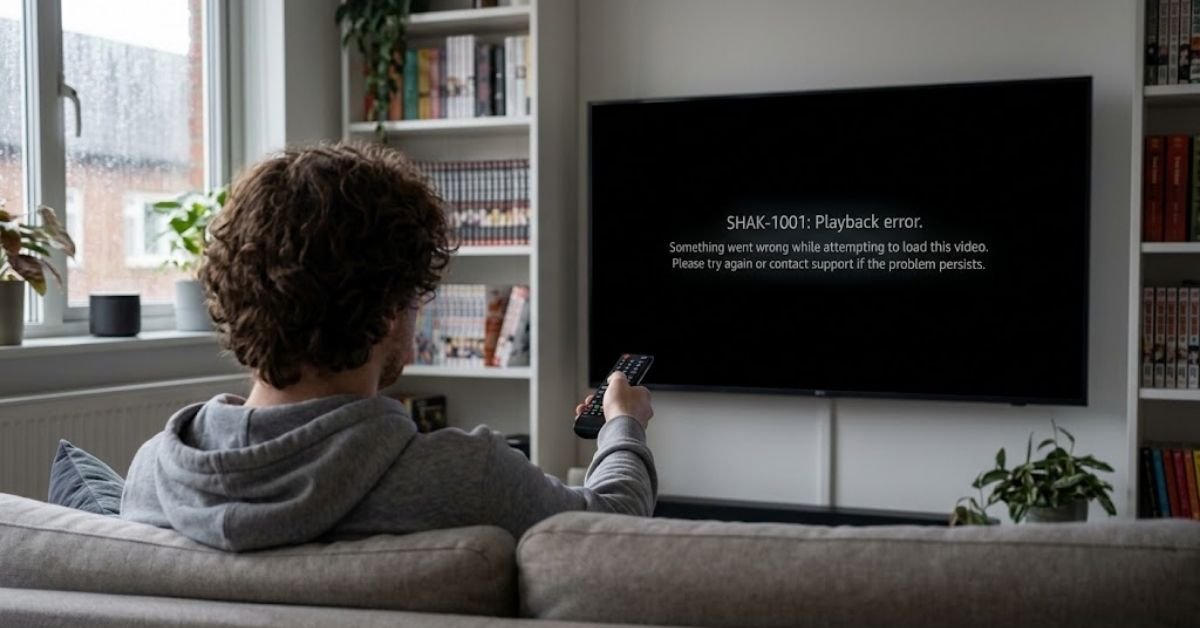
You settled in for an episode, hit play, and instead of your anime, you got a wall of text: SHAK-1001. No episode, no explanation, just a code that means nothing to you.
You’re not alone. This error shows up across smart TVs, streaming sticks, game consoles, and browsers, and it almost always traces back to a handful of fixable causes.
This guide breaks down what triggers SHAK-1001, walks through the fixes in the order that actually works, and gives you a backup plan if the error keeps coming back.
What Is the SHAK-1001 Error on Crunchyroll?
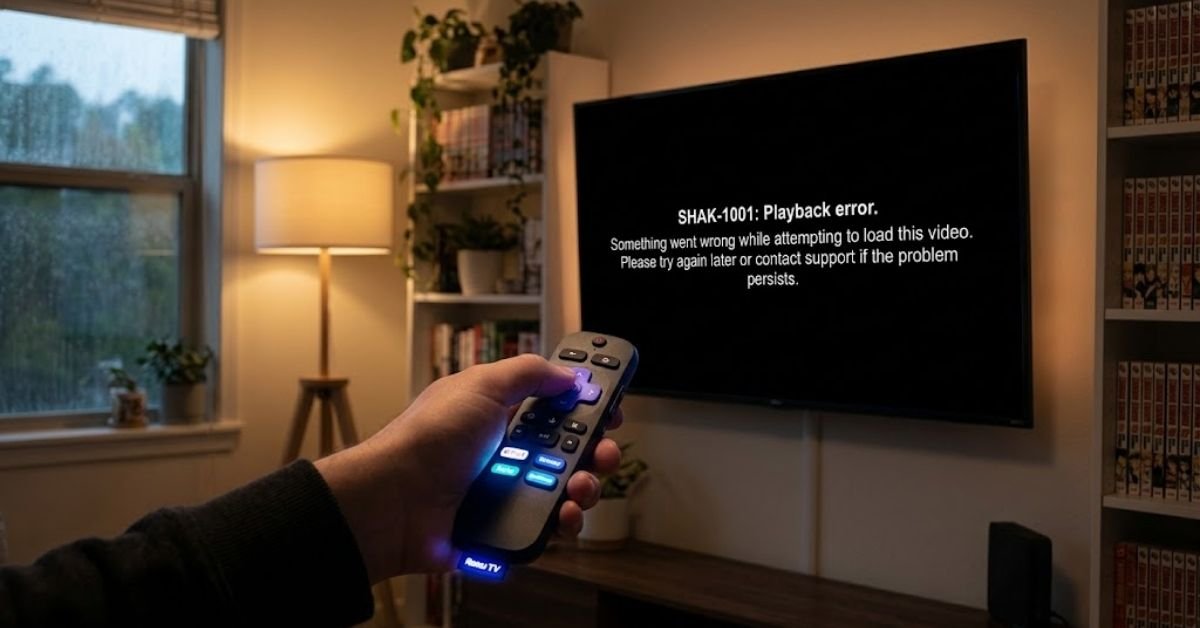
SHAK-1001 is a playback error code, not a billing or account-security error. It shows up when Crunchyroll’s app can’t establish or maintain a clean connection between your device and its streaming servers to deliver video.
Think of it less as “something is broken” and more as “a handshake failed.” Your device asks the server for a video stream, the server tries to respond, and somewhere in that exchange, the connection drops or gets corrupted.
That handshake can fail for a few different reasons:
- Network instability — packet loss, a weak Wi-Fi signal, or a router struggling under load
- Corrupted app cache — leftover data that conflicts with a new stream request
- Outdated app version — especially common on smart TVs and older streaming devices
- DRM/licensing hiccups — the digital rights check that verifies you’re allowed to stream the title
- Server-side congestion — this happens most during simulcast premieres when everyone hits “play” at once
- VPN or proxy interference — these can scramble the region and connection data Crunchyroll needs
The good news: most of these are fixable on your end in under 10 minutes, without contacting support.
Quick Answer: The Fastest Fix First
Before you troubleshoot anything else, try this sequence. It resolves the error for most people:
- Close the Crunchyroll app completely (not just minimize it)
- Restart your streaming device or browser
- Reopen Crunchyroll and try the same episode again
If that doesn’t work, keep reading — the rest of this guide covers every scenario, organized from fastest to most involved.
Step-by-Step Troubleshooting Checklist
Work through these in order. Each step takes only a minute or two, and doing them out of sequence often means wasting time on advanced fixes when a basic one would have solved it.
1. Check Crunchyroll’s Server Status First
Before touching your own settings, rule out the possibility that the problem isn’t yours at all.
- Search “Crunchyroll down” on a site like Downdetector
- Check Crunchyroll’s official X/Twitter account (@Support_CR handles service alerts)
- Try a different show or episode — if everything fails, it’s likely server-side
Crunchyroll’s traffic spikes hard during big simulcast releases. A one-hour delay while their servers catch up often beats an hour of troubleshooting your router.
2. Restart Your Device (Not Just the App)
A full device restart clears more than people expect. Closing the app alone doesn’t flush the memory cache or reset the network stack the way a full reboot does.
- Smart TVs: unplug from power for 30 seconds, don’t just use the remote’s power button
- Consoles (PS5, Xbox): fully restart, not “rest mode”
- Streaming sticks (Roku, Fire TV, Chromecast): unplug and reconnect
3. Check Your Internet Connection
SHAK-1001 loves unstable connections. Crunchyroll recommends a minimum of 5 Mbps for HD streaming, but consistency matters more than raw speed.
- Run a speed test at Fast.com or Speedtest.net while connected to the same network as your streaming device
- Switch from Wi-Fi to a wired Ethernet connection if your device supports it — this alone fixes a large share of playback errors on smart TVs
- Move your router closer to your device, or your device closer to the router
- Restart your router and modem (unplug for 30 seconds)
4. Clear the App’s Cache and Data
Cached data speeds up load times, but corrupted cache is one of the most common silent causes of playback errors.
On mobile (Android/iOS):
- Android: Settings → Apps → Crunchyroll → Storage → Clear Cache
- iOS: Delete and reinstall the app (iOS doesn’t allow cache-only clearing)
On smart TVs and streaming devices:
- Roku: Settings → System → Advanced System Settings → Factory Reset (channel-specific reset isn’t always available, so a full app reinstall is often faster)
- Fire TV: Settings → Applications → Manage Installed Applications → Crunchyroll → Clear Cache and Clear Data
- Android TV / Google TV: Settings → Apps → See all apps → Crunchyroll → Storage → Clear Cache
On browsers:
- Clear cookies and cached images/files for crunchyroll.com specifically, rather than wiping your whole browser history
5. Update the App (or Try a Different One)
Outdated apps are a bigger deal than people assume, especially on TVs that don’t auto-update.
- Check your device’s app store for a pending Crunchyroll update
- If your smart TV app hasn’t been updated in months, try casting from your phone instead, or switch to a game console or streaming stick as a workaround
- Update your device’s own firmware/OS, since Crunchyroll periodically drops support for very old system versions
6. Disable VPNs and Proxies
If you’re running a VPN, especially one used to access different regional content, turn it off completely and try again.
Crunchyroll’s licensing is region-locked by content owner agreements, and VPN traffic can trigger both SHAK-1001 and separate region-restriction errors that look similar on the surface.
7. Try a Different Device Entirely
This step isolates the problem fast. If SHAK-1001 shows up on your Roku but not on your phone using the same Wi-Fi, the issue is device-specific, not network-wide — which tells you exactly where to focus.
Common Causes vs. Fixes at a Glance
| Likely Cause | How to Confirm It | Fix |
|---|---|---|
| Server outage | Error happens across all your devices | Wait 15–30 minutes, check status pages |
| Weak/unstable Wi-Fi | Speed test shows low or fluctuating speeds | Switch to Ethernet, move router, restart modem |
| Corrupted app cache | Error is consistent on one device only | Clear cache/data or reinstall app |
| Outdated app version | Device hasn’t auto-updated in a while | Manually check for and install updates |
| VPN interference | Error clears when VPN is disabled | Turn off VPN/proxy, reconnect |
| Overloaded device | Older TV or console, multiple apps open | Restart device, close background apps |
Device-Specific Notes
Different platforms handle Crunchyroll’s app differently, so your fix path isn’t always identical.
- Roku: Roku devices are especially cache-sensitive. If clearing storage doesn’t help, fully remove and reinstall the Crunchyroll channel rather than relying on updates alone.
- Fire TV/Fire Stick: Fire TV devices with lower RAM (older Fire Stick generations) can throw playback errors simply from running out of memory. Close other open apps before streaming.
- PS4/PS5: Rebuild the console’s database (Safe Mode → Rebuild Database) if the error persists after a normal restart — this clears corrupted system-level cache that a simple app restart won’t touch.
- Smart TVs (Samsung, LG, Vizio): Built-in smart TV apps update far less frequently than mobile apps. If your TV app is more than a few months out of date, casting from a phone or tablet is often a faster fix than waiting for a firmware update.
- Browser (Chrome, Firefox, Edge): Disable ad blockers and privacy extensions temporarily — some aggressively block the tracking pixels Crunchyroll’s player uses to validate a session, which can trigger playback errors that look identical to SHAK-1001.
When to Contact Crunchyroll Support
Most SHAK-1001 errors resolve with the steps above. Reach out to support directly if:
- ✅ The error persists across multiple devices and networks
- ✅ You’ve cleared cache, reinstalled the app, and confirmed your connection is stable
- ✅ The error only happens on one specific title (this can indicate a content-level licensing or encoding issue on Crunchyroll’s end)
- ✅ You see the error immediately after a subscription change or payment update
When you contact support, include your device model, app version, and the exact error code. Screenshots of the error screen speed up the process significantly, since support teams use the code to route the ticket to the right team.
Pros and Cons of Each Fix (So You Don’t Waste Time)
| Fix | Speed | Success Rate | Downside |
|---|---|---|---|
| Restart device | Very fast | Moderate | Doesn’t fix deeper cache or network issues |
| Clear cache/data | Fast | High | May sign you out, requires re-login |
| Switch to Ethernet | Fast if available | High | Not possible on all setups (older TVs, apartments) |
| Reinstall app | Moderate | High | Loses local download queue on some devices |
| Disable VPN | Instant | High if VPN was the cause | Loses region-shifting ability if you rely on one |
| Contact support | Slow | High for account-specific issues | Requires waiting for a response |
Frequently Asked Questions
Why is Crunchyroll giving me an error code?
Error codes usually happen because of an unstable internet connection, corrupted app cache, active VPNs/ad blockers, or temporary server-side outages.
Is there an issue with Crunchyroll right now?
You can check if Crunchyroll’s servers are down globally by visiting site status trackers like Downdetector or checking Crunchyroll’s official social media updates.
Why does it keep saying I can’t connect to Crunchyroll?
This typically occurs when an active VPN, proxy, or strict firewall blocks Crunchyroll’s servers, or when your local network connection drops.
Why does my Crunchyroll keep saying “oops, something went wrong, try again”?
This catch-all error is usually caused by outdated app versions, corrupted browser cookies/cache, or brief playback server drops.
Shak 1001 error crunchyroll reddit
Reddit users report Error SHAK-1001 is a network/handshake issue—turning off your VPN, clearing the app/browser cache, or restarting your router usually fixes it instantly.
Read More: What Is CertVault? Complete Guide to All 5 Platforms (2026)/How to Use Right Networks File Manager (+ Fast Fixes)
