
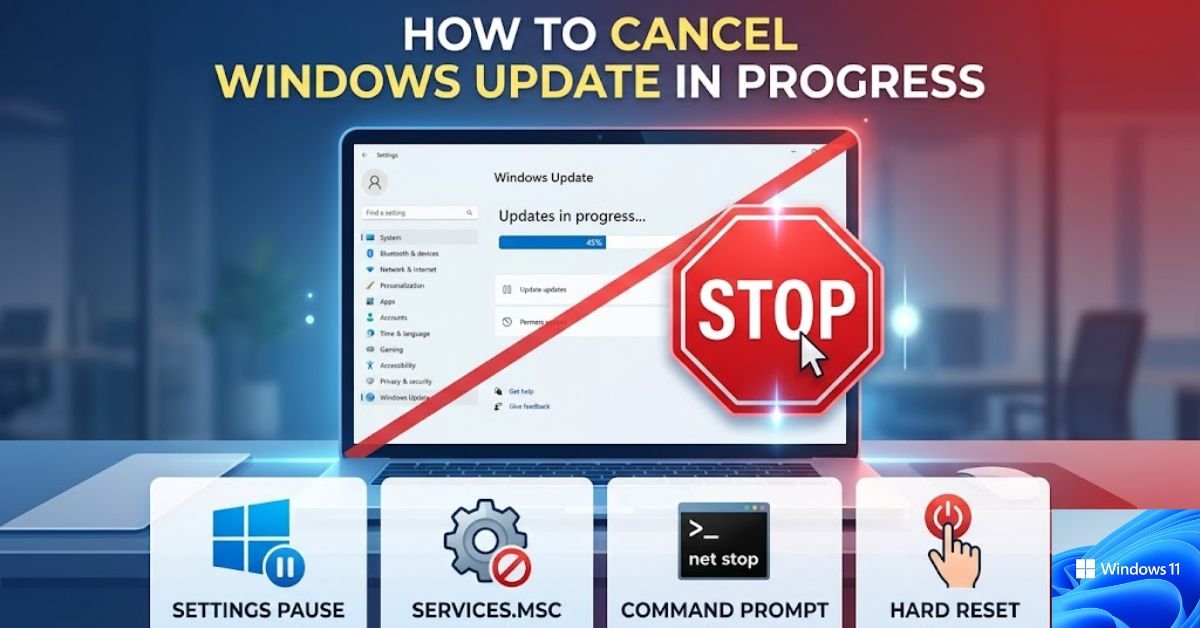
Few things are as frustrating as sitting down to work or finish a critical task only to see your computer freeze up with a mandatory update. Whether your system is downloading files in the background or stuck at a specific installation percentage, knowing how to cancel Windows update in progress saves you time and keeps your PC from locking up.
Stopping an active update requires using the correct method based on what stage the process is currently in. Below, you will find a complete walkthrough covering quick built-in solutions, command line stops, and emergency options.
Method 1: Pause Updates directly in Windows Settings
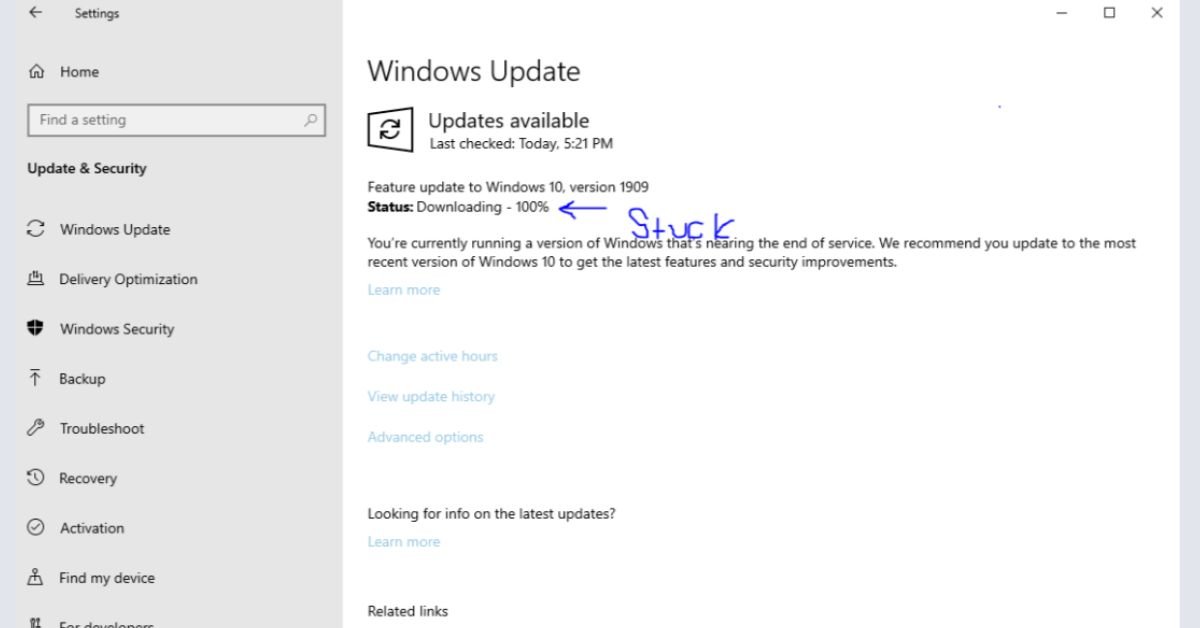
If Windows is currently downloading or initializing an update inside the system background, the cleanest and safest way to halt the operation is through your Windows Settings menu.
Steps to Pause Updates:
- Press Windows + I on your keyboard to launch the Settings menu.
- Select Windows Update (on Windows 11) or Update & Security (on Windows 10).
- Look for the Pause updates section.
- Click the dropdown menu and select Pause for 1 week or choose your preferred duration (up to 5 weeks).
Note: Halting an update through Settings stops future background downloads immediately. However, if the installer has already begun replacing core operational files during a reboot, Settings won’t let you cancel the process mid-stream.
Method 2: Stop the Windows Update Service (services.msc)
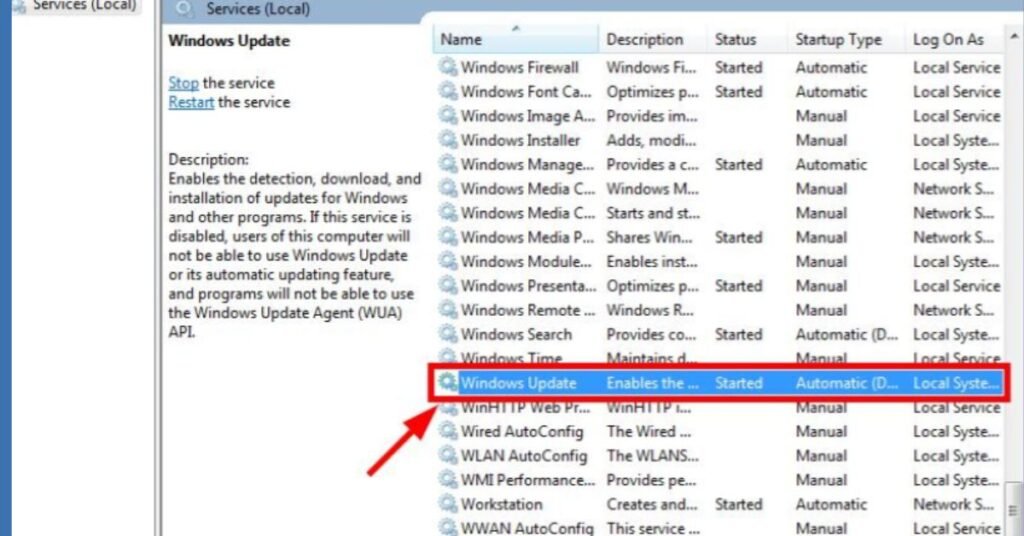
When the Settings menu refuses to respond or the update is actively preparing installation files, stopping the background service forces the update process to shut down immediately.
Steps to Disable the Service:
- Press Windows + R to open the Run dialog box.
- Type
services.mscand hit Enter. - Scroll down through the alphabetical list to find Windows Update.
- Right-click Windows Update and choose Stop.
- Right-click Windows Update again, select Properties, change the Startup type to Disabled, and click Apply.
Method 3: Abort Active Updates via Command Prompt
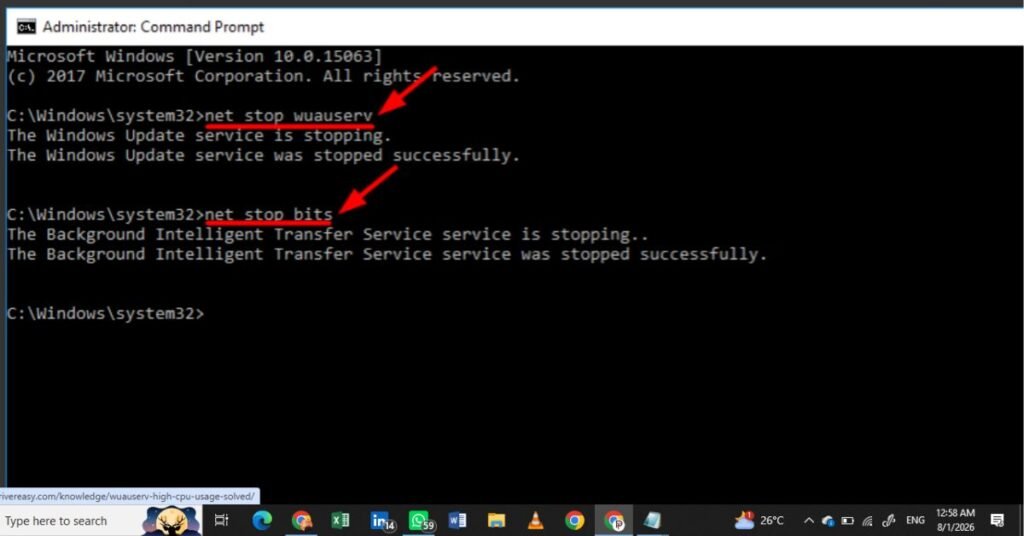
For advanced users or situations where the graphical user interface (GUI) lags, running administrative commands in Command Prompt forcibly terminates all active update services and clears the update cache.
Command Line Instructions:
- Open the Start menu, search for cmd, right-click Command Prompt, and select Run as Administrator.
- Type the following command and press Enter to stop the main update service:DOS
net stop wuauserv - Type this command to stop the Background Intelligent Transfer Service (BITS):DOS
net stop bits - Type this command to stop the Cryptographic service:DOS
net stop cryptsvc - To clear temporary download cache files that may cause update hangs, execute:DOS
ren C:\Windows\SoftwareDistribution SoftwareDistribution.old - Restart your computer.
Comparing Windows Update Cancellation Methods
| Method | Safety Level | Best Used When | Time Required |
| Settings Pause | Very Safe | Update is downloading in background | 1 Minute |
Services App (services.msc) | Safe | Update is stuck or installing in desktop mode | 2 Minutes |
| Command Prompt (Admin) | Advanced / Safe | Updates fail to stop via GUI or files are corrupted | 3 Minutes |
| Hard Power Reset | High Risk | Blue update screen is frozen at 0% or same % for hours | Emergency Only |
Emergency Action: What to Do If Updates Are Stuck on Restart Screen
If your computer screen shows “Working on updates. Please keep your computer on,” interrupting the process carries potential risks to system stability.
- Wait It Out First: Allow at least 30 to 45 minutes. Windows often resolves quiet background processes without displaying rapid progress percentage changes.
- Hard Reset (Last Resort): If the screen remains frozen at the exact same percentage for over 2 hours with no drive activity:
- Press and hold your computer’s power button for 10 seconds until the system powers off completely.
- Disconnect external USB drives or peripherals.
- Turn the computer back on. Windows will either attempt to roll back the updates safely or complete bootup.
Quick Checklist Before Canceling an Update
- [ ] Verify whether your computer is currently downloading files or applying restart updates.
- [ ] Save all open files and active work before stopping system services.
- [ ] Make sure your device has at least 15 GB of free space if an update is hanging due to storage limits.
- [ ] Create a System Restore Point if you plan to clear the update cache manually.
READ MORE: How To Change Boot Drive Windows 11 (Step-by-Step Guide)
Frequently Asked Questions
Is it safe to stop a Windows update while downloading?
Yes. Stopping an update during the download phase is completely safe. Files are merely being transferred to your local drive and have not modified core system files yet.
What happens if I force shut down my computer during an active installation?
Force shutting down during actual file installation (such as during a system reboot) can corrupt critical system files. Windows will usually attempt an automatic recovery or rollback upon boot, but it should only be used when the machine is genuinely frozen.
How do I turn off automatic updates permanently?
You can disable updates permanently by setting the Windows Update service startup type to Disabled in services.msc or by configuring the Group Policy Editor (gpedit.msc) under Computer Configuration > Administrative Templates > Windows Components > Windows Update.
Conclusion
Canceling a Windows update in progress is straightforward once you know which stage the update is in. Using Settings or Services works seamlessly for background downloads, while Command Prompt handles stalled cache files cleanly. Always ensure important files are backed up before attempting emergency hard resets on frozen update screens.
