
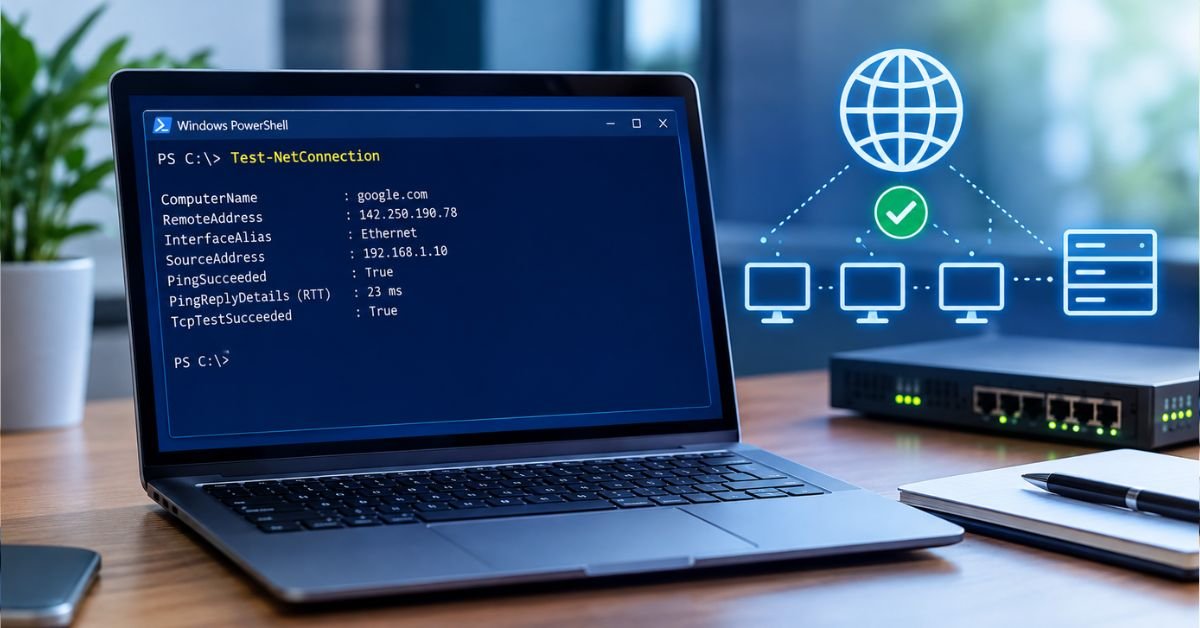
You can’t fix a network problem until you know where it breaks. Is the server down, is a firewall dropping traffic, or is DNS sending you to the wrong place?
PowerShell Test NetConnection cmdlet answers those questions from the command line, with no extra software to install. This guide covers the syntax, real-world examples, troubleshooting workflows, and the limits you should know before you rely on it.
What Is Test-NetConnection?
Test-NetConnection is a built-in PowerShell cmdlet that checks network connectivity between your computer and a remote host. It can ping a host, test whether a specific TCP port is open, run a traceroute, and show which network interface and source address Windows used.
It ships with Windows 8.1 and Windows Server 2012 R2 and later, as part of the NetTCPIP module. It also works in PowerShell 7 on Windows. The short alias is tnc, which saves typing during live troubleshooting.
Admins use it as a replacement for the old telnet host port trick. Telnet isn’t installed by default on modern Windows, and Test-NetConnection returns structured objects you can filter, log, and script.
Test-NetConnection Syntax and Key Parameters
The basic form looks like this:
Test-NetConnection -ComputerName <host> -Port <port>
Here are the parameters you’ll use most often.
| Parameter | What It Does | Example |
| -ComputerName | Target host name or IP address | -ComputerName server01 |
| -Port | TCP port to test | -Port 443 |
| -CommonTCPPort | Shortcut for HTTP, RDP, SMB, or WINRM | -CommonTCPPort RDP |
| -InformationLevel | Quiet returns only True/False; Detailed returns extra data | -InformationLevel Quiet |
| -TraceRoute | Maps the hops between you and the target | -TraceRoute |
| -Hops | Maximum hops for the trace (default 30) | -Hops 15 |
| -DiagnoseRouting | Shows routing details for the connection | -DiagnoseRouting |
Run it with no parameters and it tests internet connectivity against a Microsoft endpoint, which is a quick sanity check but rarely what you need.
How to Run a Basic Connectivity Test (Ping)
If you give it only a host name, Test-NetConnection sends an ICMP ping:
powershell
Test-NetConnection -ComputerName 8.8.8.8
The output includes the remote address, the interface used, and PingSucceeded, which is True or False. It also shows the round-trip time in PingReplyDetails.
A failed ping doesn’t always mean the host is down. Many firewalls and cloud networks block ICMP on purpose. If ping fails, test a port next before you conclude anything.
How to Test an Open Port with Test-NetConnection
This is the most common use. To check whether a web server accepts HTTPS connections:
powershell
Test-NetConnection -ComputerName example.com -Port 443
Look at TcpTestSucceeded in the output:
- True: The TCP handshake completed, so the port is open and something is listening.
- False: The connection failed. The port is closed, filtered by a firewall, or the service isn’t running.
On a failure, PowerShell also prints a warning such as TCP connect to (10.0.0.5 : 443) failed. If the ping works but the TCP test fails, you’ve narrowed the problem to that port or service rather than the whole host.
Using the CommonTCPPort Shortcut
For four common services, you can skip the port number:
powershell
Test-NetConnection -ComputerName server01 -CommonTCPPort RDP
Supported values are HTTP (80), RDP (3389), SMB (445), and WINRM (5985). If you test HTTPS, SQL Server, or SSH, specify the port yourself.
Getting a Clean True/False Result
For scripts, suppress the extra output:
powershell
Test-NetConnection -ComputerName server01 -Port 1433 -InformationLevel Quiet
That returns a single boolean. It drops the diagnostic detail, but it’s what you want inside an if statement.
See More: Fix Error Code 0x80070035 in Windows 10 & 11
Run a Traceroute with Test-NetConnection
When traffic reaches some destinations but not others, a trace shows where it stops:
powershell
Test-NetConnection -ComputerName example.com -TraceRoute
The output lists each hop’s IP address in order. If the trace dies at the same hop every time, that router or firewall is your suspect.
Keep in mind: the trace uses ICMP, so hops that block it appear as timeouts even when traffic flows through them. A few missing hops in the middle are normal. A trace that stops cold at the end, combined with a failed port test, is more telling.
Practical Examples for Real-World Troubleshooting
Test Multiple Ports on One Server
powershell
80,443,3389 | ForEach-Object {
Test-NetConnection -ComputerName server01 -Port $_ -WarningAction SilentlyContinue |
Select-Object ComputerName, RemotePort, TcpTestSucceeded
}
This gives you a tidy table. The -WarningAction SilentlyContinue flag hides the red failure warnings so the output stays readable.
Test One Port Across Many Servers
powershell
$servers = “web01″,”web02″,”web03”
foreach ($s in $servers) {
[pscustomobject]@{
Server = $s
Open = Test-NetConnection -ComputerName $s -Port 443 -InformationLevel Quiet -WarningAction SilentlyContinue
}
}
This is handy after a firewall change, when you need to confirm that every server in a pool is still reachable.
Check a Database Connection Before Blaming the App
When an application throws a SQL connection error, test the path before touching the code:
powershell
Test-NetConnection -ComputerName sqlserver01 -Port 1433
If TcpTestSucceeded is True, the network path is fine and the problem is likely credentials, the connection string, or the SQL service itself. If it’s False, take it to your network or firewall team with evidence in hand.
Verify Outbound Email Ports
powershell
Test-NetConnection -ComputerName smtp.example.com -Port 587
Port 25 is frequently blocked by ISPs and cloud providers to limit spam. If port 25 fails but 587 works, that’s usually policy, not a fault.
Troubleshooting Failed Connections: A Practical Checklist
When TcpTestSucceeded comes back False, work through these steps in order.
- Confirm the host name resolves. Run Resolve-DnsName server01. Stale or wrong DNS records cause plenty of “network” problems.
- Test by IP address. If the IP works but the name doesn’t, DNS is the culprit.
- Ping the host. A successful ping with a failed port points to the service or a port-level firewall rule.
- Check the Windows Firewall on the target. Look for an inbound rule covering that port.
- Verify the service is running and listening. On the server, run Get-NetTCPConnection -State Listen -LocalPort 443.
- Check network firewalls and security groups. In AWS, Azure, or similar platforms, inspect the inbound rules and network ACLs.
- Run a traceroute. Find the hop where traffic stops.
- Try from a second machine. If another machine connects, the problem is local to the first one (VPN, proxy, local firewall, or routing).
A fast failure and a slow failure mean different things. A connection that’s refused almost instantly usually means the host is reachable but nothing is listening on that port. A connection that hangs for many seconds before failing usually means a firewall is silently dropping packets.
Test-NetConnection vs. Other Tools
| Tool | Tests TCP Ports | Tests UDP | Scriptable Output | Built Into Windows | Best For |
| Test-NetConnection | Yes | No | Yes | Yes | Everyday port checks and routing info on Windows |
| Test-Connection | PowerShell 7+ only (-TcpPort) | No | Yes | Yes | ICMP ping across many hosts; cross-platform scripts |
| Ping | No | No | Poor | Yes | Quick reachability check |
| Telnet client | Yes | No | No | No (optional feature) | Manual, interactive port checks |
| .NET TcpClient | Yes | No | Yes | Yes | Custom timeouts and bulk scanning |
| Nmap | Yes | Yes | Yes | No | Full port scans and UDP testing |
Pros and Cons of Test-NetConnection
Pros
- Already installed on modern Windows systems
- Returns objects you can filter, sort, and export
- Combines ping, port test, and traceroute in a single cmdlet
- Shows the source address and interface used, which helps on multi-homed servers
Cons
- Tests TCP only. It can’t verify UDP services like DNS on port 53, SNMP, or NTP.
- No timeout parameter. Failed tests against filtered ports can take around 20 seconds, which makes large sweeps slow.
- Windows-only. The cmdlet isn’t available in PowerShell on Linux or macOS.
- A successful port test proves less than it seems. It confirms the TCP handshake, not that the application behind the port works.
Working Around the Timeout Problem
Because Test-NetConnection has no timeout setting, scanning dozens of hosts where many are down can drag. A short function using .NET’s TcpClient lets you control the wait:
powershell
function Test-Port {
param($ComputerName, $Port, $TimeoutMs = 2000)
$client = [System.Net.Sockets.TcpClient]::new()
try {
$task = $client.ConnectAsync($ComputerName, $Port)
if ($task.Wait($TimeoutMs)) { return $client.Connected }
return $false
}
catch { return $false }
finally { $client.Dispose() }
}
Test-Port -ComputerName server01 -Port 443
On PowerShell 7, Test-Connection -TcpPort 443 -TimeoutSeconds 2 is a built-in alternative with the same goal.
Common Mistakes to Avoid
- Treating a successful port test as proof the app works. A web server can accept connections on 443 and still return errors. Follow up with Invoke-WebRequest to test the actual service.
- Forgetting about proxies. Test-NetConnection opens a direct TCP connection. It ignores your proxy settings, so it can succeed or fail differently than a browser does.
- Testing from the wrong machine. Always run the test from the system that has the problem, not your admin workstation.
- Assuming a failed ping means the host is offline. Test the port you care about.
- Misreading a name-resolution failure. If you see a name-resolution warning, fix DNS first. Everything else depends on it.
Frequently Asked Questions
1. How do I test a specific port?
Test-NetConnection -ComputerName example.com -Port 443
Check TcpTestSucceeded: True means the port is open, False means it’s closed, blocked, or nothing is listening.
2. Can I use shortcuts for common ports?
Yes, with -CommonTCPPort:
Test-NetConnection -ComputerName server01 -CommonTCPPort RDP
Supported values: HTTP (80), RDP (3389), SMB (445), WINRM (5985). For anything else, use -Port.
3. How do I run a traceroute?
Test-NetConnection -ComputerName example.com -TraceRoute
It lists each hop’s IP address in order. Use -Hops 15 to limit the number of hops. Timeouts in the middle are often just routers blocking ICMP.
4. Can I get more details from the output?
Yes, in three ways:
-InformationLevel Detailedreturns extra data, including the resolved IP addresses and interface details.-DiagnoseRoutingshows how Windows routed the connection.| Format-List *displays every property of the result object.
Test-NetConnection -ComputerName example.com -Port 443 -InformationLevel Detailed
5. Can I test UDP connections?
No. Test-NetConnection supports TCP only. UDP is connectionless, so there’s no handshake to confirm, and results are never fully definitive anyway.
For UDP, use Nmap (nmap -sU -p 53 host) or a custom script with .NET’s UdpClient.
