
Outdated drivers can cause screen flickering, audio dropouts, printer disconnects, and unexpected Blue Screens of Death (BSOD). Device drivers act as translators between your Windows 11 operating system and physical hardware components like graphics cards, Wi-Fi adapters, and motherboards.
Windows 11 automates much of this process in the background. However, knowing where automatic driver updates live, how to trigger them on demand, and how to capture non-critical optional updates ensures your PC runs smoothly.
Why Keeping Windows 11 Drivers Updated Matters
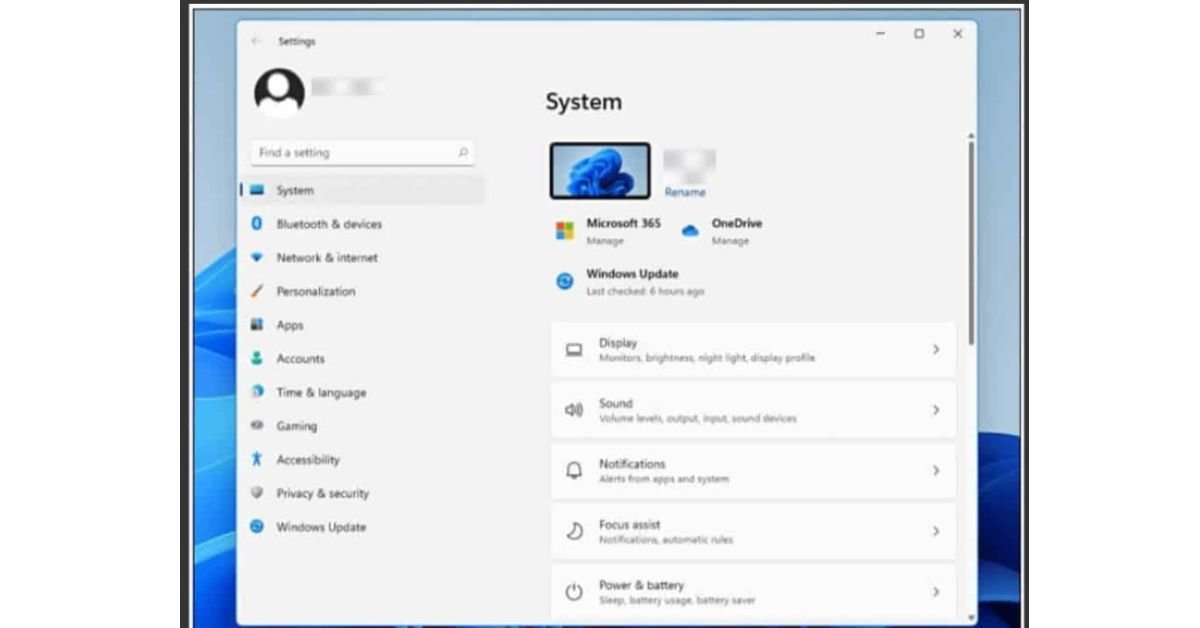
Keeping hardware software up to date serves three practical purposes:
- System Stability: Driver bugs cause hardware conflict crashes. Fixes published by manufacturers like Realtek or Intel resolve memory leaks and stability issues.
- Enhanced Performance: Graphics drivers from NVIDIA and AMD frequently release game-ready and application-specific performance optimizations.
- Security Patches: Peripheral firmware and network adapter drivers often patch vulnerability exploits that hackers could use to breach system memory.
Method 1: Enable Automatic Driver Updates via Windows Update
The safest and most effortless way to keep hardware software current is through native Windows Update. Microsoft validates driver packages through the Windows Hardware Quality Labs (WHQL) program before distributing them to millions of devices.
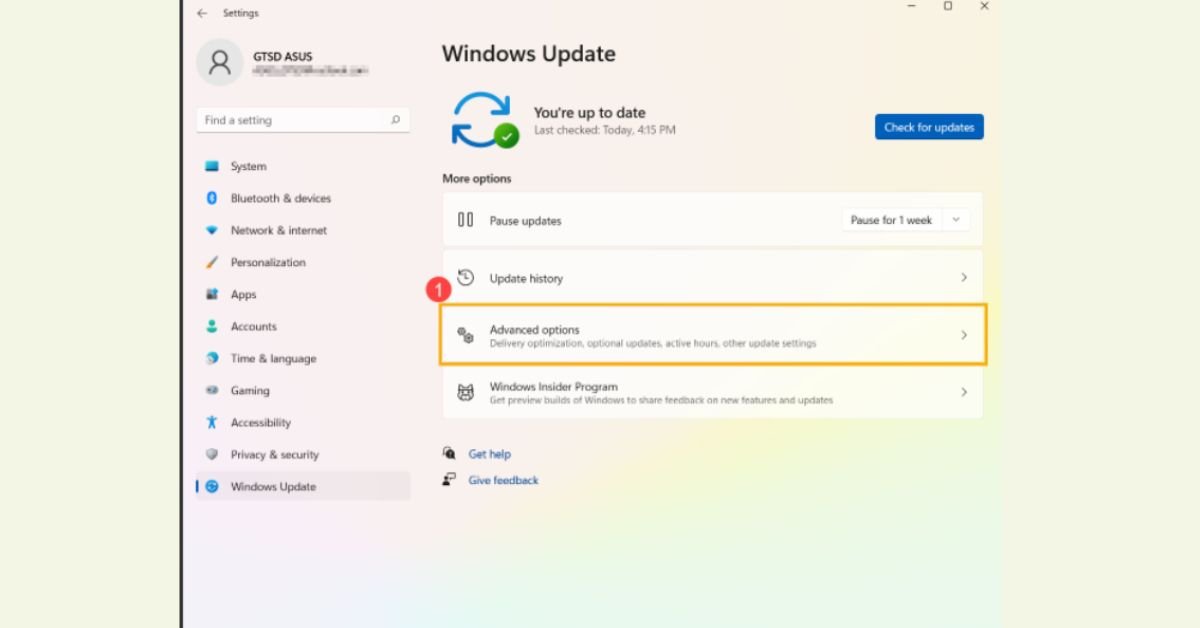
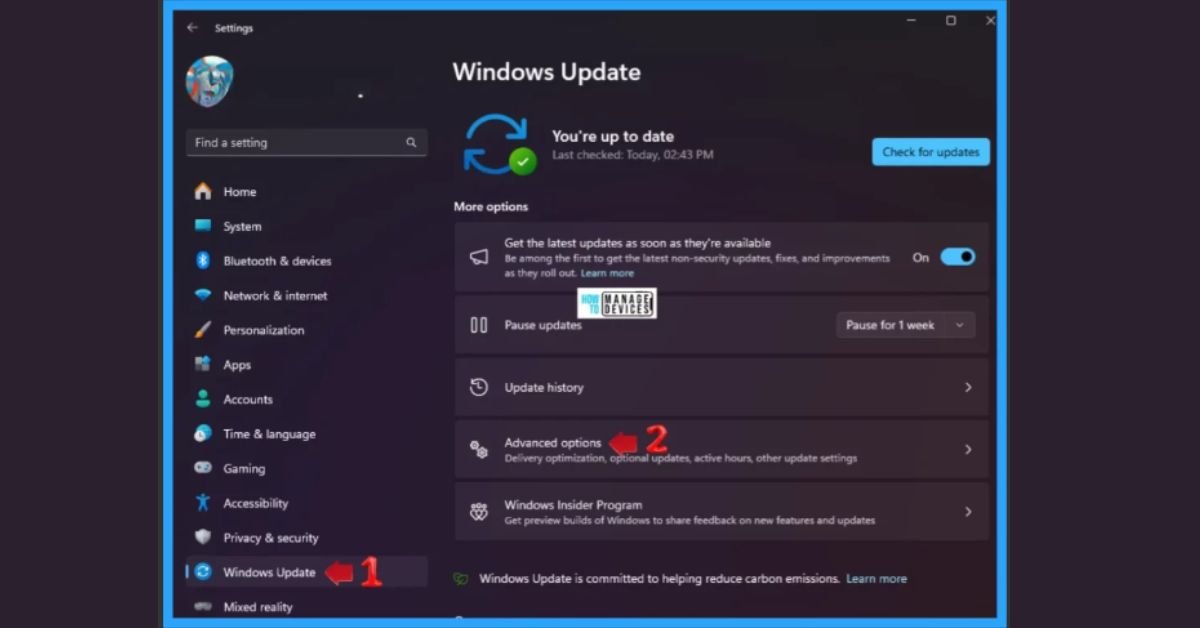
Steps to enable native updates:
- Press Win + I to open the Settings menu.
- Click Windows Update in the left-hand sidebar.
- Select Advanced options.
- Toggle on Receive updates for other Microsoft products.
- Ensure Get the latest updates as soon as they’re available is switched to On on the main Windows Update page.
Tip: Windows Update handles foundational chipsets, network adapters, and integrated graphics automatically during routine monthly updates.
Method 2: Check for Optional Driver Updates in Windows 11 Settings
Microsoft categorizes non-essential drivers, third-party peripheral updates, and BIOS/firmware releases as Optional Updates. They will not automatically download in the background unless you manually select them.
How to install optional drivers:
- Open Settings (Win + I) and click Windows Update.
- Select Advanced options under More options.
- Scroll down to the Additional options section and click Optional updates.
- Expand the Driver updates dropdown list.
- Check the boxes for any available drivers you want to update.
- Click Download & install.
- Restart your PC after installation completes.
Method 3: Automatically Update Specific Hardware via Device Manager
If a specific component like your Wi-Fi card or Bluetooth device is misbehaving, you can force Windows 11 to scan Microsoft’s update servers for that individual device.
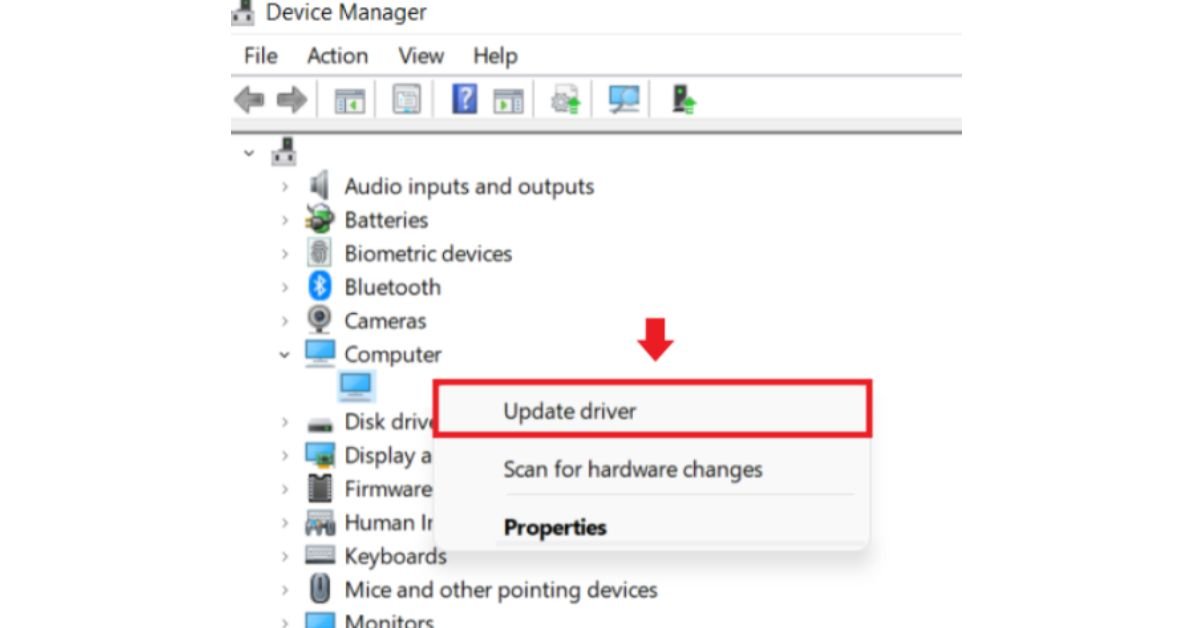
Step-by-step instructions:
- Right-click the Start button (or press Win + X) and select Device Manager.
- Expand the category corresponding to your hardware (e.g., Display adapters or Network adapters).
- Right-click the specific component and choose Update driver.
- Click Search automatically for drivers.
- Windows will search your machine and online repositories for the best driver match.
Method 4: Use Official OEM Update Utilities
While generic Windows drivers work well for basic peripherals, dedicated GPU drivers and manufacturer-specific laptop features require official OEM companion utilities.
- Intel: Intel Driver & Support Assistant (automatically scans and updates integrated graphics, Wi-Fi, and Bluetooth chips).
- Dell: Dell Command Update / SupportAssist.
- HP: HP Support Assistant.
- Lenovo: Lenovo Vantage.
- NVIDIA / AMD: GeForce Experience / AMD Software: Adrenalin Edition (essential for modern PC gaming performance).
A Note on Third-Party “Driver Boosters”: Avoid unverified third-party driver update tools. Many bundle bloatware, install mismatched hardware packages, or present false hardware warnings to encourage subscription fees. Stick to Windows Update and official PC manufacturer utilities.
Comparing Driver Update Methods
| Method | Best Used For | Automation Level | Safety & Reliability |
| Windows Update (Automatic) | General system devices, core chipsets, security patches | Fully Automatic | High (WHQL certified) |
| Optional Updates | Resolving specific hardware bugs, BIOS updates | Semi-Automatic (Manual trigger) | Very High |
| Device Manager | Troubleshooting individual malfunctioning hardware | Manual per device | High |
| OEM Software Tools | Gaming GPUs, custom laptop motherboard functions | Automated background scans | Highest for brand-specific features |
How to Roll Back a Driver if an Update Causes Issues
If a newly installed driver causes instability, Windows 11 lets you return to the previous working version in minutes.
- Open Device Manager (Win + X > Device Manager).
- Right-click the problem device and select Properties.
- Switch to the Driver tab.
- Click Roll Back Driver.
- Select a reason for rolling back and click Yes.
Frequently Asked Questions (FAQs)
Does Windows 11 update drivers automatically by default?
Yes. Windows 11 automatically downloads and installs critical device drivers during standard system maintenance and Windows Update cycles.
Should I install all optional driver updates in Windows 11?
Not necessarily. If your PC is running smoothly, you don’t need to install every optional update. Check optional updates when troubleshooting hardware glitches, audio issues, or wireless connectivity drops.
Why is my GPU driver not updating through Windows Update?
Windows Update delivers stable, broadly compatible GPU drivers. However, game developers release optimizations frequently. Gamers and content creators should use official apps like NVIDIA GeForce Experience or AMD Adrenalin to receive day-one display drivers.
Final Thoughts
Managing hardware updates on Windows 11 requires minimal manual effort. By relying on native Windows Update automation and periodically checking Optional Updates for pending patches, your hardware will maintain top performance without risking system stability.
