
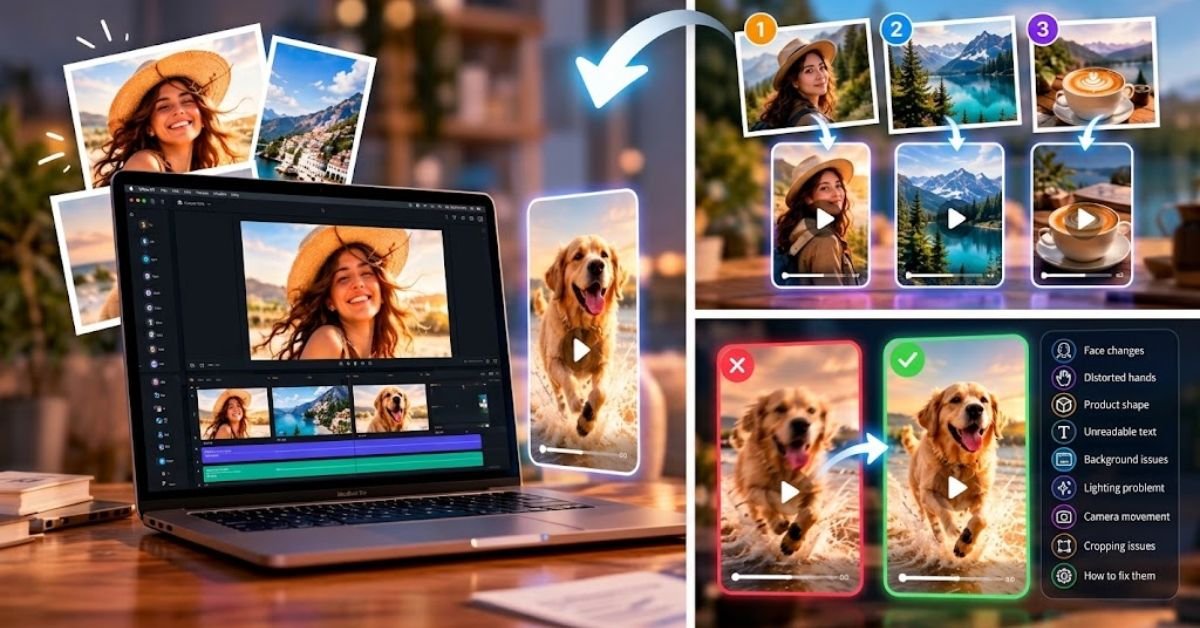
You upload a strong photograph. You write what sounds like a reasonable prompt. The video generates—and something is wrong.
The face changes. The product bends. The camera moves in a direction you never requested.
A hand appears strange. The background starts shifting. Text becomes unreadable. Or perhaps nothing is technically broken, but the video simply feels artificial.
This is one of the most useful lessons in AI image-to-video creation: a weak result does not automatically mean the entire concept is impossible.
Often, the problem belongs to one of four categories:
source image, prompt, movement, or evaluation.
Changing the correct variable can make iteration much more efficient than simply regenerating the same instructions and hoping for a better outcome.
Below are ten common problems creators encounter when turning static images into video—and practical ways to troubleshoot them using a structured Vidou workflow.
Problem 1: The Subject’s Face Changes During the Video
Face drift is particularly noticeable because people are extremely sensitive to small changes in facial identity.
A portrait may look correct in the first frame but gradually develop differences around:
- eyes;
- mouth;
- teeth;
- jawline;
- hairline;
- ears;
- glasses;
- earrings.
Why it happens
The requested movement may be forcing the system to infer visual information that is not clearly available in the photograph.
A dramatic orbit around a face, for example, asks the system to imagine angles that the original image does not provide.
A tiny face inside a wide group photograph also gives the model fewer reliable details to maintain.
How to fix it
Begin with less movement.
Instead of:
Camera dramatically circles the person while they turn around and smile.
Try:
Subject remains facing the camera. Hair moves gently in a light breeze. Slow camera push forward. Preserve facial features, hairstyle, clothing, and expression.
Vidou’s current prompt guidance recommends explicitly naming faces and other important details that must remain stable.
Also check the source.
A clean, well-lit close portrait gives the system a stronger reference than a compressed image where the face occupies only a small fraction of the frame.
Problem 2: Hands and Fingers Become Distorted
Hands are another common quality-control point.
Even when a generated clip looks good at full speed, pausing individual frames may reveal:
- changing finger counts;
- fused fingers;
- objects shifting between fingers;
- disappearing hands;
- wrists bending incorrectly.
Why it happens
Hands have complex geometry.
The problem becomes harder when fingers overlap, hold objects, disappear behind clothing, or sit close to the frame edge.
Motion increases the number of changing spatial relationships the system must maintain.
How to fix it
Reduce hand movement when it is not essential.
If the hands are already in a good position, protect them:
Keep both hands and the object being held in the same position. No hand movement.
If hand action is central to the video, start with a source where the fingers and object are clearly visible rather than partially hidden.
And always inspect the hands after generation.
Vidou’s current advanced workflow specifically lists hands among the details creators should review before using generated footage.
Problem 3: The Product Changes Shape
A generated product video can look polished while still being commercially unusable.
Watch for:
- changing bottle widths;
- warped package edges;
- moving caps;
- altered shoe soles;
- disappearing buttons;
- changing materials;
- shifting logo placement.
Why it happens
Large camera moves require the system to infer hidden product geometry.
Reflective materials and detailed packaging create additional complexity.
Products with strong straight lines also make distortion particularly easy to notice.
How to fix it
Protect product geometry explicitly.
For example:
Slow camera push toward the bottle. Keep the bottle shape, proportions, cap, label position, logo area, glass material, and background unchanged.
When geometry matters, a push-in is often safer than a dramatic orbit because it asks the system to invent less hidden information.
Vidou’s current product-video guidance recommends reviewing silhouette, material, packaging, label placement, text, motion, background, and crop against the original source image.
That final comparison is important.
Do not judge product accuracy from memory.
Keep the original still open beside the video.
Problem 4: Text and Logos Become Unreadable
A poster, package, sign, book cover, or interface screenshot may contain important typography.
Once motion is introduced, those details can change.
Letters may blur.
Words can transform into different characters.
A logo can lose its exact geometry.
Why it happens
Image-to-video generation is creating a changing visual sequence, not typesetting locked vector text across every frame.
Small lettering is particularly vulnerable.
How to fix it
Separate visual motion from exact communication.
If a logo or label must remain visible, state that constraint:
Preserve the logo position and shape.
But if exact wording is legally, commercially, or editorially important, add that typography later using conventional editing software.
Do not ask the generation itself to carry:
- pricing;
- legal copy;
- offer codes;
- URLs;
- dates;
- exact product claims.
Vidou’s product-photo guide similarly recommends adding mandatory copy in post production when perfect readability is required.
Use AI to create the shot.
Use stable typography to deliver the message.
Problem 5: The Camera Moves Too Much
Creators often assume that more camera movement means a more cinematic result.
It can mean the opposite.
A five-second prompt that asks for an orbit, zoom, tilt, pan, and pullback gives the system multiple camera directions competing for the same short shot.
The result may feel:
- unstable;
- rushed;
- physically impossible;
- disconnected from the source image.
How to fix it
Choose one camera idea.
Examples:
Slow push forward.
Gentle pan from left to right.
Camera remains mostly still.
Subtle pull back.
Vidou’s current prompt guide recommends adding one camera instruction when it supports the shot rather than treating multiple cinematic terms as automatically better.
Think like a cinematographer choosing a shot, not like a keyword list.
The question is not “How many movements can I request?”
It is “Which movement best supports this image?”
Problem 6: Too Many Things Move at the Same Time
Consider this prompt:
Person turns around, hair blows dramatically, camera circles the subject, rain starts, lights flicker, background changes, birds fly past, and the person begins walking.
Every individual instruction may sound possible.
Together, they create a complicated five-second scene.
Why it happens
Each moving component introduces new relationships that must remain coherent between frames.
Complexity multiplies rather than simply adds.
How to fix it
Choose one primary movement and, at most, a small supporting environmental effect.
Instead of the complicated prompt above:
Hair and jacket move gently in the wind while the camera makes a slow push forward. Keep the person facing the camera and preserve the background.
Once that version works, decide whether another effect actually improves the shot.
This is one of the strongest general rules for AI video prompting:
Simplify before you intensify.
Problem 7: The Background Warps or Creates New Objects
Sometimes the subject remains acceptable while the environment falls apart.
Architecture bends.
Furniture changes.
Trees appear and disappear.
Windows move.
Signs transform.
Why it happens
The camera request may expose areas the source image cannot clearly define.
Backgrounds with repeated details—windows, shelves, fences, chairs, text, crowds—are especially demanding.
How to fix it
First ask whether the camera needs to reveal more of the background at all.
A slower push toward the existing subject usually requires less invention than an orbit that exposes an entirely new viewing angle.
Also name important structural elements:
Preserve the building lines, windows, railing, and background layout.
If the background is irrelevant, reducing its motion may be more effective than writing an extremely long preservation list.
The simplest acceptable motion is often the strongest solution.
Problem 8: The Video Flickers or Lighting Changes Unnaturally
Lighting can create convincing motion.
It can also destabilize a scene.
A prompt asking for flashing neon, moving sunlight, changing reflections, smoke, and camera movement simultaneously may produce inconsistent illumination.
Glass and metal make this especially noticeable.
How to fix it
Use one lighting idea.
For example:
One soft highlight moves slowly across the product while the camera remains stable.
Or:
Warm sunlight shifts gradually across the room. Keep the overall exposure consistent.
For reflective products, Vidou’s current guidance recommends simplifying the lighting direction and avoiding several moving light sources that can make the surface appear to reshape.
Lighting should describe the mood of the shot rather than become another source of uncontrolled movement.
Problem 9: The Output Looks Cropped or Compositionally Wrong
Sometimes the problem begins before generation.
A horizontal photograph may be poorly suited to a vertical output.
A subject can end up too close to the edge.
A hand or product may be partially removed.
Why it happens
Creators sometimes choose output settings after deciding on the image rather than planning the two together.
Vidou’s advanced workspace currently offers five aspect ratios:
- 9:16;
- 4:3;
- 3:4;
- 1:1;
- 16:9.
Each changes how the composition must work.
How to fix it
Start with the destination.
For a vertical project, ask:
- does the subject fit comfortably inside a tall crop?
- is there space above and below?
- will captions cover an important detail?
- does the intended camera movement have somewhere to go?
Vidou recommends choosing the output shape before generation so important subjects are less likely to require damaging cropping later.
If the photograph does not suit the intended frame, choose another image or prepare it first.
Do not force every source asset into every format.
Problem 10: The Video Looks Fine but Still Feels Boring
Not every bad result contains distortion.
Sometimes everything is technically acceptable but nothing interesting happens.
A static portrait becomes a slight zoom.
A product sits in the center while the camera slowly moves closer.
The clip is technically video, yet it has no reason to hold attention.
Why it happens
The prompt describes motion but not visual purpose.
Movement itself is not a story.
How to fix it
Ask what the shot contributes.
For a hook, movement might reveal something.
For an atmosphere shot, environmental motion can establish mood.
For a product shot, changing light might emphasize material.
For an artwork animation, parallax might reveal depth.
The best motion is connected to the subject.
Instead of:
Zoom in.
Try:
Begin with the product surrounded by negative space, then make a slow camera push that brings the label into stronger prominence while a single highlight travels across the glass.
The shot now has progression.
Something changes for a reason.
A Better Troubleshooting Order
When a generation fails, do not rewrite everything.
Diagnose it in this order.
1. Source image
Is the problem already present?
Check:
- blur;
- compression;
- tiny details;
- overlapping hands;
- awkward crop;
- unreadable text.
2. Motion complexity
Did you request too much?
Reduce the number of moving elements.
3. Camera instruction
Is the camera being asked to reveal geometry the original image does not contain?
Choose a more conservative move.
4. Preservation constraints
Did you actually tell the system which details cannot change?
Name them explicitly.
5. Output framing
Does the image make sense in the selected aspect ratio?
Fix composition before blaming motion.
6. Final inspection
Watch the whole clip.
Some errors appear only at the first or final frames.
Vidou’s current advanced workflow recommends this same broad review habit: inspect the full video, key details, beginning and ending frames, motion errors, and regenerate when a visible issue affects the intended use.
Use the “One Variable” Rule
When you revise a bad generation, change one major variable at a time.
Imagine this original prompt:
The model turns toward the camera while the camera circles around her and the city lights begin flashing dramatically.
The face changes and the background distorts.
Do not immediately write an entirely different prompt.
First remove the orbit:
The model remains facing the camera while the camera slowly pushes forward. City lights glow steadily. Preserve her face, clothing, and background architecture.
Generate again.
If the face improves but the lights still flicker strangely, simplify the lighting next.
This diagnostic approach helps you understand what the system is responding to.
Random regeneration teaches you very little.
Match the Movement to the Image Category
Portraits
Prioritize identity.
Start with:
- slow pushes;
- small expression changes;
- hair or clothing movement;
- subtle environment motion.
Products
Prioritize accuracy.
Use:
- controlled camera movement;
- simple light sweeps;
- stable geometry;
- limited background changes.
Landscapes
Prioritize atmosphere.
Try:
- moving clouds;
- water;
- foliage;
- fog;
- gradual camera movement.
Artwork
Prioritize design preservation.
Experiment with:
- parallax;
- light;
- particles;
- fabric;
- environmental effects.
Different source types fail in different ways.
A single universal prompt style is unlikely to be ideal for all of them.
Do Not Confuse Resolution With Quality
Vidou’s advanced Image to Video workspace currently displays 480p, 720p, and 1080p output choices.
Higher resolution can be appropriate for the final destination.
But it cannot solve:
- identity drift;
- distorted hands;
- warped labels;
- bad composition;
- excessive motion;
- poor prompting.
In fact, a larger output can simply make an error easier to see.
Solve structural problems first.
Then choose the resolution appropriate to the finished use.
When You Should Reject the Clip
Creators sometimes keep a visually impressive generation because it took several attempts to produce.
That is understandable.
It is also a mistake when the remaining error affects accuracy.
Reject a clip if it:
- changes the identity of a real person;
- materially changes a product;
- creates misleading functionality;
- alters important branding;
- makes mandatory text inaccurate;
- introduces an object that changes the meaning of the scene;
- creates motion inconsistent with the intended representation.
Vidou’s product guidance explicitly recommends rejecting generated footage when motion misrepresents a material product detail or function.
“Almost right” is not always good enough for commercial content.
Build a Small Prompt Library
Once a motion pattern works, save the structure—not necessarily the exact words.
For example:
Portrait template
[small subject movement]. [single camera move]. Keep the pace [calm/slow/continuous]. Preserve [face/clothing/background].
Product template
[controlled camera action]. [one lighting/environment effect]. Preserve [shape/material/logo/label/color/background].
Landscape template
[environmental motion]. [camera direction]. Keep movement [pace]. Preserve [terrain/architecture/horizon].
These frameworks reduce the time spent starting from a blank prompt while still allowing the movement to match each source image.
Frequently Asked Questions
Why does my AI video change the person’s face?
Large subject or camera movements can require the system to infer visual information that is not clearly present in the source. Use a clearer source image, reduce movement, and explicitly ask for facial identity to remain stable.
Why do logos and text change in image-to-video clips?
Small typography and logos can drift as new frames are generated. Protect them in the prompt, but add legally or commercially important exact text in post production when perfect readability is required.
How can I stop products from changing shape?
Reduce camera movement and explicitly preserve geometry, proportions, materials, label position, logo area, and other important details.
Is a longer prompt always better?
No. Vidou’s current prompt guidance recommends one clear action, useful camera direction, understandable pace, and preservation constraints rather than a long collection of cinematic adjectives.
Why does the background change?
The requested camera movement may be revealing areas that are not available in the original image. Reduce camera motion and name important background structures that should remain stable.
Should I regenerate the same prompt until it works?
Iteration can help, but a diagnostic revision is more useful. Identify the largest failure and change one major prompt variable at a time.
Can higher resolution fix a bad generation?
No. Higher resolution does not fix identity drift, incorrect geometry, poor source composition, or unwanted motion.
What should I inspect before publishing?
Check the complete clip, especially faces, hands, text, logos, product shapes, backgrounds, first and last frames, flicker, sudden movement, and unwanted objects.
Final Takeaway
AI image-to-video creation becomes much easier when you stop treating every failed generation as random.
Most problems can be investigated.
The source may be too difficult.
The prompt may contain too many actions.
The camera may be asking for unseen geometry.
A preservation instruction may be missing.
The framing may not suit the destination.
Or the video may simply need a stronger creative purpose.
Start with the largest problem.
Simplify.
Change one thing.
Generate again.
Review carefully.
That process is less exciting than pressing “Generate” repeatedly—but it is much closer to how reliable creative work gets made.
See More: How to Turn Long YouTube Videos into Short Clips People Actually Share
