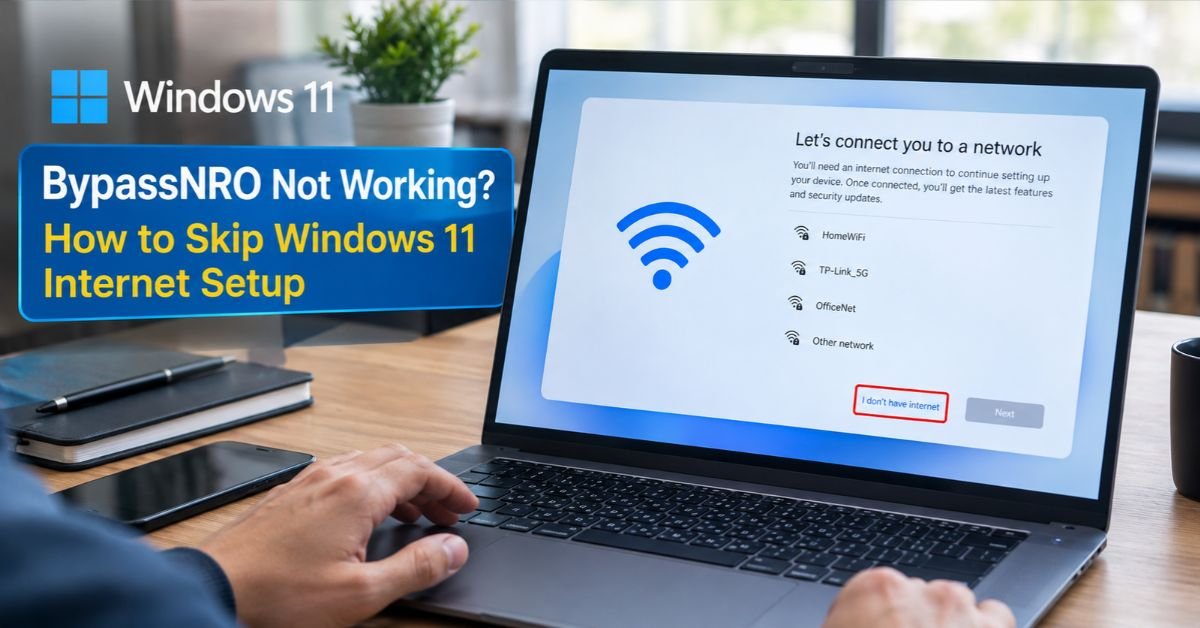
You boot a fresh Windows 11 PC, reach the setup screen, and hit a wall. Windows wants Wi-Fi, then a Microsoft account, and there’s no obvious way to say “not right now.”
That’s where bypassnro comes in. It’s a small trick that brings back the “I don’t have internet” option, and it has been a go-to for technicians and everyday users alike. It’s also slowly disappearing, so this guide covers the classic command, the backups that still work, and how to fix things when they don’t.
What Is BypassNRO?
BypassNRO stands for “Bypass Network Requirement Out-of-Box.” It exists as a script (bypassnro.cmd) and as a registry value of the same name inside Windows 11 setup.
When it’s switched on, the Out-of-Box Experience (OOBE), the first-run wizard you see on a new install, lets you carry on without a network connection. With no connection, Windows offers a local account instead of demanding a Microsoft one.
Microsoft built it as a deployment tool for IT admins and technicians. Regular users picked it up because both Windows 11 Home and Pro have required the internet and a Microsoft account during setup since version 22H2.
Common Reasons People Use It
- The PC has no working Wi-Fi driver yet.
- You’d rather use a local account than tie the machine to a Microsoft login.
- You’re setting up a test machine, a virtual machine, or a shared computer.
- You’re refurbishing a PC to resell and don’t want your own account on it.
- You’d like to skip the forced updates that sometimes run during setup.
Before You Start: Microsoft Is Removing It
This part matters, so read it before you plug in a USB drive. In 2025, Microsoft announced it was removing bypassnro.cmd from Windows 11 preview builds, saying the change closes a loophole that lets people skip internet connectivity and account setup. The removal is rolling out to newer builds and installation media.
Here’s what that looks like in practice:
- Older ISOs and installs, such as earlier 23H2 and 24H2 media, usually still include the command.
- Newer builds may answer with “not recognized as an internal or external command.”
- The registry value behind the command has kept working for many people even after the script file vanished. Microsoft could close that door as well.
Behavior differs from build to build, so the methods below run from simplest to most dependable.
Method 1: The Classic BypassNRO Command
When it’s available, this is the quickest option.
- Boot into Windows 11 setup and stop at the “Let’s connect you to a network” screen.
- Press Shift + F10 to open Command Prompt. On many laptops you’ll need Shift + Fn + F10.
- Type this and press Enter:
oobe\bypassnro
- The PC restarts on its own and lands back on the network screen.
- Click “I don’t have internet,” then “Continue with limited setup.”
- Enter a username and password for your local account.
If Command Prompt says the command isn’t recognized, your build no longer includes the script. Go to Method 2.
Method 2: Set the Registry Value by Hand
The command above does one real thing: it writes a registry value and reboots. You can do that yourself.
- At the network screen, press Shift + F10.
- Run this command exactly as written:
reg add HKLM\SOFTWARE\Microsoft\Windows\CurrentVersion\OOBE /v BypassNRO /t REG_DWORD /d 1 /f
- Restart the PC:
shutdown /r /t 0
- When setup comes back, the “I don’t have internet” option should be there.
If you’re not sure the value was saved, type regedit in the same prompt and look under the OOBE key. You should see BypassNRO set to 1.
Method 3: The Local Account Launcher
Some builds respond to a different command that jumps straight to local account creation:
start ms-cxh:localonly is less reliable than I made it sound. A GitHub project reports it was blocked starting with Insider Build 26220.6772 in October 2025 and only works on the current 25H2 stable branch. I’d move it lower in the article, or label it as working on stable 25H2 builds only.
Method 4: Build Installation Media That Skips the Requirement
If you install Windows more than once, it makes more sense to fix this at the source.
- Rufus: When you create a bootable USB drive, Rufus can remove the online account requirement and set up a local account for you.
- Unattend.xml: Admins can use an answer file to preconfigure accounts and skip OOBE screens entirely.
This is the most dependable route for repeat installs, since it doesn’t rely on a command Microsoft may pull.
Which Method Should You Use?
| Method | Difficulty | Works on Newest Builds? | Best For |
| oobe\bypassnro command | Easy | Often not | Older ISOs, quick installs |
| Registry edit + reboot | Easy | Often, but it varies | Newer builds missing the script |
| start ms-cxh:localonly | Easy | Inconsistent | A quick local account attempt |
| Rufus-made USB | Moderate | Generally yes | Multiple installs, technicians |
| Unattend.xml | Advanced | Yes | IT admins, bulk deployment |
Is Skipping the Microsoft Account Worth It?
It depends on how you plan to use the PC.
What you gain
- More privacy. Less of your activity connects to an online profile.
- No forced sign-in. That’s handy on shared or kiosk-style machines.
- Easier offline setup. It helps when drivers aren’t installed yet.
What you give up
- Cloud sync. Settings, OneDrive backup, and Microsoft Store purchases won’t follow you automatically.
- Automatic recovery key backup. If you turn on device encryption, save your BitLocker key yourself, because it won’t go to a Microsoft account.
- Easy password recovery. Forget a local password and you can’t reset it online.
- Some account-dependent features, including certain Store apps and Find My Device.
You aren’t locked in. You can link a Microsoft account later under Settings > Accounts.
See More: Windows 11 BypassNRO: Does It Still Work? (2026 Fix)
Troubleshooting
Shift + F10 does nothing.
Try Shift + Fn + F10 on a laptop. Click inside the setup window first so it has focus.
The command says “not recognized.”
Your build has dropped the script. Use the registry method, or rebuild your USB drive with Rufus.
The PC didn’t restart after the command.
Restart it yourself from the prompt with shutdown /r /t 0.
The “I don’t have internet” button still isn’t showing.
Check that BypassNRO is set to 1 as a DWORD under the OOBE key. A typo in the path or value type is the usual cause. Also unplug Ethernet and turn off Wi-Fi, since a live connection can push setup down the online path.
Setup keeps looping back to the network screen.
Run the registry command again, then shut down completely and power on rather than restarting.
You’re stuck on a Windows Update screen with no skip option.
Unplug the network cable, restart, and try again. Some builds need a connected state before they’ll leave certain update screens.
Quick Checklist Before You Begin
- [ ] Confirm your Windows 11 edition and build number.
- [ ] Copy any Wi-Fi or LAN drivers to a USB drive ahead of time.
- [ ] Decide whether you want a local account or plan to link a Microsoft account later.
- [ ] If you’ll use encryption, plan to save your recovery key.
- [ ] Set up a password hint or reset disk for the local account.
- [ ] Work in this order: command, registry method, then Rufus.
Is It Safe and Legal?
Yes. BypassNRO is a built-in Microsoft mechanism, not a crack, and it doesn’t modify or pirate Windows. You still need a valid license to activate the system.
The real risk is practical. Without a Microsoft account, you’re responsible for your own account recovery, encryption keys, and updates.
What About Windows 11 Home vs. Pro?
Both editions require internet and a Microsoft account during standard setup, and BypassNRO works on either when the command or registry value is honored.
Windows 11 Pro has one extra path. Choose “Set up for work or school,” then “Domain join instead,” and you’ll reach local account creation without any command. Home doesn’t offer this option.
Frequently Asked Questions
What is the new command to bypass NRO?
There’s no new command, just a manual version of the old one. Press Shift + F10 during setup and run reg add HKLM\SOFTWARE\Microsoft\Windows\CurrentVersion\OOBE /v BypassNRO /t REG_DWORD /d 1 /f, then restart with shutdown /r /t 0. The registry tweak has kept working even after Microsoft removed the script itself.
Does OOBE bypassnro no longer work?
It depends on the build. Windows 11 builds 26200.5516 and 26120.3653 removed the bypassnro.cmd script, so the command returns a “not recognized” error. Microsoft removed it again in Build 26300.8289 of the 26H2 builds. Older installation media can still run it.
Does OOBE bypassnro still work in 2026?
Sometimes. Some users report it still works on a 24H2 ISO downloaded recently, and one reply says you may need an older Windows 11 version to start with a local account. On newer builds, use the registry method, Rufus, or an unattend.xml file instead. The domain join button for creating a local account is also still available.
What does the BYPASSNRO command do?
It sets a registry flag (BypassNRO = 1) and reboots the PC. After the reboot, Windows setup shows an “I don’t have internet” option, so you can create a local account instead of signing in with a Microsoft account.
Is it safe to use OOBE bypassnro?
Yes. It’s a built-in Microsoft mechanism, not a crack, and it doesn’t modify or pirate Windows. The only risks are practical: without a Microsoft account, a forgotten password can’t be reset online, and you’ll need to back up your own BitLocker recovery key.