If you’ve hit a Windows 11 setup screen that refuses to let you continue without signing in to a Microsoft account, you’re not imagining things. Microsoft built this requirement on purpose, and it’s gotten stricter with every major update since Windows 11 first launched.
BypassNRO is the fix most people search for but it doesn’t always work anymore. This guide covers exactly what BypassNRO is, whether it still works on your build, and every reliable alternative if it’s been blocked on your machine.
What Is BypassNRO in Windows 11?
BypassNRO stands for Bypass Network Requirement Online. It’s a hidden setup command that lets you skip the “connect to the internet and sign in” screen during Windows 11 installation.
Technically, it’s not a hack. Running oobe\bypassnro from a command prompt during setup triggers a script located at C:\Windows\System32\OOBE\BypassNRO.cmd. That script does one simple thing: it writes a registry value.
reg add HKLM\SOFTWARE\Microsoft\Windows\CurrentVersion\OOBE /v BypassNRO /t REG_DWORD /d 1 /f
That single registry key tells the Out-of-Box Experience (OOBE) to show you the “I don’t have internet” option, which then lets you create a local account instead of a Microsoft account.
Why does this even need bypassing? Since Windows 11 rolled out, Microsoft has required an internet connection and a Microsoft account for the “Home” and, later, “Pro” setup paths. The BypassNRO command was Microsoft’s own internal escape hatch likely left in for enterprise IT, troubleshooting, or testing that regular users discovered and started using to keep local accounts alive.
Does BypassNRO Still Work in 2026? (Short Answer: It’s Complicated)
This is the part most outdated articles get wrong, so here’s the current state clearly.
The short version: Microsoft has been actively closing this loophole in stages since early 2025, and the timeline matters a lot depending on which Windows 11 build you’re installing.
| Timeframe | What happened | Still works? |
| Pre-March 2025 | oobe\bypassnro command works as designed | ✅ Yes |
| March 2025 | Microsoft removes the bypassnro script from 24H2/25H2 builds | ❌ Script gone |
| Through Oct 2025 | start ms-cxh:localonly works as a substitute command | ✅ Yes (temporarily) |
| Oct 6, 2025 (Build 26220.6772) | ms-cxh:localonly gets blocked in Insider builds | ❌ Blocked in newer builds |
| Early-to-mid 2026 | ms-cxh:localonly still works on current 25H2 stable branch | ⚠️ Build-dependent |
| Build 26300.8289 (26H2, ~April 2026) | The bypassnro command and script are removed entirely, though the underlying registry key still functions if set manually | ❌ Command gone, ⚠️ registry workaround survives |
The pattern is consistent: Microsoft removes the convenient command, the community finds the next shortcut, Microsoft eventually blocks that too. The registry key itself has proven far more durable than any of the commands used to set it, because removing the key outright would break legitimate enterprise deployment tools.
Bottom line: if you’re on an older 24H2 or early 25H2 build, oobe\bypassnro may still work. If you’ve updated recently or you’re on 26H2, expect it to fail and you’ll need one of the alternatives below.
Before You Start: What You Need
- A Windows 11 installation USB or the built-in setup wizard running from OOBE (the first-boot screen, not the desktop)
- Physical or admin access to the machine none of these methods work remotely
- A way to disconnect from the internet, since several methods rely on Windows failing to detect a connection rather than a hidden command
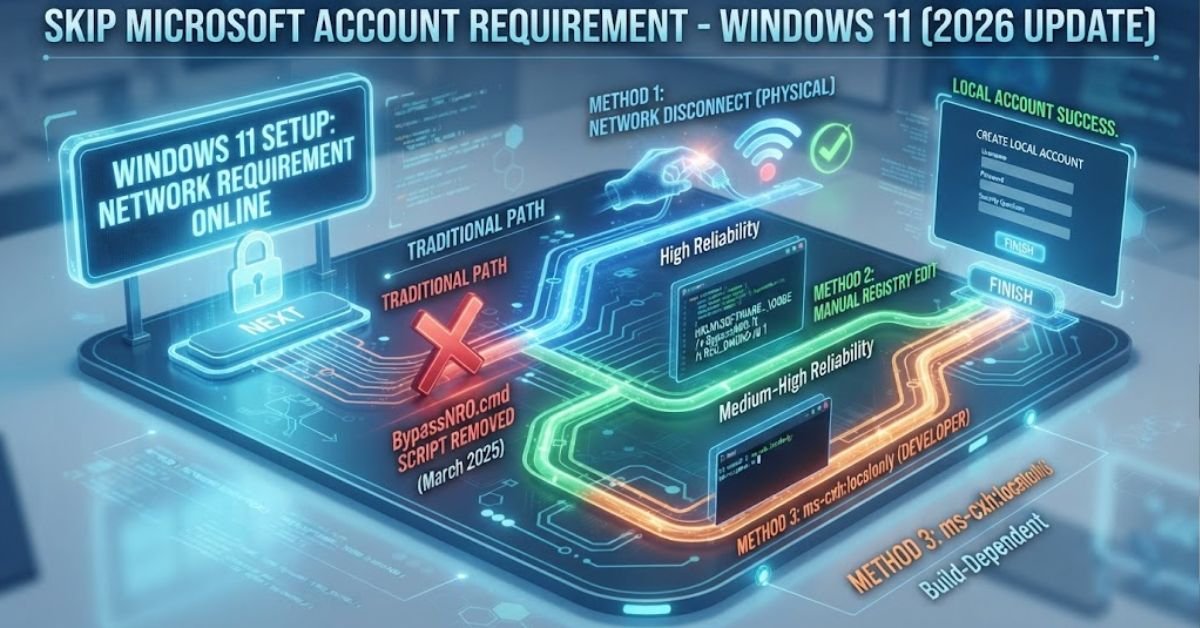
Method 1: The Classic BypassNRO Command
This is still worth trying first since it costs you nothing if it fails.
Steps:
- Boot into Windows 11 setup until you reach the “Let’s connect you to a network” screen.
- Press Shift + F10 to open a command prompt. (On some ARM devices or locked-down OEM images, this shortcut is disabled that’s a separate problem, not a BypassNRO issue.)
- Type oobe\bypassnro and press Enter.
- The PC will restart the OOBE process automatically.
- You should now see an “I don’t have internet” link on the network screen, leading to “Continue with limited setup”.
If nothing happens or you get an error, the script has been removed from your build. Move to Method 2 or 3.
Method 2: Disconnect From the Network Manually
This is the most reliable method because it doesn’t depend on any command Microsoft can patch out. If Windows genuinely can’t detect a network, it has always been forced to offer a limited setup path that’s basic OOBE logic, not a loophole.
For Wi-Fi:
- Don’t connect to any wireless network when prompted. Just leave the screen alone or look for a “skip for now” option (wording varies by build).
For Ethernet:
- Physically unplug the network cable before you boot into setup, or before you reach the network screen.
For VMs:
- Remove or disable the virtual network adapter in your hypervisor settings (VirtualBox, VMware, Hyper-V) before starting the install.
If Windows still insists you connect:
- Press Shift + F10.
- Type ipconfig /release and press Enter.
- Close the command prompt and continue setup.
- Once you’re past the network-dependent screen, reopen a command prompt and run ipconfig /renew to restore connectivity for the rest of setup.
Method 3: The ms-cxh:localonly Command
This was the community’s answer when the original BypassNRO script got pulled in March 2025. It’s now inconsistent depending on your build, but still worth trying.
Steps:
- At the network setup screen, press Shift + F10.
- Type start ms-cxh:localonly and press Enter.
- Setup should skip directly to local account creation.
A known variant using the Developer Console:
- Press Ctrl + Shift + J to open the console (works on some builds’ OOBE, which runs on web-based UI components).
- Type: WinJS.Application.restart(“ms-cxh:localonly”)
- Press Enter.
Neither of these is guaranteed on current 26H2 builds, since Microsoft specifically targeted this command in its October 2025 Insider patches before rolling the block out more broadly.
Method 4: Manual Registry Edit
If the command is gone but the underlying mechanism survives (which the evidence from 26H2 builds suggests it does), you can set the registry key yourself instead of relying on a script to do it for you.
- Press Shift + F10 at the network screen.
- Type regedit and press Enter.
- Navigate to: HKEY_LOCAL_MACHINE\SOFTWARE\Microsoft\Windows\CurrentVersion\OOBE
- Right-click in the right-hand pane → New → DWORD (32-bit) Value.
- Name it BypassNRO.
- Double-click it, set the value to 1, click OK.
- Close Registry Editor and restart the PC (or the OOBE process, depending on your build).
Why this matters more than the command itself: Microsoft can delete a .cmd script in an update. Deleting the registry key entirely is a much bigger ask, because legitimate enterprise deployment tools read and write that same key path. This is why registry-based workarounds have outlasted every scripted shortcut so far.
Method 5: Unattended Setup File (Most Durable, Most Technical)
This is the option IT admins and power users fall back on when Microsoft closes every consumer-facing shortcut. It uses Windows’ own official deployment framework Sysprep and unattend.xml rather than a discoverable command, which is exactly why it’s held up longer than the others.
High-level process:
- Create an unattend.xml answer file with the OOBE settings pre-configured, including local account creation and network skip flags.
- Place the file on a USB drive alongside your Windows installation media, or inject it into the install image.
- Boot from the media. Setup reads the answer file automatically and applies your predefined choices, bypassing the interactive network/account prompts entirely.
This isn’t a five-minute fix for a one-off home install it’s the right call if you’re imaging multiple machines, running an MDT/SCCM deployment, or building a lab environment where you don’t want to touch the interactive OOBE screens ever again. Several open-source projects package a working unattend.xml specifically for this purpose; search GitHub for “Windows 11 bypass NRO unattend” if you want a maintained template rather than building one from scratch.
SEE MORE: GRC in South Africa: Governance, Risk & Compliance
Comparing Every Method at a Glance
| Method | Difficulty | Reliability (as of 2026) | Best for |
| oobe\bypassnro command | Easy | Low removed on most current builds | Older 24H2 installs |
| Disconnect network manually | Easy | High not dependent on any command | Anyone doing a one-time home install |
| ms-cxh:localonly | Easy | Medium build-dependent, patched repeatedly | Quick attempts before trying other methods |
| Manual registry edit | Medium | High key survives even when scripts don’t | Users comfortable with regedit |
| Unattend.xml / Sysprep | Advanced | Very high hardest for Microsoft to block | IT admins, imaging, repeat deployments |
Why Would You Want to Skip a Microsoft Account, Anyway?
Pros of a local account:
- No cloud sync forced on by default (OneDrive, settings sync, activity history)
- No requirement to remember or manage a Microsoft account password for basic PC login
- Faster setup with fewer forced app installs and less telemetry-driven onboarding
- Preferred in business environments using Active Directory or Entra ID rather than personal Microsoft accounts
- Better fit for shared or kiosk-style machines where a personal cloud account doesn’t make sense
Cons of a local account:
- No automatic OneDrive backup of your Desktop, Documents, and Pictures folders
- Settings, wallpaper, and app preferences don’t sync across devices
- You can’t use the Microsoft Store’s full feature set without eventually signing in anyway
- Password recovery is entirely local if you forget it and haven’t set up a recovery method, you’re looking at a reset, not an online password reset
- Some Microsoft 365 and Copilot features expect an active Microsoft account and won’t function fully without one
A practical middle ground: you can always set up with a local account first, and manually sign in to a Microsoft account later, per-app, only for the specific services you actually want (like OneDrive backup) without linking it to your Windows login itself.
Troubleshooting: When Nothing Works
Shift + F10 does nothing: Some OEM images and ARM-based devices disable the command prompt shortcut entirely. Try Shift + F10 again after the first network screen loads fully timing matters, and pressing it too early sometimes fails silently.
You get “This command is not recognized”: The BypassNRO script has been removed from your image. Skip straight to the registry edit (Method 4) or network disconnect (Method 2).
Regedit is also blocked or missing: This is rare but has appeared on some heavily locked-down OEM builds. Your remaining option is Method 5 (unattend.xml) using separate installation media you control.
The bypass worked, but you still can’t finish without an internet connection later in setup: That’s normal and separate from the account requirement. Some builds ask you to connect again for updates after the account screen you can decline that too, or just complete it since it won’t force a Microsoft account at that stage.
Quick Checklist Before You Attempt Any Bypass
- Confirm you’re at the OOBE network screen, not the desktop none of these methods work post-install
- Know your Windows 11 build number if possible (Settings → System → About, or check during a prior install)
- Have installation media ready in case you need to start over with Method 5
- Disconnect Wi-Fi/Ethernet before you even reach the network screen, as a first line of defense
- Try methods in order: disconnect network → bypassnro command → ms-cxh:localonly → registry edit → unattend.xml
Frequently Asked Questions
Why is bypassnro no longer working in Windows 11 25H2?
Microsoft pulled the BypassNRO.cmd script itself from the OS image starting in early 2025, and tightened it further in later 25H2 and 26H2 builds. The command fails simply because the file it used to run no longer exists on your installation media — it’s not a bug, it’s a deliberate removal.
What does bypassnro mean?
It stands for “Bypass Network Requirement Online.” It’s shorthand for the setup command that let you skip Windows 11’s forced internet-and-sign-in step and go straight to local account creation.
Does OOBE bypassnro still work in 2026?
Inconsistently. It can still work on some older 24H2 or early 25H2 installation media, but it’s gone from current 26H2 builds — so the honest answer is “check your build number before you count on it.”
What replaced OOBE bypassnro?
No single command replaced it outright. Microsoft never shipped an official substitute — the community shifted to ms-cxh:localonly, then to manual registry edits, then to unattend.xml answer files, each time Microsoft closed the previous door.
Why is my OOBE bypassnro not recognized?
“Not recognized” means the script file is missing from your build, not that you typed it wrong. It’s the same root cause as the 25H2 question above — try the registry edit or network-disconnect method instead of retyping the command.
SEE MORE: GRC in South Africa: Governance, Risk & Compliance