
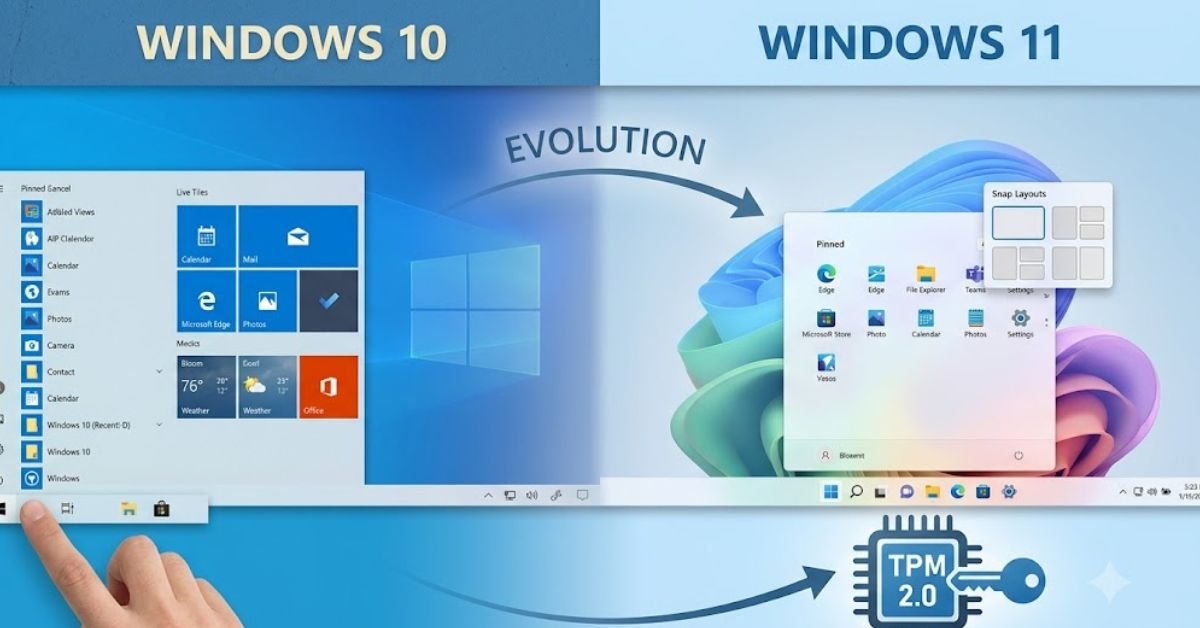
Deciding between Windows 10 and Windows 11 used to be a matter of personal visual preference. Today, it is a critical decision regarding security, hardware longevity, system performance, and access to new software features.
With Microsoft having officially reached the End of Support deadline for Windows 10 on October 14, 2025, millions of users across the United States are asking the same core question: Is Windows 11 or 10 better for my daily workflow, gaming setup, or business PC?
While Windows 10 built a decade-long reputation for reliability and broad hardware compatibility, Windows 11 brings modern multitasking tools, tighter hardware-level security, and native AI integration. Below, we compare both operating systems across interface design, performance, gaming capabilities, system requirements, and long-term security to help you decide whether to upgrade or stay put.
User Interface and Daily Usability: What Changed?
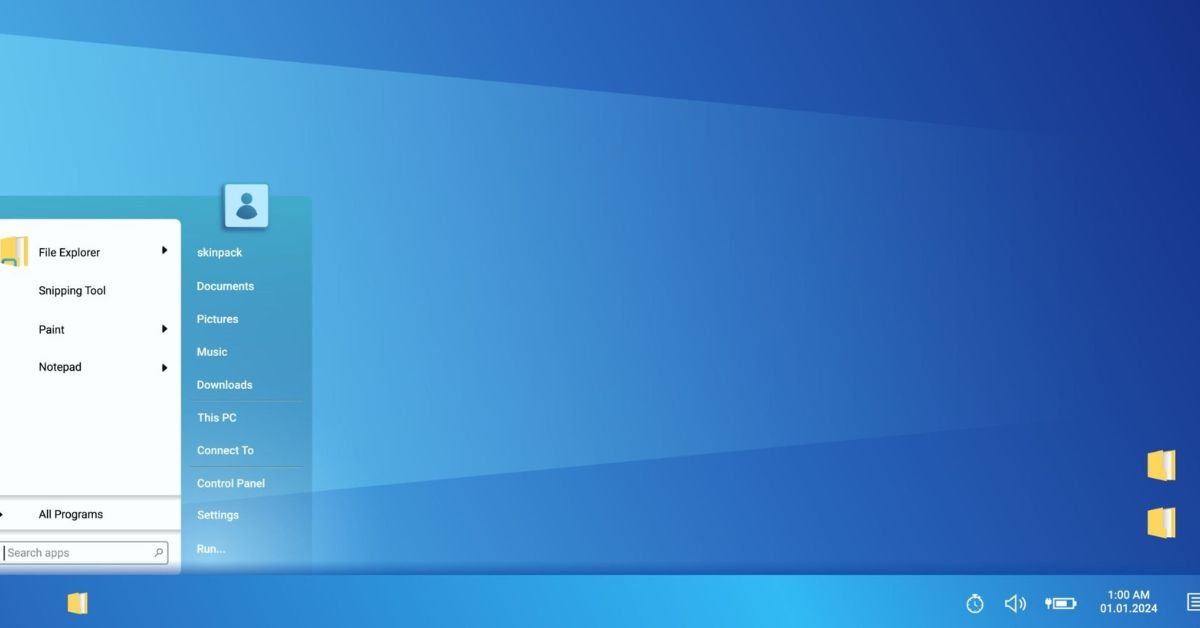
The most noticeable difference between Windows 10 and Windows 11 lies in their design philosophy. Windows 10 adopted the “Metro” and “Fluent” design principles introduced after Windows 8, utilizing sharp edges, live tiles, and a traditional left-aligned Start menu. Windows 11 shifts toward a softer, centered aesthetic reminiscent of macOS or iPadOS.
1. Centered Taskbar and Redesigned Start Menu
- Windows 10: Features the classic left-aligned Start menu paired with dynamic “Live Tiles” that display real-time updates for news, weather, and photos.
- Windows 11: Centers the taskbar icons and Start menu by default (though you can move them back to the left in settings). Live Tiles have been scrapped entirely in favor of pinned apps, recent cloud documents, and a clean search bar.
2. Snap Layouts and Multitasking
Multitasking received a major structural overhaul in Windows 11:
- Windows 10 Snap Assist: Allows you to drag windows to the screen edges to snap them into halves or quadrants.
- Windows 11 Snap Layouts & Groups: Hovering over any window’s maximize button opens pre-configured visual grid options (halves, thirds, 2×2 grids, or focus columns). Windows 11 also remembers your app arrangements when disconnecting external monitors, eliminating the frustration of desktop icons scattering across your display.
3. File Explorer and Context Menus
Windows 11 simplified the File Explorer by introducing a tabbed navigation bar (similar to a web browser) and replacing verbose context menus (right-click menus) with streamlined icon shortcuts for cut, copy, rename, and delete. While some power users prefer the dense text options of Windows 10, Windows 11’s interface reduces visual clutter for everyday browsing.
Performance, Gaming, and Multitasking Features
Under the hood, both operating systems deliver snappy performance on modern hardware, but Windows 11 introduces architectural advantages specifically tuned for newer hardware configurations.
1. Hybrid CPU Optimization
If your desktop or laptop runs on modern processors featuring hybrid architecture (such as Intel 12th Gen or newer, featuring Performance and Efficiency cores), Windows 11 performs measurably better. Its updated thread scheduler works closely with hardware to route heavy workloads (like video rendering or gaming) to high-performance cores while sending background processes (like cloud syncing or system updates) to efficiency cores. Windows 10 lacks this granular scheduler optimization.
2. Next-Gen Gaming Tech: DirectStorage & Auto HDR
For PC gamers, Windows 11 offers exclusive platform-level advantages:
- DirectStorage: Originally developed for Xbox Series X/S consoles, DirectStorage allows NVMe SSDs to transfer game data directly to the GPU memory without overloading the CPU. This slashes game loading times from 30 seconds down to under 2 seconds in supported titles. While backported in part to Windows 10, the full memory-bypass stack functions best on Windows 11.
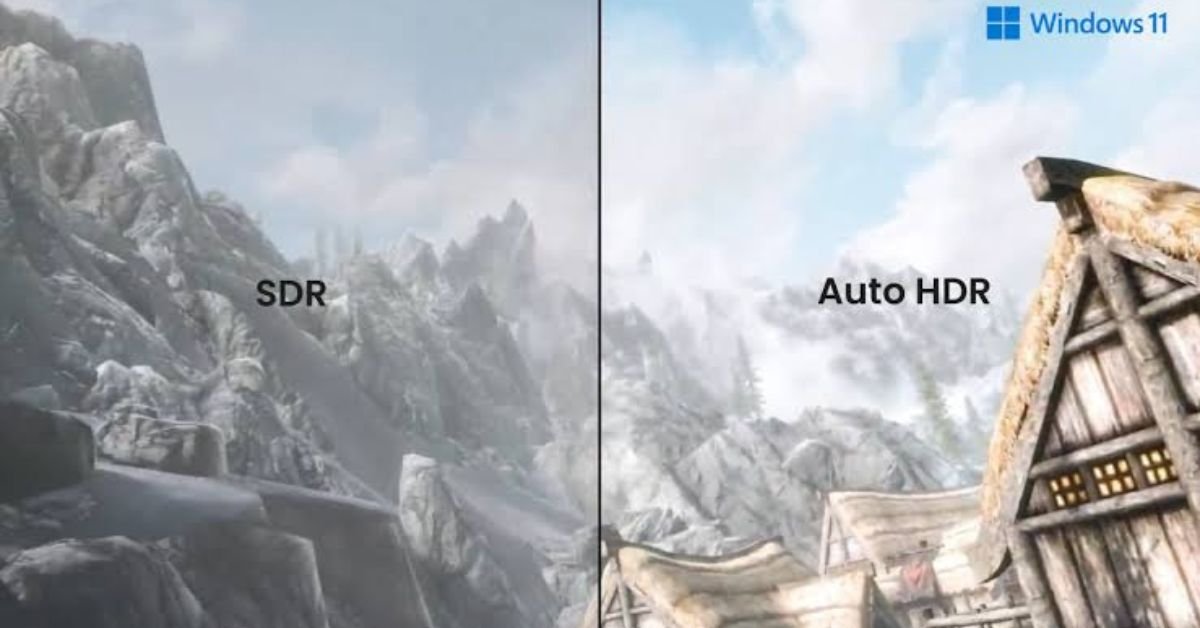
- Auto HDR: Automatically converts standard dynamic range (SDR) games (built on DirectX 11 or 12) to High Dynamic Range (HDR) visuals without requiring developer patches, dramatically enhancing color contrast on HDR-capable gaming monitors.
3. System Resource Management
Windows 11 prioritizes active app windows in system memory (RAM). If you run multiple demanding applications simultaneously, the app actively rendered on your screen receives processing priority over minimized background applications, keeping your foreground workflow smooth even under heavy multitasking load.
Security and Hardware Requirements (The TPM 2.0 Debate)
The Mandatory Hardware Baseline
To install Windows 11 natively, Microsoft enforces strict hardware requirements:
- Processor: 8th Generation Intel Core processor or AMD Ryzen 2000 series (and newer).
- RAM & Storage: Minimum 4 GB RAM and 64 GB storage.
- Security Hardware: TPM 2.0 (Trusted Platform Module) chip enabled alongside Secure Boot capability.
While these requirements left millions of functional Windows 10 PCs unable to upgrade officially, TPM 2.0 provides hardware-isolated encryption keys that protect user data against sophisticated bootkit malware, ransomware, and identity theft.
Windows 10 End of Support: What It Means in 2026
Because Microsoft officially retired standard support for Windows 10 on October 14, 2025, running Windows 10 without an active security subscription exposes your computer to elevated risks:
- No Automated Patching: Windows 10 PCs no longer receive free monthly security patches, bug fixes, or vulnerability resolution.
- Compliance Risks: U.S. businesses handling sensitive customer data (HIPAA, PCI-DSS, or financial data) may face compliance penalties when operating on an unsupported OS.
- Extended Security Updates (ESU): Consumer and enterprise users can opt into Microsoft’s paid ESU program to extend critical security patches through late 2027, but this serves as a temporary stopgap rather than a long-term strategy.
Head-to-Head Comparison: Windows 11 vs. Windows 10
To summarize how both operating systems stack up, here is a detailed breakdown across primary user criteria:
| Feature / Metric | Windows 10 | Windows 11 | Winning Advantage |
| Official Support Status | Ended (Oct 14, 2025; requires paid ESU) | Fully Supported with annual feature updates | Windows 11 |
| Minimum Hardware Requirements | Low (1 GHz CPU, 1-2 GB RAM, 16-20 GB Storage) | Strict (8th Gen Intel / Ryzen 2000+, TPM 2.0, Secure Boot) | Windows 10 (for older hardware) |
| Multitasking Tools | Basic Snap Assist, static Virtual Desktops | Advanced Snap Layouts, per-monitor persistent windowing | Windows 11 |
| Gaming Capabilities | DirectX 12 standard support | DirectStorage, Auto HDR, Game Pass integration | Windows 11 |
| AI Integration | Web-based tools only | Built-in Windows Copilot & Copilot+ PC exclusive features | Windows 11 |
| Interface Customization | Traditional Start menu, Live Tiles, square corners | Centered glass aesthetic, rounded corners, dark mode parity | Subjective |
| Out-of-the-Box Security | Standard Windows Defender & BitLocker | Mandatory TPM 2.0, VBS, Memory Integrity enabled by default | Windows 11 |
How to Determine If Your PC Is Ready for Windows 11
If you are currently running Windows 10 and want to verify whether your computer can upgrade to Windows 11 for free, follow these steps:
1.Download the Official Health Tool:Requires Microsoft PC Health Check app.
Visit Microsoft’s official Windows page and download the free PC Health Check application.
2.Run the Compatibility Scan:Check hardware prerequisites.
Open the application and click Check now under the “Introducing Windows 11” banner.
3.Review the Readiness Results:
The app will analyze your CPU model, system RAM, storage space, Secure Boot state, and TPM 2.0 chip presence.
- If green checkmarks appear across all criteria, navigate to Settings > Privacy & Security > Windows Update on your PC and click Check for updates to start your free upgrade.
4.Enable TPM or Secure Boot in BIOS (If Prompted):
If the scan fails due to TPM 2.0 or Secure Boot, reboot your computer into its BIOS/UEFI settings menu, turn on fTPM (for AMD CPUs) or PTT (for Intel CPUs), enable Secure Boot, and re-run the health scan.
Frequently Asked Questions (FAQs)
Can I still upgrade from Windows 10 to Windows 11 for free?
Yes. If your PC meets the hardware requirements (Intel 8th Gen / Ryzen 2000 or newer, TPM 2.0, 4GB RAM), you can upgrade to Windows 11 completely free of charge through Windows Update or by using Microsoft’s Installation Assistant.
Will staying on Windows 10 slow down my computer?
Windows 10 itself won’t suddenly slow down, but as software developers optimize newer browser engines, productivity suites, and creative tools exclusively for Windows 11, third-party apps may run less efficiently on Windows 10 over time.
Is Windows 11 better for gaming than Windows 10?
Yes. Windows 11 includes native support for DirectStorage (faster loading times from NVMe SSDs) and Auto HDR (richer visuals on HDR monitors). Furthermore, graphics card drivers from NVIDIA and AMD prioritize performance enhancements for Windows 11.
What should I do if my PC cannot run Windows 11?
If your computer lacks TPM 2.0 or an officially supported CPU, you have three practical choices:
- Enroll in Microsoft’s Extended Security Updates (ESU) program to maintain critical patches.
- Upgrade internal PC hardware or purchase a modern Windows 11 PC.
- Transition the machine to a lightweight Linux distribution (such as Ubuntu or Linux Mint) or ChromeOS Flex for safe web browsing.
Conclusion: Which Operating System Should You Choose?
When deciding whether Windows 11 or Windows 10 is better, the answer depends directly on your current hardware capabilities:
- Choose Windows 11 if: You own a modern PC, enjoy gaming, utilize multiple monitor setups, rely on modern productivity tools, or want maximum zero-day security protection without paying for extended patches. Windows 11 is actively supported, visually refined, and engineered for today’s computing standards.
- Stay on Windows 10 only if: Your hardware is physically incapable of running Windows 11 and you are willing to utilize paid ESU subscriptions or strict third-party security software while planning your next device upgrade.
For the vast majority of users in 2026, Windows 11 is the superior operating system. Upgrading ensures your device remains protected against modern security threats while giving you access to the newest interface and performance innovations Microsoft has to offer.
