
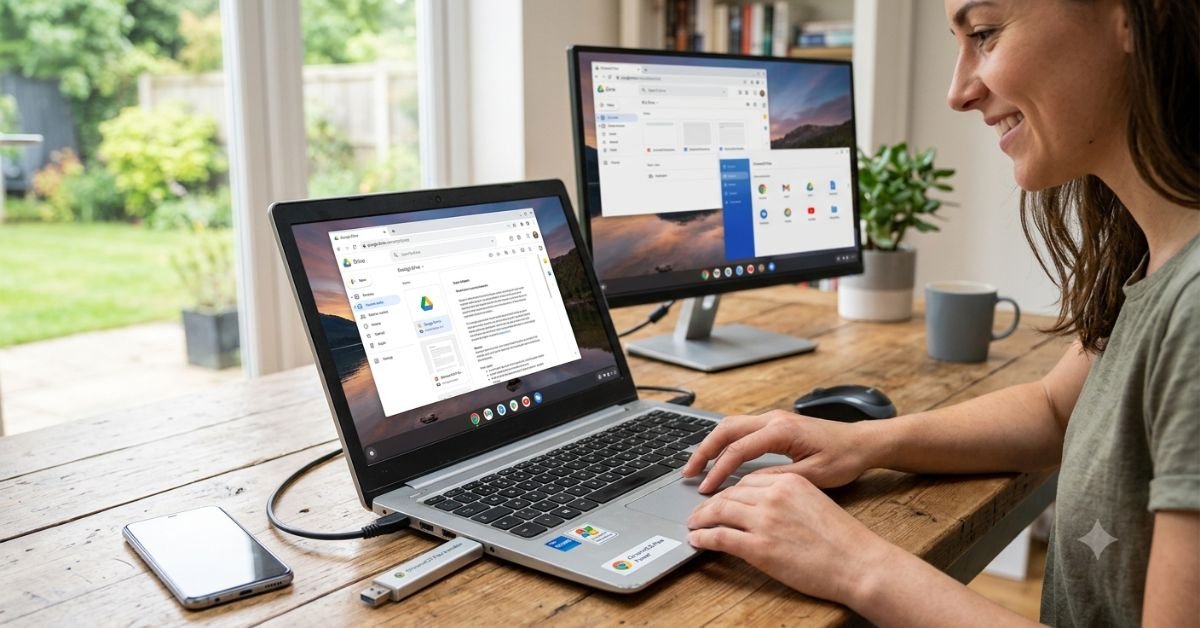
Microsoft officially ended support for Windows 10 in October 2025. Millions of perfectly functional laptops and desktop computers suddenly found themselves stranded without critical security patches or software updates.
If your computer doesn’t meet Microsoft’s strict hardware requirements for Windows 11 such as Trusted Platform Module (TPM) 2.0 or a compatible 8th-generation processor—you might think your only choice is buying a brand-new PC.
Fortunately, Google offers a completely free alternative: ChromeOS Flex.
Instead of letting your trusty Windows 10 machine gather dust or risk running an vulnerable operating system, you can use Google’s free upgrade tool to transform your old computer into a fast, lightweight, and secure cloud-first PC.
What Is the “Free Windows PC Upgrade” from Google?
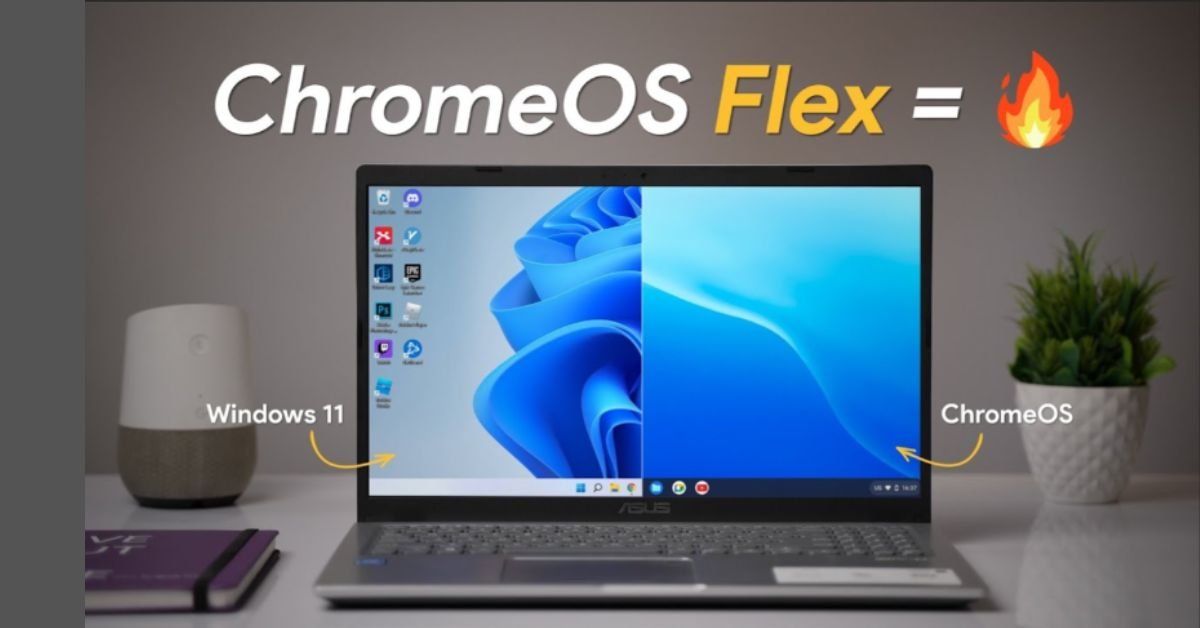
The phrase “free windows pc upgrade google” refers to ChromeOS Flex. ChromeOS Flex is a lightweight operating system developed by Google, designed specifically to replace Windows or macOS on older hardware.
Important Clarification: Google is not offering a free license key for Windows 11. Instead, Google provides a free alternative operating system that turns your legacy Windows PC into a device that runs and performs just like a Chromebook.
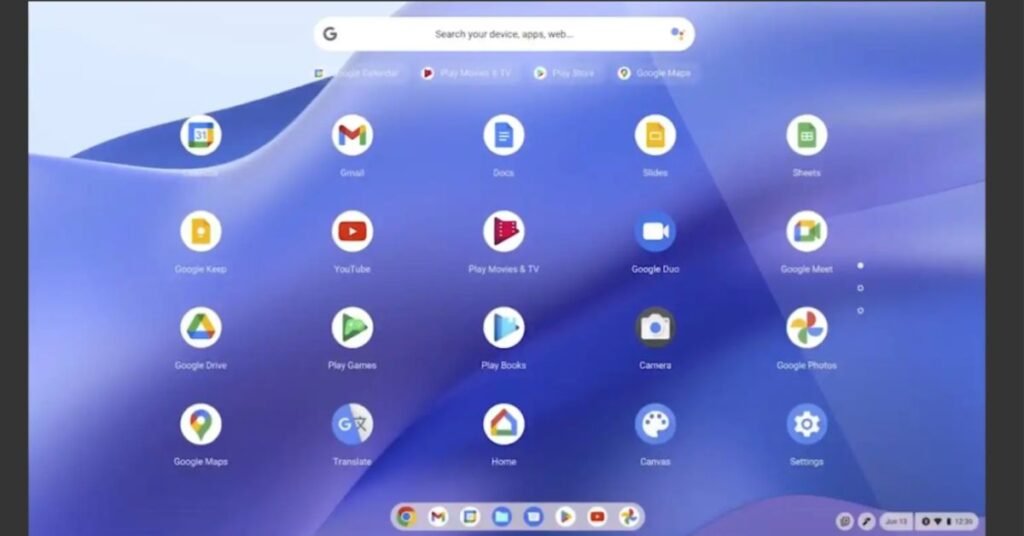
ChromeOS Flex strips away the background clutter, heavy system requirements, and bloatware that slow down older Windows PCs over time. Because it relies primarily on web-based technologies and cloud applications, it boots up in seconds and restores snappy performance—even on machines with modest specs.
Why Consider Switching from Windows to ChromeOS Flex?
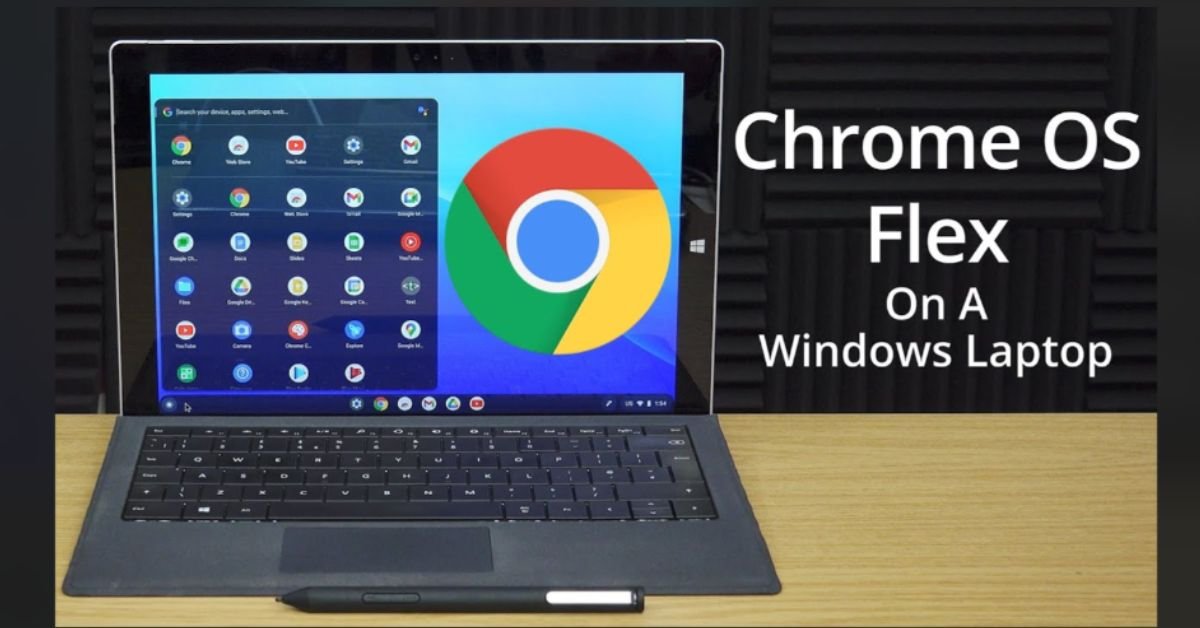
If your Windows 10 machine works fine for everyday tasks like browsing, streaming, and editing documents, replacing the hardware is an unnecessary expense.
1. Extended Lifespan
Unsupported operating systems are major security liabilities. Unpatched vulnerabilities expose your personal files, banking information, and passwords to cyber threats. Installing ChromeOS Flex provides continuous, automatic background security updates directly from Google, keeping your device safe without any subscription fees.
2. Improved Speed and Battery Life
Traditional Windows installations require substantial system memory and processor power to handle background tasks. ChromeOS Flex is far more efficient. Users routinely report faster boot times, smoother web browsing, and extended battery life on older laptops after making the switch.
3. Reduced Electronic Waste
Discarding a fully functional laptop simply because it lacks a specific security chip generates unnecessary e-waste. Switching to ChromeOS Flex extends your hardware’s lifespan by years, making it a budget-friendly and environmentally responsible choice.
ChromeOS Flex vs. Windows 11: Feature Comparison
Before converting your PC, it helps to understand how ChromeOS Flex stacks up against Windows 11.
| Feature / Capability | Windows 11 | Google ChromeOS Flex |
| Cost | Free upgrade (if hardware is supported) or $139+ | 100% Free |
| Hardware Requirements | High (TPM 2.0, modern CPU, 4GB+ RAM) | Very Low (64-bit CPU, 4GB RAM, 16GB storage) |
| Primary Use Case | Native desktop apps, PC gaming, heavy editing | Web browsing, streaming, cloud work, web apps |
| App Support | .exe files, Microsoft Store, Microsoft 365 | Web apps (PWAs), Chrome Extensions, Linux apps |
| Google Play Store (Android Apps) | Supported via Windows Subsystem | Not Supported on Flex |
| Boot Speed | 20–45 seconds | 6–10 seconds |
| Maintenance | Manual restarts and updates | Automatic background updates |
Minimum Hardware Requirements
ChromeOS Flex can run on almost any older laptop or desktop PC manufactured over the last decade.
- Processor: Intel or AMD 64-bit compatible device
- RAM: 4 GB minimum
- Internal Storage: 16 GB minimum
- Bootability: Ability to boot from a USB drive
- USB Drive: At least 8 GB (for installation)
How to Install ChromeOS Flex on Your Old Windows PC
You don’t need advanced technical skills to complete this process. Converting your PC takes about 15 to 20 minutes using a USB flash drive.
Pre-Installation Checklist:
- Back up all personal files, photos, and documents to an external hard drive or Google Drive. Installing ChromeOS Flex will permanently erase your old Windows partition.
- Grab a blank 8 GB (or larger) USB flash drive.
1.Create a Bootable USB Installer:Takes ~5 minutes.
- Open the Google Chrome browser on your current PC.
- Go to the Chrome Web Store and install the official Chromebook Recovery Utility extension.
- Plug your 8 GB+ USB flash drive into your computer.
- Launch the extension, select “ChromeOS Flex” from the model list, and follow the on-screen prompts to write the installer to your USB drive.
2.Boot Your Windows PC from the USB Drive:Takes ~2 minutes.
- Turn off your old Windows PC completely.
- Insert the bootable USB drive.
- Turn the PC back on while immediately pressing your computer’s Boot Menu Key (typically
F12,F9,F2, orEscdepending on your motherboard). - Select your USB flash drive as the boot device.
3.Try ChromeOS Flex Live (Optional):Takes ~3 minutes.
Google allows you to test ChromeOS Flex directly from the USB drive before installing it permanently. Select “Try it first” to check if your Wi-Fi, trackpad, keyboard, and audio work seamlessly without modifying your internal hard drive.
4.Install ChromeOS Flex Permanently:Takes ~5 minutes.
Once you’re satisfied with how it runs, click “Install ChromeOS Flex” on the setup screen. Confirm that you want to overwrite your hard drive. Once installation completes, remove the USB drive and reboot.
Is ChromeOS Flex Right for You?
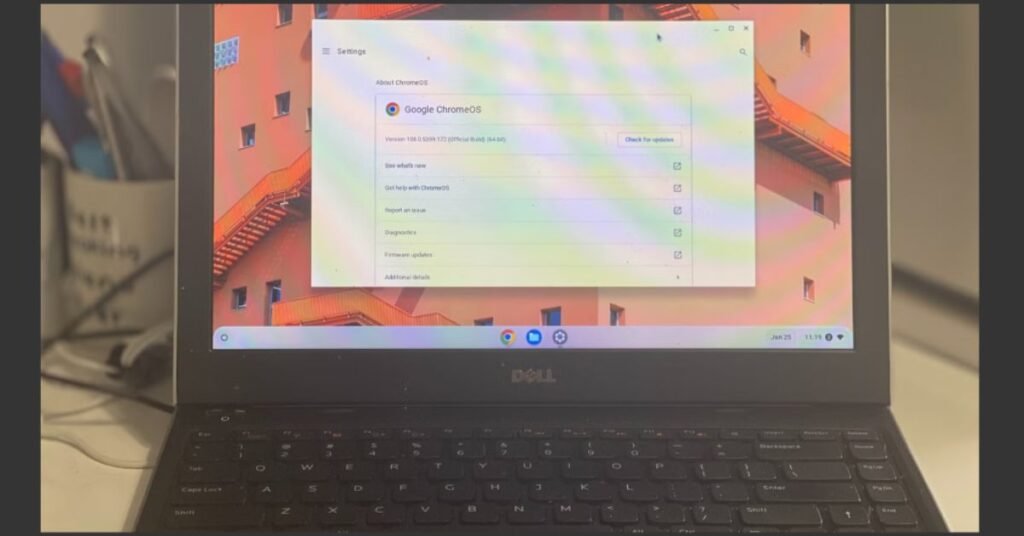
While ChromeOS Flex is an excellent way to revive aging hardware, it isn’t a one-size-fits-all replacement for every Windows user.
Ideal For:
- Everyday Browsing: Checking email, managing social media, browsing news, and watching videos on YouTube or Netflix.
- Students & Office Workers: Creating documents, spreadsheets, and presentations using Google Docs, Sheets, and Slides or Microsoft 365 Web apps.
- Non-Technical Users: Anyone who wants a low-maintenance, secure device that doesn’t suffer from driver errors or unexpected system slowdowns.
Not Ideal For:
- Hardcore PC Gamers: Legacy Windows games, Steam titles with anti-cheat software, and resource-heavy AAA games will not run natively.
- Users of Proprietary Windows Software: If you rely on full desktop software like Adobe Creative Cloud, AutoCAD, or specialised Windows accounting tools, you will need a Windows 11 device.
Frequently Asked Questions (FAQs)
1. Will installing Google ChromeOS Flex delete my Windows files?
Yes. Installing ChromeOS Flex formats your computer’s primary storage drive and completely replaces the Windows operating system. Always back up your important photos, videos, and documents to cloud storage or an external hard drive before proceeding.
2. Can I go back to Windows if I don’t like ChromeOS Flex?
Yes, but you will need to re-install Windows manually using a Windows Installation Media USB drive created on another PC.
3. Does ChromeOS Flex support Android apps like a Chromebook?
No. Due to hardware variability across legacy Windows PCs, Google ChromeOS Flex does not include the Google Play Store or native Android app support. However, it fully supports modern Progressive Web Apps (PWAs) and Linux desktop applications.
4. Can I still use Microsoft Office on ChromeOS Flex?
Yes. While you cannot install standard desktop .exe installer files, you can access the full suite of Microsoft 365 web applications (Word, Excel, PowerPoint, and Outlook) directly through the Google Chrome browser.
Conclusion
The end of official support for Windows 10 doesn’t mean your laptop has reached the end of its line. Instead of spending hundreds of dollars on a replacement computer, Google’s ChromeOS Flex offers a fast, safe, and entirely free solution.
By converting your older Windows PC into a cloud-first machine, you’ll gain fast boot times, strong security, and smooth daily performance giving your device a second life for years to come.
