
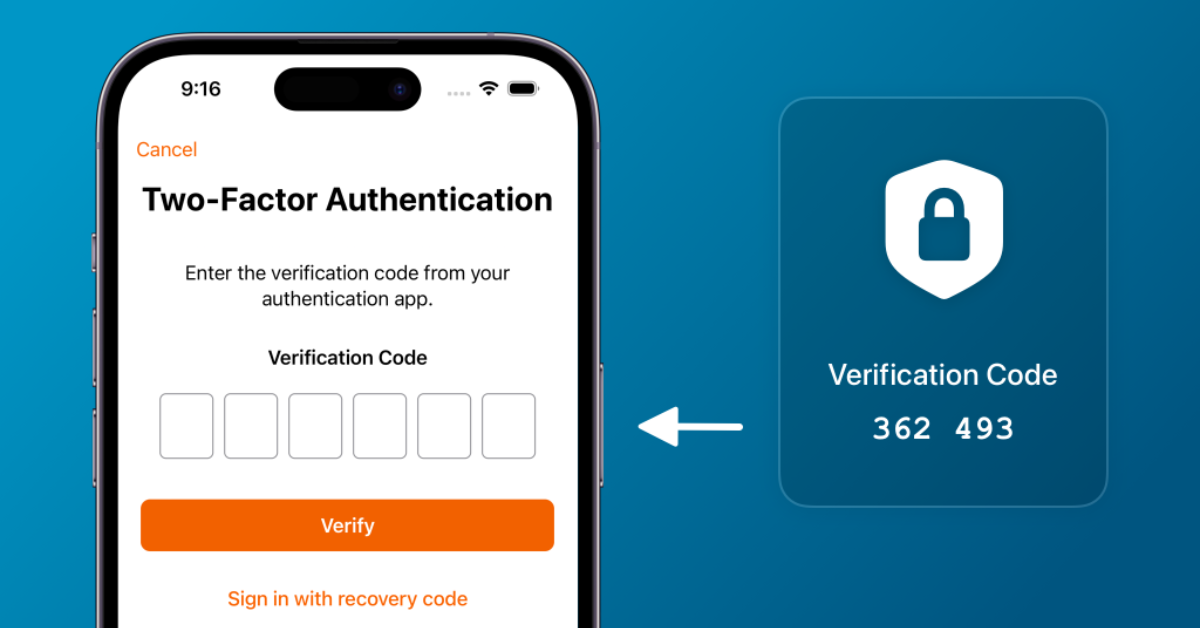
If you’ve ever entered your password and then had to type in a code sent to your phone before you could log in, you’ve already used 2FA. Here’s exactly what it is, how it works, and how to use it safely.
What Is 2FA?
2FA (two-factor authentication) is a login security method that requires you to prove your identity in two different ways before you can access an account usually something you know (like a password) plus something you have or something you are (like a code on your phone or your fingerprint).
The idea is simple: a password alone can be guessed, stolen, or leaked in a data breach. 2FA adds a second, independent checkpoint, so even if someone gets your password, they still can’t get into your account without that second piece of proof.
You’ll also see 2FA called two-step verification or dual-factor authentication. These terms are often used interchangeably, though as explained below there’s a small technical difference between “two-factor” and “two-step” that’s worth knowing.
How 2FA Works, Step by Step
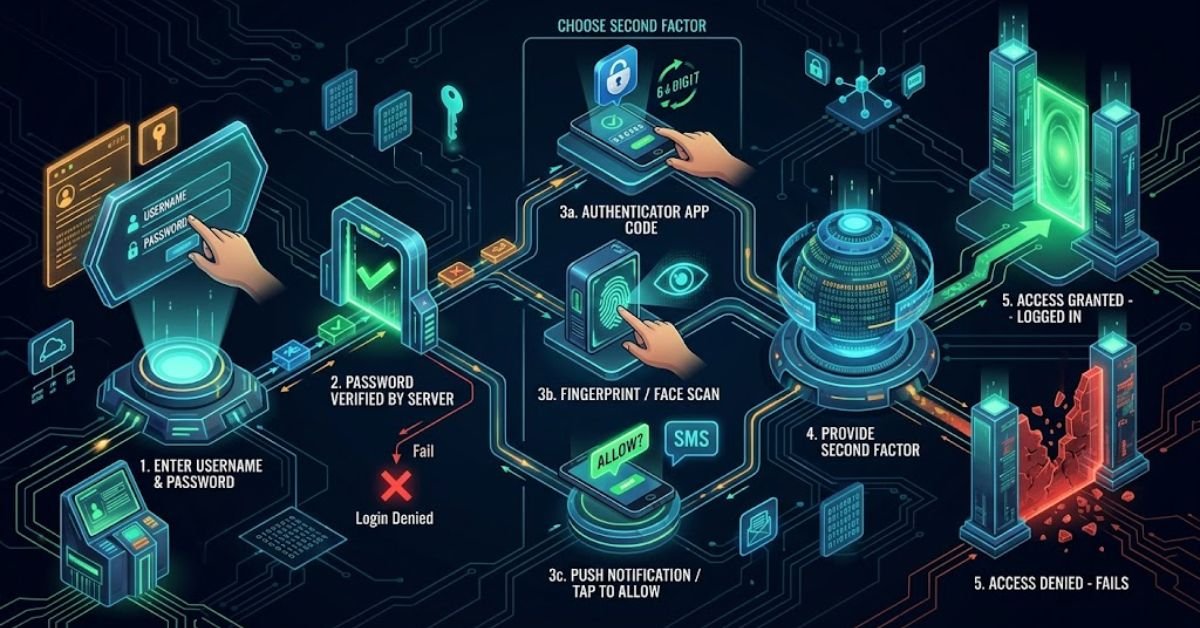
Most 2FA logins follow the same basic sequence, regardless of the app or website:
- You enter your username and password on the login screen.
- The service verifies your password is correct.
- You’re prompted for a second factor; this might be a code sent by text, a tap on a push notification, a code from an authenticator app, or a fingerprint/face scan.
- You provide that second factor.
- If both factors check out, you’re logged in. If either one fails, access is denied.
The key point: both steps have to succeed. Getting the password right but failing the second step (or vice versa) doesn’t get you in. That’s what makes 2FA meaningfully stronger than a password by itself; an attacker now has to defeat two separate barriers instead of one.
2FA vs. MFA vs. Two-Step Verification: What’s the Difference?
These terms get used loosely, but they don’t all mean exactly the same thing.
| Term | What it means |
| 2FA (two-factor authentication) | Exactly two proofs of identity, from two different categories (e.g., a password + a fingerprint) |
| MFA (multi-factor authentication) | Two or more proofs of identity, from different categories. 2FA is technically a type of MFA. |
| Two-step verification | Two steps to log in, but both steps can come from the same category for example, a password plus a security question. Both are things you know, so security experts don’t consider this true 2FA, even though it adds a step. |
Why this distinction matters: two factors from the same category are weaker than two from different categories, because a hacker who can steal one (say, your password through a data breach) often has the tools to guess or find the other (like the answer to “what’s your mother’s maiden name?”). True 2FA is harder to defeat because the attacker has to compromise two genuinely different types of evidence for example, both your password and your physical phone.
The Four Types of Authentication Factors
Every 2FA method pulls from one of these categories. Understanding them makes it much easier to judge how secure any given method actually is.
1. Knowledge factors something you know
Passwords, PINs, and security question answers. This is almost always the first factor in a 2FA setup. Knowledge factors are also the easiest for attackers to steal through phishing emails, data breaches, or simply guessing common passwords.
2. Possession factors something you have
A code texted to your phone, a code generated by an authenticator app, or a physical security key. Because the attacker would need to physically have or remotely control your device, this is a meaningfully stronger second factor than another password would be.
3. Inherent factors something you are
Biometrics: fingerprint, face scan, or voice recognition. These are difficult to fake but carry a unique risk if biometric data is ever stolen or compromised, you can’t “reset” your fingerprint the way you can reset a password.
4. Behavioral factors something you do
A newer category used mainly by banks and large platforms. Systems learn your normal patterns, typical location, device, typing speed and flag logins that don’t match. You typically won’t set this up yourself; it runs quietly in the background.
Types of 2FA Methods, Compared
Not all 2FA methods offer the same protection. Here’s how the common options stack up, along with when each one makes sense.
| Method | How it works | Security level | Best for |
| SMS text code | A one-time code is texted to your phone | Lower vulnerable to SIM-swap attacks and interception | Better than no 2FA at all; avoid for high-value accounts like banking if a stronger option is offered |
| Authenticator app (TOTP) | An app on your phone generates a new code every 30–60 seconds | Good works offline, not tied to your phone number | A solid default for most email, social media, and shopping accounts |
| Push notification | You approve a login prompt in an app on your phone | Good to very good, especially with “number matching” | Fast, low-friction option offered by many major platforms |
| Hardware security key | A physical USB or NFC device you tap or plug in | Very high resistant to phishing and remote attacks | High-value accounts: primary email, financial accounts, work admin access |
| Biometrics / passkey | Fingerprint or face scan, often paired with device-based cryptography | Very high phishing-resistant | Devices and apps that support it; increasingly the recommended default |
A practical rule of thumb: if a platform offers you a choice, prefer an authenticator app, security key, or passkey over SMS. SMS 2FA is far better than nothing, but it’s the easiest form of 2FA to attack, mainly because phone numbers can be hijacked without ever touching your device.
Which 2FA Method Should You Actually Use?
Competing advice online tends to treat all 2FA the same. In practice, it’s reasonable to match the method to what’s at stake:
- Primary email account: Use an authenticator app or, if supported, a hardware security key or passkey. Your email is often the recovery method for everything else you own, losing it is the worst-case scenario.
- Banking and financial apps: Use whatever the strongest option your bank offers is often a dedicated app-based push notification or biometric login. Avoid SMS here if an alternative exists.
- Social media: An authenticator app is usually sufficient and widely supported.
- Gaming accounts: Enable whatever 2FA the platform provides (most major consoles and game launchers now offer it) gaming accounts are frequently targeted because they hold saved payment methods.
- Work accounts: Follow your employer’s IT policy exactly; many organizations require a specific app (like an authenticator app or a company-issued key) for compliance reasons.
If you only do one thing after reading this: turn on an authenticator app for your primary email account. Everything else becomes easier to protect once that one account is secured.
Benefits of Using 2FA
- Blocks most password-only attacks. Even if your password is exposed in a data breach which happens more often than most people realize an attacker still can’t log in without your second factor.
- Limits damage from password reuse. Many people reuse passwords across sites. 2FA means a leaked password from one breached site doesn’t automatically hand over your other accounts.
- Required for some financial and regulated systems. Standards like the Payment Card Industry Data Security Standard (PCI DSS) require multi-factor authentication for systems that handle payment card data, and many banks and healthcare platforms enforce it for similar reasons.
- Builds trust between you and the platforms you use. Enabling 2FA on your accounts is one of the few security steps an individual user can take that measurably reduces real-world risk.
Is 2FA Secure? What It Doesn’t Protect Against
2FA dramatically improves account security, but it isn’t a guarantee. It’s worth understanding its real limits so you’re not caught off guard.
Ways 2FA can be bypassed:
- SIM swapping. An attacker convinces your phone carrier to transfer your number to a SIM card they control, then receives your SMS codes instead of you. This is the main reason security experts recommend an authenticator app over SMS when possible.
- Push bombing (MFA fatigue). An attacker who already has your password sends repeated push notification requests, hoping you’ll eventually tap “approve” out of confusion or frustration. If you ever get a login approval request you didn’t trigger, deny it and change your password immediately.
- Phishing that captures the second factor too. Sophisticated fake login pages can prompt you for your 2FA code in real time and relay it to the real site instantly. This is why phishing-resistant methods like hardware keys and passkeys which are tied to the specific website’s address are considered the strongest option.
- Account recovery loopholes. If an attacker can’t get past your 2FA, they may instead try to trigger the “forgot password” or account recovery flow, which sometimes relies on weaker verification (like a security question) as a fallback.
- Session hijacking. This is a less commonly discussed risk: after you’ve already logged in and passed 2FA, your device holds a “session” that keeps you logged in without re-entering your credentials. If malware or a malicious script steals that session data, an attacker can sometimes access your account without ever needing your password or second factor because you’d already completed both. This is why keeping your devices free of malware matters just as much as enabling 2FA in the first place.
The bottom line: 2FA stops the overwhelming majority of password-based attacks, but it isn’t a substitute for other basics a unique password for every account, caution with links in emails and texts, and keeping your devices updated.
How to Set Up 2FA
The exact screens vary by platform, but the general process is nearly identical everywhere:
- Go to your account’s security settings (often under “Security,” “Sign-In & Security,” or “Privacy and Security”).
- Look for “Two-Factor Authentication,” “Two-Step Verification,” or “Multi-Factor Authentication.”
- Choose your second-factor method, typically a phone number for SMS, or the option to link an authenticator app.
- If using an authenticator app, you’ll usually scan a QR code with the app to link it to your account.
- Save your backup/recovery codes somewhere safe (more on this below) you’ll usually be shown these once, during setup.
- Confirm the setup by entering a test code, and you’re done.
Most major platforms Google, Microsoft, Apple, Facebook, Instagram, and banking apps have their own dedicated security settings pages with the current, exact steps, since screens change over time. This guide covers the concept and general process; check your specific provider’s help page for the current screen-by-screen instructions.
What to Do If You Lose Access to Your 2FA Device
This is one of the most common real-world problems with 2FA and one that’s rarely explained clearly.
- Backup codes are your safety net. When you set up 2FA, most platforms generate a set of one-time backup codes (usually 8–10 of them). Each can be used once to log in if you lose access to your normal second factor. Save these somewhere safe and offline printed out, or stored in a secure password manager not just as a screenshot on the same phone that might get lost.
- If you didn’t save backup codes, most platforms offer an account recovery process that verifies your identity through other means (a recovery email, ID verification, or a waiting period). This process is intentionally slower than normal login, since it’s designed to stop attackers from using “I lost my device” as a shortcut around 2FA.
- If you’re switching to a new phone, transfer your authenticator app before wiping or losing access to the old one. Most authenticator apps have an export or account-transfer feature specifically for this.
Can You Turn Off 2FA?
Yes, on most platforms you can disable 2FA from the same security settings menu where you enabled it. That said, security experts generally advise against it, since doing so removes the second layer of protection and returns you to password-only security. Some services including certain financial platforms and workplace accounts don’t allow 2FA to be disabled at all, since it’s required for compliance or security policy reasons.
Frequently Asked Questions
What exactly is 2FA?
It’s a login check that needs two different types of proof — usually a password plus something only you have or are (a code, a key, a fingerprint) — before you get into an account.
Is 2FA a good idea?
Yes. It blocks the vast majority of password-only attacks for very little effort. The only trade-off is a few extra seconds at login — worth it for anything tied to money, identity, or personal data.
What is an example of 2FA?
Logging into your email with your password, then approving a push notification on your phone (or entering a 6-digit code from an authenticator app) before access is granted.
What are common 2FA mistakes?
- Relying only on SMS codes when a stronger option (authenticator app, security key) is available
- Never saving backup codes, then getting locked out when you lose your phone
- Approving a push notification you didn’t request (a sign of a push-bombing attack)
- Using a security question as your “second factor” — that’s two-step verification, not true 2FA
- Assuming 2FA means you’re now immune to phishing or malware
How do I fix my 2FA?
Depends on the problem:
Getting unexpected 2FA prompts: Deny them and change your password immediately — likely sign of a compromised password.
Locked out / lost device: Use a saved backup code, or go through the platform’s account recovery flow.
Not receiving SMS codes: Check for carrier issues or a possible SIM-swap; switch to an authenticator app if possible.
Authenticator app not syncing codes: Check the device’s date/time settings — TOTP codes fail if the clock is off.
Want to switch phones: Transfer/export the authenticator app before wiping the old device.
READ MORE :
- What Is 8tshare6a Python? The Real Answer (2026)
- Codes Error RCSDASSK: Full Fix Guide (Win, Mac, Linux)
- White Screen of Death: Causes & Fixes (2026 Guide)
- SHAK 1001 Error on Crunchyroll: How to Fix It in Minutes
