
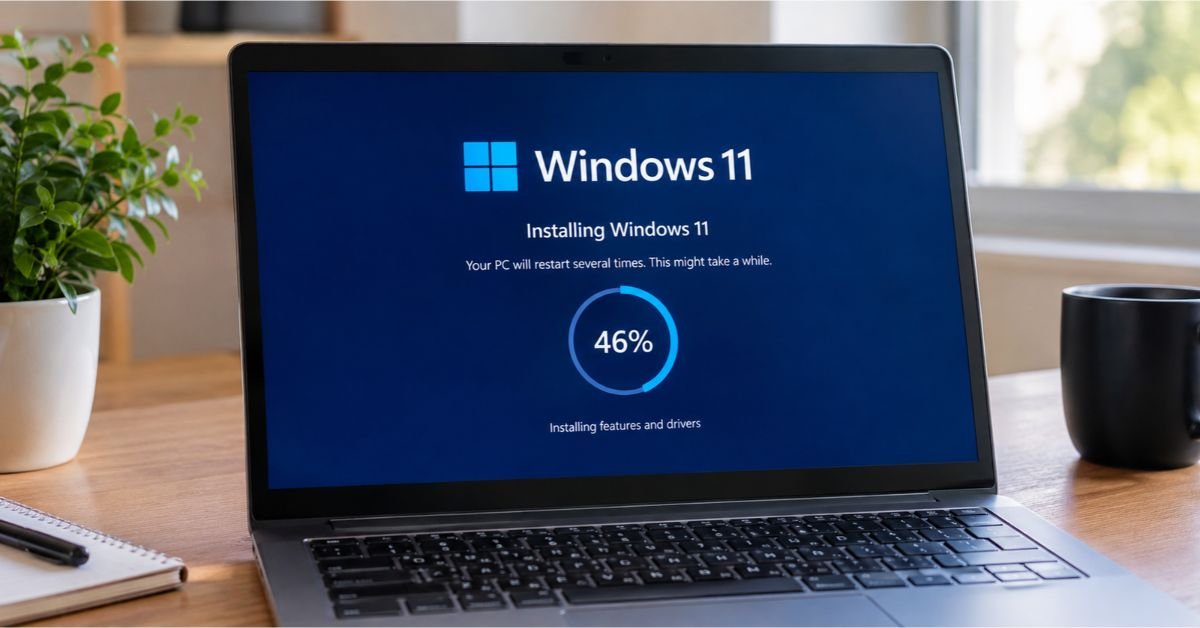
You start the Windows 11 installation, the progress bar creeps forward, and then it stops at 46%. Ten minutes go by. Then thirty. Nothing moves.
Before you pull the plug, know this: the 46% freeze is a common one, and it’s usually fixable without losing your files. Below you’ll find why setup stalls at this point, how to tell a slow install from a dead one, and the fixes worth trying, in the order I’d try them.
What “Stuck at 46%” Actually Means
Somewhere around the 40 to 50% mark, Windows setup stops copying files and starts the heavy work: installing features, applying drivers, and migrating your settings. It’s the first point where the installer leans hard on your hardware, your existing drivers, and your disk.
If any link in that chain is weak, the bar can sit still for a very long time. Sometimes the install quietly fails and rolls back instead.
People usually run into this in one of a few situations:
- Upgrading from Windows 10 through Windows Update or the Installation Assistant
- Running setup.exe from a mounted ISO or the Media Creation Tool
- Booting from a USB installer for a clean install
- Watching a “Working on updates” or “Installing Windows 11” screen that won’t budge
Frozen or Just Slow?
A lot of failed installs are really interrupted installs. Windows 11 setup can sit on a single percentage for a surprisingly long time, especially on older machines or mechanical hard drives.
As a rough guide, give it at least 60 to 90 minutes on an SSD. On a traditional hard drive, wait up to two or three hours before you decide it’s dead.
Then look for signs of life. The drive activity light on a desktop or laptop may still be flickering. Fans might speed up and slow down. The spinning dots are less reliable, since an animation can keep running even when setup has hung.
You can also press Shift + F10 during setup to open a Command Prompt. If it opens, Windows is still responsive, and typing the tasklist will show whether the setup processes are running. If you see no disk activity for 30 minutes and nothing responds, it’s time to act.
What Usually Causes the 46% Freeze
Knowing the likely culprit saves a lot of guessing. These are the causes that come up most often.
| Cause | How common | Typical clue |
| Corrupted install files or ISO | Very common | Fails at the same spot on every attempt |
| Outdated or incompatible drivers | Very common | Older PCs, unusual graphics or storage drivers |
| Third-party antivirus interference | Common | Security suite installed before the upgrade |
| Low disk space | Common | Under 20 GB free on the system drive |
| Connected peripherals | Common | Printers, docks, extra drives, card readers |
| Corrupted Windows Update cache | Common | In-place upgrade through Windows Update |
| Failing drive or bad RAM | Less common | Random freezes elsewhere, slow file copies |
| Outdated BIOS/UEFI firmware | Less common | Newer hardware or very old firmware |
Fix 1: Wait, Then Restart Safely
If you’ve given it a fair window and nothing has changed, restart the PC. Hold the power button for about 10 seconds to force a shutdown, wait half a minute, and power back on.
On an in-place upgrade, Windows will usually notice the failed attempt and roll back to Windows 10 on its own. There’s a small risk here: cutting power mid-install can occasionally leave the system in a bad state. That’s why waiting first matters, and why you should back up your data as soon as you’re back in Windows.
If the rollback works, you have a functioning PC again and can try the fixes below.
Fix 2: Strip the PC Down to the Basics
Peripherals and extra drives cause more setup hangs than most people expect. Before you retry, unplug everything you don’t need.
Work through this list first:
- [ ] Unplug printers, scanners, webcams, USB hubs, and docking stations
- [ ] Remove external hard drives, SD cards, and spare USB sticks (keep your installer USB if you’re using one)
- [ ] Disconnect secondary internal drives, if you’re comfortable doing that
- [ ] Leave only a keyboard, mouse, and monitor attached
- [ ] Turn off Bluetooth accessories you don’t need
- [ ] Plug laptops into AC power so the battery isn’t a factor
Then try the install again. This one step clears up a surprising number of 46% stalls.
Fix 3: Free Up Disk Space
Microsoft lists 64 GB as the minimum storage for Windows 11, but an upgrade needs much more working room than that. Aim for at least 30 GB free on the system drive.
A few ways to get there:
- Open Settings > System > Storage and clear out temporary files.
- Run Disk Cleanup, then choose Clean up system files to remove old update leftovers.
- Uninstall large apps and games you no longer use.
- Move photos, videos, and downloads to an external drive.
A nearly full drive is one of the classic reasons an install crawls or stops.
Fix 4: Remove Antivirus and Update Your Drivers
Third-party security suites dig deep into the system, and that can get in the way when setup replaces core files. Uninstall yours temporarily rather than just switching it off, then reinstall it once Windows 11 is running. Microsoft Defender will cover you in the meantime.
Drivers deserve the same attention. Before you retry:
- Update your chipset, storage, and graphics drivers from your PC or motherboard manufacturer’s website.
- If your system uses an Intel RST/VMD storage driver, make sure it’s a current version. Old versions are a known source of installation trouble.
- Remove legacy hardware utilities you no longer use.
Fix 5: Reset the Windows Update Cache
If you’re upgrading through Windows Update, a corrupted download cache is a prime suspect. Clearing it forces Windows to fetch fresh files.
Open Command Prompt as administrator and stop the update services:
net stop wuauserv
net stop bits
net stop cryptsvc
Next, rename the two cache folders:
ren C:\Windows\SoftwareDistribution SoftwareDistribution.old
ren C:\Windows\System32\catroot2 catroot2.old
Then start the services again:
net start wuauserv
net start bits
net start cryptsvc
Reboot and try the update once more. It’s also worth running the built-in troubleshooter first, under Settings > System > Troubleshoot > Other troubleshooters > Windows Update. It takes a minute and sometimes does the job on its own.
Fix 6: Repair System Files With DISM and SFC
Corrupted system files in your current Windows 10 installation can trip up the upgrade. In an administrator Command Prompt, run these two commands in order:
DISM /Online /Cleanup-Image /RestoreHealth
sfc /scannow
DISM can take 10 to 20 minutes and may seem to hang at a certain percentage. That’s normal. Once both finish, restart and try the upgrade again.
Fix 7: Check the Drive and Memory
If setup freezes at the same spot every time and the software fixes haven’t helped, look at the hardware. The driver is the most common offender.
Start with a disk check:
chkdsk C: /f /r
Windows will schedule it for the next restart. On a large drive it can run for a long while, so start it when you don’t need the PC.
You can also check the drive’s SMART health with a free tool like CrystalDiskInfo. A status of “Caution” or “Bad” means you should back up your data and replace the drive.
For memory, use Windows Memory Diagnostic (search for it in the Start menu), or run MemTest86 from a USB stick for a deeper test. Faulty RAM can cause installs to freeze or fail with random errors.
Fix 8: Use a Fresh Installer or Do a Clean Install
When the Windows Update route keeps failing, change methods. A fresh download from Microsoft often sidesteps the corruption that’s causing the hang.
Option A: Upgrade from an ISO or the Media Creation Tool
Download the Windows 11 ISO or the Media Creation Tool from Microsoft’s official site, mount the ISO, and run setup.exe. On the first screen, choose Change how Setup downloads updates and select Not right now. Skipping the update download avoids the phase where some installs hang.
Option B: Clean install from USB
A clean install is the most reliable fix, because it bypasses whatever is broken in your old system. The catch is that it erases the drive you install to.
- Back up everything you care about to an external drive or cloud storage.
- Create a bootable USB drive (8 GB or larger) with the Media Creation Tool.
- Boot from the USB. The key is usually F12, F10, F2, or Esc at startup.
- Choose Custom: Install Windows only, delete the old system partitions if you want a fully clean slate, and install.
If your PC has both USB 3.0 and USB 2.0 ports, try a USB 2.0 port for the installer. Some systems hang when booting from certain USB 3.x ports.
Fix 9: Check BIOS/UEFI Settings
If you’re still stuck, the firmware is the next place to look.
Update the BIOS/UEFI to the latest version from your manufacturer. Confirm that TPM 2.0 and Secure Boot are enabled, since both are official Windows 11 requirements. If you’ve overclocked the system or changed memory timings, reset the BIOS to default settings.
Leave the SATA mode alone unless you know what you’re doing. Switching from RAID to AHCI on an existing install can leave Windows unable to boot.
One more note. Tools like Rufus can skip the TPM and CPU checks on unsupported PCs, and that works for plenty of people. But Microsoft doesn’t guarantee updates or support on unsupported hardware, and those setups are more likely to run into odd install problems. If you go that route, do it with your eyes open.
Reading the Setup Logs
If nothing has worked, the logs can show you exactly where Windows gave up. After a failed or rolled-back upgrade, look at these files:
- C:\$WINDOWS.~BT\Sources\Panther\setupact.log
- C:\$WINDOWS.~BT\Sources\Panther\setuperr.log
- C:\Windows\Panther\setupact.log
Open them in Notepad and search for “error,” “failed,” or hex codes that start with 0x. A code like 0xC1900101 usually points to a driver problem, while 0x80070070 means there isn’t enough disk space. Searching for the exact code you find will give you a much more targeted fix.
Quick Comparison of the Fixes
| Fix | Time needed | Difficulty | Likelihood of success |
| Wait 1 to 3 hours, then restart | Up to 3 hours | Easy | Medium |
| Unplug peripherals | 5 minutes | Easy | High |
| Free up disk space | 15 to 30 minutes | Easy | Medium |
| Remove antivirus, update drivers | 20 to 40 minutes | Easy to medium | High |
| Reset the update cache | 10 minutes | Medium | Medium to high |
| DISM and SFC repair | 20 to 40 minutes | Medium | Medium |
| Check drive and RAM | 30+ minutes | Medium | Varies |
| Fresh ISO or clean install | 45 to 90 minutes | Medium | Very high |
| BIOS update and settings | 15 to 30 minutes | Medium to advanced | Medium |
Retry the Upgrade or Go Clean?
Both routes have trade-offs.
Retrying the upgrade keeps your apps, files, and settings, and it’s faster when it works. The downside is that it carries over any existing problems, so it may fail at the same spot again.
A clean install has the highest success rate and gives you a fresh, usually snappier system. It also means backing up, reinstalling your apps, and spending more time on setup.
If the upgrade has failed twice, go straight to the clean install. Repeating the same failing attempt rarely changes the outcome.
How to Avoid the Problem Next Time
A little prep before any major Windows upgrade goes a long way:
- Back up your files first.
- Run the PC Health Check app to confirm your machine is compatible.
- Fully update Windows 10 before you upgrade.
- Keep at least 30 GB free on the system drive.
- Move to an SSD if you’re still on a mechanical drive, since installs run far faster.
- Download installers only from Microsoft.
The Bottom Line
A Windows 11 setup stuck at 46% is annoying, but it rarely means the end of the road. Start by waiting it out, then strip the PC down, free up space, and update your drivers. If that doesn’t do it, a fresh installer or a clean install almost always gets you through.
Back up your data before you start, work through the fixes in order, and check the logs if you hit a wall. Most people are up and running on Windows 11 within an afternoon.
FAQ
1. Why is Windows 11 setup stuck at 46%?
Around 46%, setup moves from copying files to installing features and drivers, so it leans hard on your drivers and disk. The usual causes are corrupted install files, outdated drivers, antivirus interference, low disk space, or connected peripherals. Wait 60 to 90 minutes on an SSD (2 to 3 hours on an HDD). If nothing changes, force a restart, unplug all extra devices, free up at least 30 GB, and retry with a fresh ISO.
2. Why is Windows 11 setup taking so long?
The most common reasons are a mechanical hard drive, an older CPU or low RAM, a slow internet connection while setup downloads updates, and a nearly full drive. Antivirus software and background apps can slow it further. To speed it up, use an SSD, disconnect peripherals, and choose “Not right now” when setup asks about downloading updates.
3. Why is my Windows 11 installation stuck at 42%?
It’s the same phase as the 46% freeze, and the causes are the same: corrupted files, driver conflicts, low disk space, or a failing drive. Wait at least an hour first. If it’s truly frozen, restart and let Windows roll back. Then remove peripherals and antivirus, run DISM /Online /Cleanup-Image /RestoreHealth and sfc /scannow, and try a fresh installer.
4. Windows 11 installation stuck at 96%: what can I do?
At 96%, setup is usually finalizing: applying updates and configuring settings. This stage can take a long time, so give it at least an hour and check for drive activity. If it’s still frozen, restart the PC, since Windows will often finish or roll back on its own. If it fails again, disconnect all extra devices, update your BIOS and drivers, and try a clean install from USB.
5. Windows 11 installation stuck at 97%: what can I do?
The 97% freeze is the same final phase as 96%. Wait 1 to 2 hours, then restart if there’s no disk activity. After the restart, check Windows Update for pending updates and run sfc /scannow. If setup keeps stalling, check the logs at C:\$WINDOWS.~BT\Sources\Panther\setuperr.log for an error code, or switch to a clean install.
A caution for all five: back up your files before forcing a shutdown or doing a clean install, since a clean install erases the drive.
RELATED ARTICLE:
- How to Fix Dowsstrike2045 Python Code (Step-by-Step)
- BypassNRO Not Working? How to Skip Windows 11 Internet Setup
- Windows Resource Protection Could Not Perform the Requested Operation: 9 Fixes
