
If you host QuickBooks, Drake Tax, or any other accounting application in the cloud, you’ve probably hit this wall: your files live on your hosted desktop, but you need to move something from your local computer into that environment (or pull a report back out). That’s exactly what the file manager is built for.
One quick heads-up before we go further: Right Networks rebranded to Rightworks. If you’re searching for “Right Networks File Manager,” you’re looking for the same tool now branded as the Rightworks File Manager. Old bookmarks, login pages, and even some support articles still carry the old name, which is why the search terms get mixed together. We’ll use both names throughout so you can find what you need regardless of which one shows up on your screen.
This guide covers exactly how the tool works, where people get stuck, and what to do when uploads or downloads fail.
What Is the Right Networks (Rightworks) File Manager?
The File Manager is a browser-based tool that moves files between your local computer and your hosted desktop environment without you having to log into the hosted desktop itself.
Think of it as a bridge. Your hosted environment (where QuickBooks, Drake, or other line-of-business software runs) is walled off from your local machine for security reasons. You can’t just drag a file from your desktop into that remote session the way you would with two folders on the same computer. The File Manager gives you a controlled doorway to pass files through that wall.
You’ll typically use it to:
- Move a client’s QuickBooks company file into your hosted environment
- Pull a finished tax return or backup file back down to your local machine
- Transfer Excel workbooks, PDFs, or Word documents in either direction
- Restore a backup file into Drake Tax or Drake Accounting
Key thing to remember: this tool runs in a regular web browser on your local device. It is not an app inside the hosted desktop. Trying to find it by clicking around inside your remote session is a common source of confusion it simply isn’t there.
How to Access the File Manager
Getting into the tool is straightforward, but a few details trip people up.
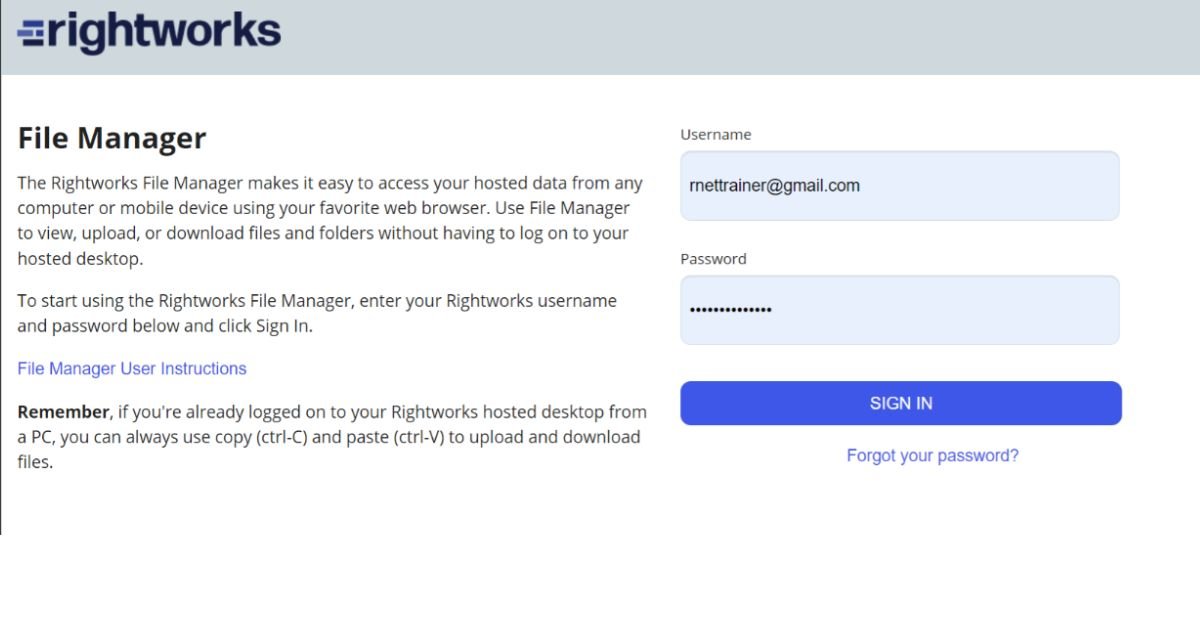
Step 1: Open a browser on your local device. Not the hosted desktop your actual laptop, desktop, or mobile browser.
Step 2: Navigate to the File Manager login page. Depending on which support article or bookmark you’re working from, you may see filemanager.rightnetworks.com or the newer filemanager.rightworks.com. Both currently route to the same login screen. If one doesn’t load, try the other.
Step 3: Enter your Rightworks (Right Networks) username and password. This is the same credential set you use to log into your hosted desktop there’s no separate account to create.
Step 4: Click Sign In / Log On.
Once you’re in, you’ll see a file-browser-style interface with your available drives listed on the left.
A note on mobile access
The File Manager works from a mobile browser too, which is useful if you need to grab a file while you’re away from your main workstation. The interface is more cramped on a small screen, but the core upload/download functionality still works the same way.
Your Drives: I:, H:, and Hosted Folders
This is where a lot of confusion starts, so it’s worth slowing down here.
Your hosted environment isn’t one single folder it’s split across a few different drives, and each one behaves differently.
| Drive/Location | What It’s For | Shared With Team? | Best Use |
|---|---|---|---|
| I: drive | Shared company drive | Yes — visible to everyone on your account | Client files, backups, anything the whole team needs |
| H: drive | Your Windows profile and personal settings | No — tied to your login only | System files; generally not where you manually save client work |
| My Documents (Hosted) | Personal document storage | No — only visible to you | Your own working files |
| Desktop (Hosted) | Your hosted desktop shortcuts/files | No — only visible to you | Quick personal access, not team files |
The practical rule: if a file needs to be seen by anyone else on the account, or if you’re restoring a backup into Drake Tax or Drake Accounting, use the I: drive. If it’s purely your own working file, the personal locations are fine just know nobody else on your team can see them.
Also Read This Post: What is Windows 365? Complete Cloud PC Guide
Step-by-Step: Uploading a File
Uploading pushes a file from your local computer up into your hosted environment. Here’s the exact sequence.
- Close the file locally first. If it’s open in Excel, Word, or any other program on your computer, close it before uploading. Open files can upload incompletely or get locked.
- Log into the File Manager from your local browser.
- Select your destination. Choose the I: drive (recommended for shared files, or for backups going into Drake) or one of the personal hosted locations.
- Click Upload and browse to the file on your local machine, or drag it into the window if your version supports drag-and-drop.
- Wait for confirmation. The file will appear in the File Manager’s file list once the upload finishes don’t navigate away before you see it listed.
- If it’s a compressed backup file, extract it inside the Rightworks environment after uploading, not before. Extracting locally and uploading a folder full of loose files is slower and more error-prone than uploading the single archive and extracting it on the other side.
Two limits you need to know before you start:
- Maximum file size is 2 GB per file. Large QuickBooks files or bulky backups sometimes bump into this. If you’re over the limit, compress the file or split it before uploading.
- .exe files are not supported. This is a security restriction, not a bug. If you’re trying to install software into your hosted environment, you’ll need to go through your Rightworks account admin or support instead.
Step-by-Step: Downloading a File
Downloading pulls a file from your hosted environment down to your local device.
- Make sure the file isn’t open in any application inside your hosted desktop. An in-use file can fail to download or transfer a corrupted copy.
- Browse to the file’s location in the File Manager typically the I: drive for shared files.
- Select the file(s). Hold Ctrl while clicking to select multiple files at once.
- Click the Download icon.
- Choose a save location on your local device if you’re prompted (some browsers default to a Downloads folder automatically).
One thing that surprises first-time users: if you select more than one file, the File Manager automatically zips them into a single archive before downloading. You’ll need to unzip it locally afterward. This is normal behavior, not an error.
Right-Click Options Inside the File Manager
Once a file is uploaded, you’re not stuck with it. Select the file and right-click to bring up a context menu with Open, Cut, Copy, Delete, and Rename. This lets you do basic housekeeping reorganizing folders, cleaning up old backups, renaming a file to match your naming convention without needing to log into the full hosted desktop for something that small.
The Copy-Paste Shortcut (For Small Files)
Here’s a trick that saves time if you’re already logged into your hosted desktop through Remote Desktop: you can copy a file locally (Ctrl+C) and paste it directly into your hosted session (Ctrl+V), and vice versa.
This bypasses the File Manager entirely. It’s genuinely faster for small files a single spreadsheet or PDF, for example because you skip the browser upload step. But it has real limits:
- It only works while you have an active Remote Desktop session open to your hosted environment.
- Large files or bulk transfers get slow and unreliable this way; the File Manager is built to handle volume, copy-paste isn’t.
- Some IT-locked-down environments disable clipboard sharing between local and hosted sessions entirely, in which case this trick won’t work at all and you’re back to the File Manager.
Rule of thumb: one or two small files while you’re already connected use copy-paste. Anything bigger, a backup restore, or you’re not currently logged into the hosted desktop use the File Manager.
Common Problems and How to Fix Them
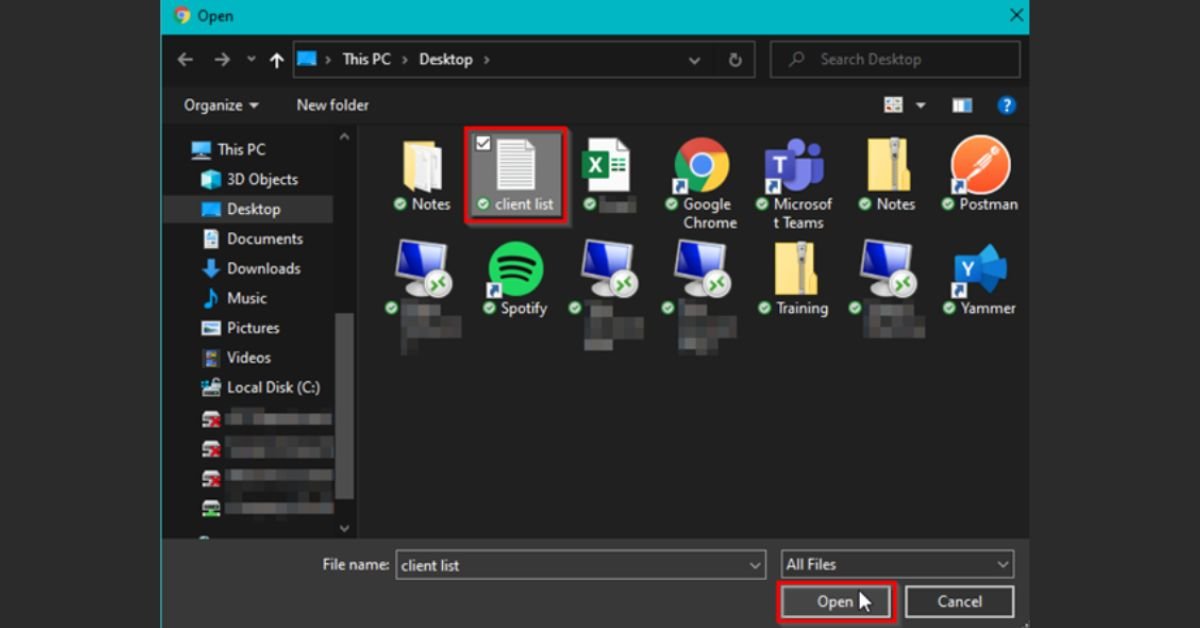
Most File Manager issues fall into a handful of repeatable categories. Here’s how to troubleshoot each one.
“I can’t find the File Manager inside my hosted desktop”
This isn’t a bug the File Manager is designed to run outside the hosted environment, in your local browser. Log out of your Remote Desktop session (or just open a separate browser window on your local machine) and navigate to the File Manager login page directly.
Upload or download won’t complete
- Check the file isn’t open anywhere, locally or in the hosted environment.
- Check the file size. Anything over 2 GB needs to be compressed or split first.
- Check the file type. .exe files are blocked outright.
- Try a different browser. File Manager issues are occasionally browser-specific, especially with outdated versions or aggressive ad-blocker/security extensions interfering with the upload widget.
Login errors after not using the account for a while
If you haven’t logged in for an extended stretch, your account may need a password reset or may throw an error on the first attempt. This is a known pattern with Rightworks accounts generally, not just the File Manager try resetting your password through the standard Rightworks portal before assuming something is broken.
The site won’t load at all
Before troubleshooting your own setup, rule out a service-wide outage. Rightworks does experience occasional planned maintenance windows and, less often, unplanned outages. If the login page won’t load on any device or browser, wait 15–20 minutes and try again, or check with your Rightworks account admin about known service issues.
Files appear to upload but never show up
Give it a minute larger files can take longer to register in the file list than the progress bar suggests. If a file genuinely never appears after a reasonable wait, re-check that it wasn’t blocked for size or file type before assuming it’s a display glitch.
Quick Troubleshooting Checklist
- File is closed in every application, local and hosted
- File is under 2 GB
- File does not have a .exe extension
- You’re accessing the File Manager from a local browser, not from inside the hosted desktop
- You’re using current Rightworks credentials (reset if you haven’t logged in recently)
- You’ve tried a second browser if the upload widget won’t load
- You’ve checked for a known service outage if nothing loads at all
File Manager vs. Copy-Paste vs. Full Remote Desktop Login: Which Should You Use?
Not every file transfer calls for the same method. Here’s how the three approaches stack up.
| Method | Best For | Speed | Requires Active RDP Session? |
|---|---|---|---|
| File Manager (browser) | Bulk files, backups, large uploads/downloads, transfers when you’re not currently logged into the hosted desktop | Moderate — built to handle larger transfers reliably | No |
| Copy-paste (Ctrl+C/V) | One or two small files while already connected | Fast for small files | Yes |
| Full Remote Desktop login | Working inside the hosted environment generally, not just moving files | N/A — this is the environment itself | Yes |
If you’re only ever moving a handful of small files and you’re always logged in anyway, copy-paste will feel more convenient. If you manage client backups, restore files into Drake, or handle transfers on a routine basis especially when you’re not already connected the File Manager is the more dependable tool for the job.
Security Notes Worth Knowing
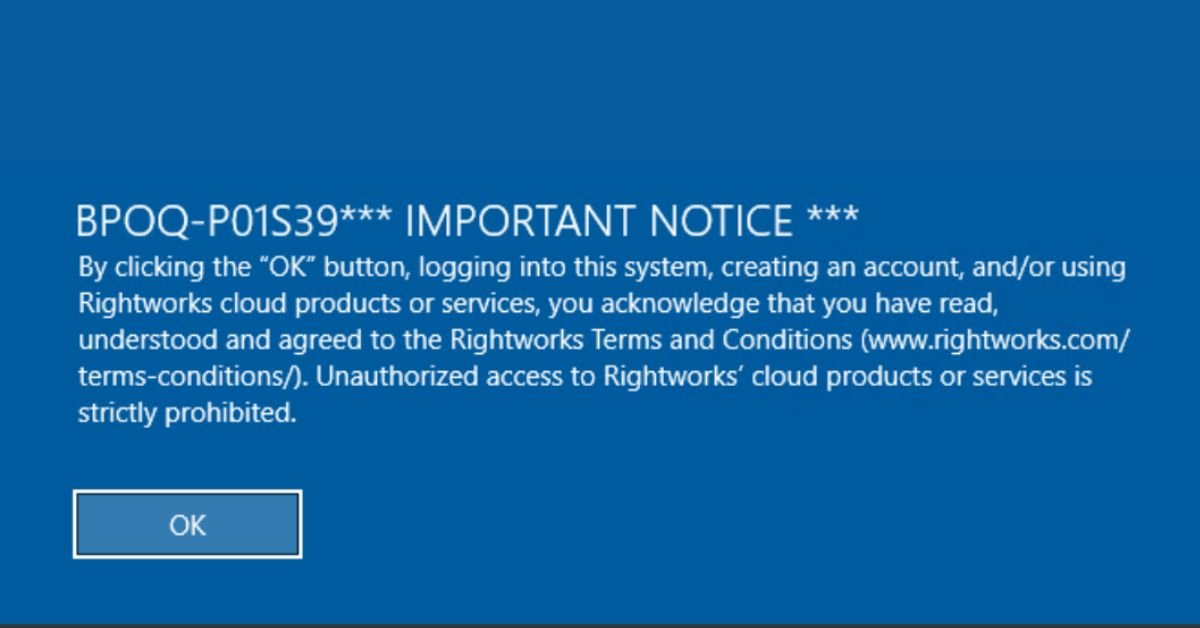
The File Manager exists specifically because your hosted environment is locked down for security and that same logic shapes how the tool behaves.
- Executable files are blocked to prevent unauthorized software from entering the hosted environment.
- Direct communication between your local machine and the hosted desktop is otherwise restricted, which is why this bridge tool exists in the first place.
- Rightworks backs up account data nightly and retains it on a rolling basis, but that’s a system-level backup for disaster recovery it isn’t a substitute for you keeping your own local copies of critical client files.
- Always log out of the File Manager when you’re finished, particularly on a shared or public computer.
Frequently Asked Questions
How do I upload files to Right Networks?
Log into filemanager.rightworks.com in your web browser, select your target folder (like the I:\ drive), and click the Upload icon or drag and drop your files.
What does Rightworks do?
Rightworks (formerly Right Networks) provides secure, cloud-based hosting for accounting and tax software, allowing businesses to run applications like QuickBooks Desktop remotely from any device.
How can I contact Right Networks QuickBooks support?
Call their 24/7 support line at 1-888-417-4448 (Ext. 2 or 3) or submit a ticket through the Rightworks Helpdesk portal.
How do I download Rightworks Remote Desktop?
Log into your AppHub account at managemyaccount.rightworks.com, click Setup Wizard, and download the pre-configured Remote Desktop connection shortcut file.
How to install Rightworks?
Rightworks requires no traditional software installation; simply download the RDP setup file from your AppHub portal, launch it, and enter your account credentials to access your cloud environment.‘t I open the File Manager from inside my hosted desktop? Because it’s designed to run in a browser on your local device, outside the hosted environment. Logging into it from inside the remote session isn’t supported open a separate local browser window instead.
