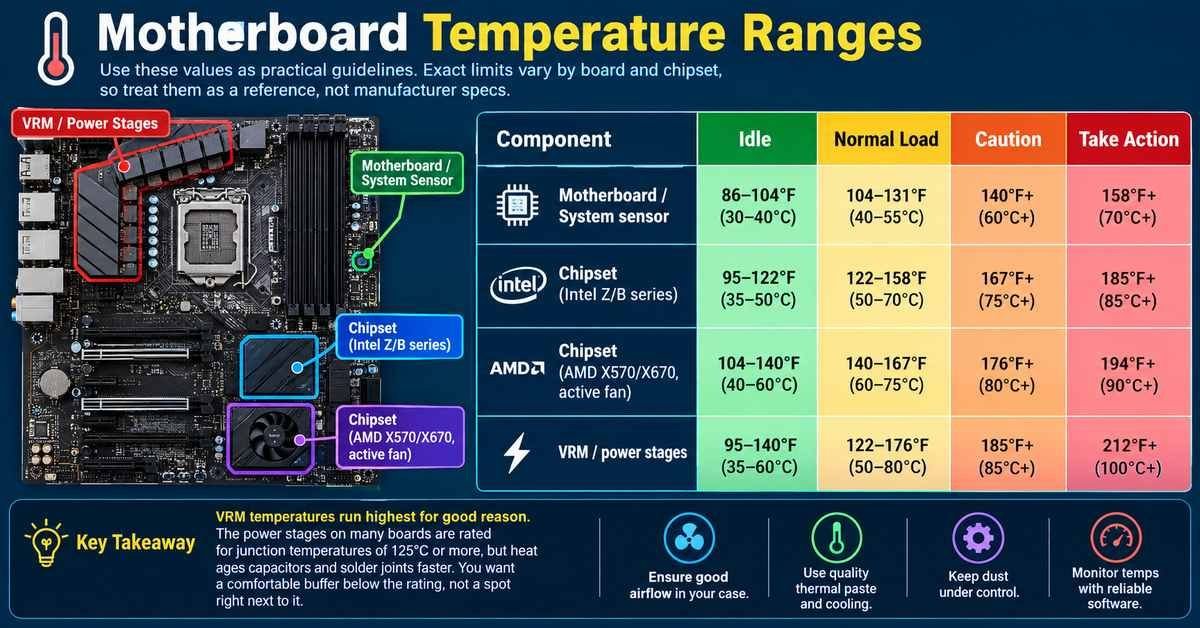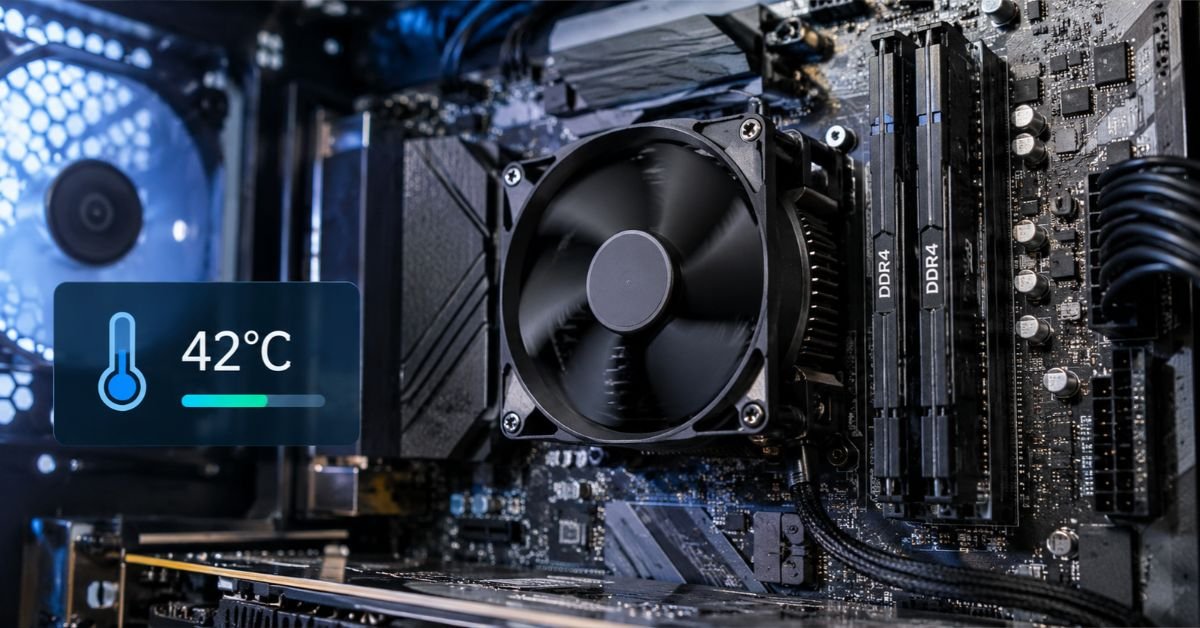
A normal motherboard temperature sits between 86°F and 140°F (30°C to 60°C) during everyday use. If the board’s general sensor stays above 158°F (70°C) for long stretches, it’s time to look at your cooling. Readings near 176°F (80°C) usually point to a real airflow problem or a faulty sensor.
Those numbers only tell part of the story, though. A motherboard doesn’t have a single temperature, and the figure you see depends on which sensor you’re looking at.
Why Motherboard Temperature Is So Confusing
Open a monitoring tool like HWiNFO, HWMonitor, or your BIOS and you’ll find several motherboard-related readings. Some of them look alarming until you know what they measure.
- System or Motherboard (sometimes SYSTIN): A general sensor placed somewhere on the board. This is usually what people mean when they search for “motherboard temperature.”
- Chipset (PCH): The chip that handles USB, SATA, storage, and extra PCIe lanes. It normally runs warmer than the general board reading.
- VRM: The voltage regulator module, the block of power circuitry around the CPU socket. On many boards it’s the hottest area.
- CPU socket: The temperature at the socket itself, which is a different number from your CPU’s core temperature.
It helps to keep these separate. A CPU at 75°C under load is perfectly ordinary, while a motherboard sensor at 75°C is not.
Normal Motherboard Temperature Ranges by Component
The table below gives realistic ranges for a room at roughly 68°F to 77°F (20°C to 25°C). Think of them as practical guidelines rather than hard limits. Exact thresholds vary by board model and chipset generation, so your motherboard manual or the manufacturer’s spec page has the final word.
| Component | Idle | Gaming / Heavy Load | Caution Zone | Danger Zone |
| General board sensor | 86–104°F (30–40°C) | 104–140°F (40–60°C) | 140–158°F (60–70°C) | Above 158°F (70°C) |
| Chipset (PCH) | 104–131°F (40–55°C) | 122–158°F (50–70°C) | 158–194°F (70–90°C) | Above 194°F (90°C) |
| VRM | 104–140°F (40–60°C) | 140–185°F (60–85°C) | 185–212°F (85–100°C) | Above 212°F (100°C) |
| CPU socket | 95–122°F (35–50°C) | 122–158°F (50–70°C) | 158–185°F (70–85°C) | Above 185°F (85°C) |
A VRM that reads 80°C while your game looks scary next to the general board number, but it’s within the normal range for that part.
What Makes a Motherboard Run Hot
Board temperature comes down to how much heat is produced and how well the case gets rid of it.
Where the heat comes from
- CPU power draw. High-core-count processors under sustained load push a lot of current through the VRMs.
- Overclocking and raising power limits. More voltage means noticeably more VRM heat.
- Fast NVMe SSDs. PCIe 4.0 and 5.0 drives get hot, and one tucked under a graphics card warms the board around it.
- Feature-heavy chipsets. Boards that support lots of high-speed lanes, including some AMD X670 and Intel Z790 models, tend to run warmer than older designs.
What keeps it in check
- Case airflow. The balance between intake and exhaust matters more than the raw number of fans.
- Room temperature. On a 90°F summer day, every reading in your PC shifts upward.
- Dust. Clogged filters, fans, and heatsinks trap heat.
- Heatsink quality. Budget boards often ship with small or thin VRM and chipset heatsinks, which leaves less thermal headroom.
Signs Your Motherboard Is Overheating
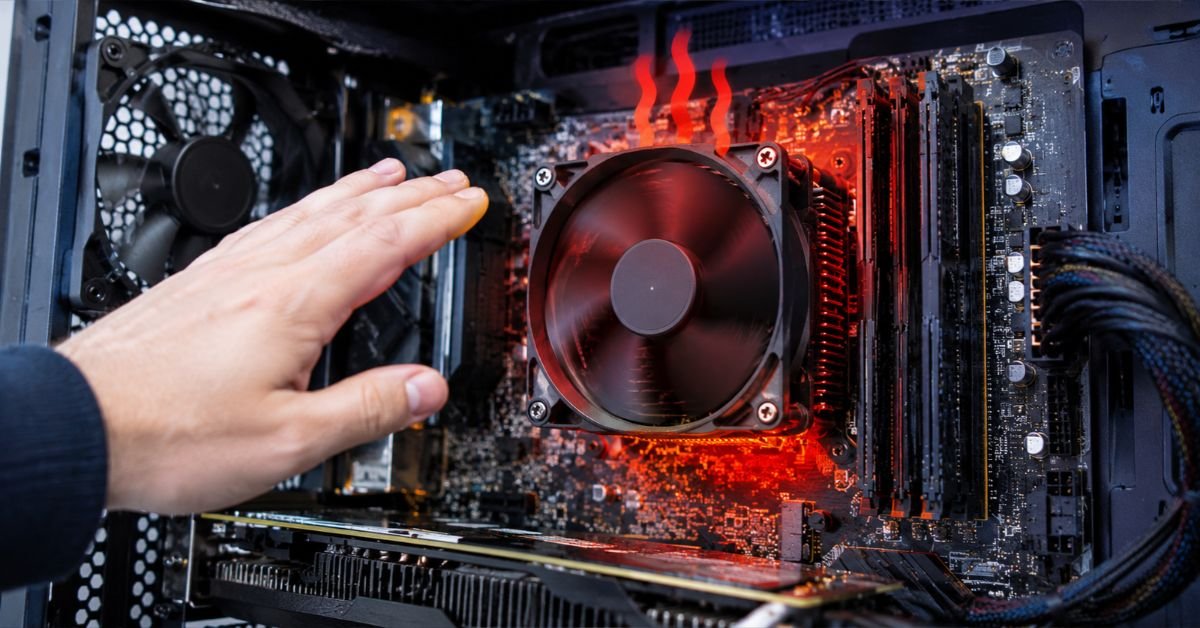
Heat problems rarely show up as one dramatic failure. More often you notice strange behavior first:
- Random shutdowns or restarts under load
- Stuttering or frame drops that begin 20 to 30 minutes into a game
- CPU throttling even though core temperatures look fine
- USB devices or drives disconnecting for no clear reason
- Blue screens with hardware-related error codes
- Fans stuck at full speed without an obvious cause
- A hot smell or a discolored patch on the circuit board (shut the PC down right away if you see this)
The throttling symptom is the one people miss most often. Many boards cut CPU power when the VRMs overheat, so performance falls while the CPU temperature looks healthy. If your benchmark scores dropped and you can’t explain why, check VRM temperatures before you blame the processor.
How to Check Your Motherboard Temperature
Monitoring software
Download a trusted tool such as HWiNFO64, HWMonitor, or Open Hardware Monitor. Expand the motherboard section, which is often named after your board’s sensor chip (Nuvoton or ITE, for example). Look for entries like System, Motherboard, PCH, VRM MOS, or TSI0_TEMP.
Then run a game or stress test for 15 to 20 minutes and watch the peak values. A reading taken at idle doesn’t tell you much.
BIOS or UEFI
Restart the PC and press Del or F2 during boot. Most BIOS screens show board and CPU temperatures on the main page or a hardware monitor page. Since the system is mostly idle at that point, treat the numbers as a baseline.
Infrared thermometer
Some budget boards don’t expose VRM or chipset sensors at all. In that case, an infrared thermometer can give you a rough surface reading. After about 20 minutes under load, aim it at the heatsink next to the CPU socket.
Keep in mind that sensors can lie. If a reading is stuck at 0°C, 127°C, or 255°C, the sensor isn’t reporting real data, and you can ignore it.
SEE MORE: Motherboard Temperature Range: Safe Limits & Fixes
How to Lower Motherboard Temperature
Work through these in order. They run from cheapest and easiest to most involved.
1. Clean out the dust
Shut down, unplug the PC, and open the case. Use short bursts of compressed air while holding the fan blades still so they don’t over-spin. Pay attention to the intake filters, heatsink fins, and the area around the VRMs.
Dust is the most common reason temperatures creep up over time, especially in a system that’s more than a year old.
2. Sort out your airflow
Set the front and bottom fans to pull cool air in, and the rear and top fans to push hot air out. Aim for slightly more intake than exhaust. That keeps the case under positive pressure, which helps keep dust out. Also move any cable bundles that block the path of air toward the board.
3. Point a fan at the VRM
If the VRM runs hot, a small 40mm to 80mm fan aimed at its heatsink can lower temperatures by roughly 10°C to 20°C. It’s an inexpensive fix when a powerful CPU is paired with a modest board.
This matters especially if you use a liquid cooler. A tower air cooler’s fan often pushes some air across the VRM area, but an AIO doesn’t. After switching to an AIO, VRM temperatures can rise, so you may need a case fan in that spot to make up for it.
4. Check your BIOS settings
Turn off aggressive auto-overclocking if you don’t need it. Make sure your power limits (PL1/PL2 on Intel, PPT on AMD) aren’t raised beyond what the board can handle. Set a sensible fan curve rather than leaving fans at low fixed speeds.
It’s also worth updating to the latest stable BIOS, since manufacturers sometimes fix thermal and power-management bugs in new releases.
5. Move or cool the NVMe drive
If your M.2 SSD sits directly under a hot graphics card, try a different M.2 slot or add a heatsink to the drive. High-end drives can raise the temperature of the surrounding board area.
6. Replace the VRM thermal pads (advanced)
Some boards ship with thin or poorly seated VRM pads, and experienced builders sometimes swap them for better ones. Check the manufacturer’s warranty policy first, because this can void coverage on some boards.
7. Upgrade the board or the case
If none of the above helps, the board’s power delivery may simply be too weak for your processor. Pairing a flagship CPU with an entry-level board is a common cause. A board with a stronger VRM design and larger heatsinks fixes the problem at its source.
Weighing Your Cooling Options
| Approach | Pros | Cons |
| Extra case fans | Inexpensive, quiet at low speeds, helps the whole system | Pulls in more dust, adds a little noise |
| Dedicated VRM fan | Direct, measurable drop in VRM heat | One more cable and one more fan to maintain |
| Better VRM heatsink or pads | A lasting fix for hot VRMs | Technical work, possible warranty issues |
| Switching to an AIO cooler | Strong CPU cooling and a tidy look | Less airflow over the VRM and socket area |
| Upgrading the motherboard | Solves power-related heat at the root | The most expensive option and means a partial rebuild |
How Hot Is Too Hot?
The board itself has no single shutdown temperature, because each component has its own limits.
- VRM MOSFETs are generally rated for junction temperatures somewhere around 125°C to 150°C, but boards usually throttle well before that to protect long-term reliability.
- Chipsets commonly have maximum operating limits near 100°C to 115°C.
- Capacitors wear out faster in sustained heat. A common rule of thumb says every 10°C increase can roughly halve a capacitor’s lifespan.
A brief spike won’t hurt anything. Running hot for months is what shortens a board’s life, so try to keep your everyday load temperatures inside the “normal” columns of the table above.
Three Real-World Examples
A gaming PC with a strong CPU on a budget board. The CPU reads a comfortable 70°C, but the VRM reaches 105°C and performance drops after half an hour. A small fan aimed at the VRM heatsink, plus a lower CPU power limit, usually brings it back under control.
A compact small-form-factor build. Tight cases trap heat, so board readings of 65°C to 70°C aren’t unusual. A case with mesh panels and a slim fan over the VRM area helps.
An older PC full of dust. Idle board temperatures that crept from 35°C to 50°C over a couple of years often fall right back after a thorough cleaning and a couple of fresh case fans.
Quick Maintenance Checklist
- [ ] Clean dust filters and fans every 3 to 6 months
- [ ] Keep intake and exhaust airflow balanced
- [ ] Watch VRM and chipset temperatures, not just the CPU
- [ ] Avoid pairing high-wattage CPUs with entry-level boards
- [ ] Update your BIOS and chipset drivers
- [ ] Keep cables tidy and out of the airflow path
- [ ] Keep the PC off carpet and the room reasonably cool
- [ ] Recheck temperatures after any hardware change
Frequently Asked Questions
What’s a normal temperature for a motherboard?
Roughly 86°F to 140°F (30°C to 60°C) on the general board sensor. VRM and chipset readings run higher and can still be normal at 60°C to 85°C.
Is 72 degrees too hot for a CPU?
No. If you mean 72°C (162°F) under load, that’s normal for most modern CPUs. If you mean 72°F, that’s far below any concern, since it’s basically room temperature.
Is 90°C too hot for a CPU?
Yes, for sustained use. Brief spikes to 90°C can happen on some chips, but staying there means you should check your cooler, thermal paste, and case airflow. Many CPUs begin throttling in this range.
Is 70 degrees hot for a motherboard?
At 70°C (158°F) on the general board sensor, yes, that’s the edge of the danger zone and worth investigating. On a VRM or chipset sensor, 70°C is normal under load.
Is 74°C too hot for a CPU?
No. It’s a comfortable load temperature for most processors and leaves plenty of headroom before throttling.
Is 65 degrees hot for a CPU?
Not at all. At 65°C (149°F) you’re in a healthy range for gaming or heavy work. If it’s 65°F, that’s just a cool room.
Quick rule: CPUs are fine up to about 80°C under load, while the motherboard’s general sensor should ideally stay below 60°C.
SEE MORE: How to Check RAM Speed — And Fix It If It’s Slow