
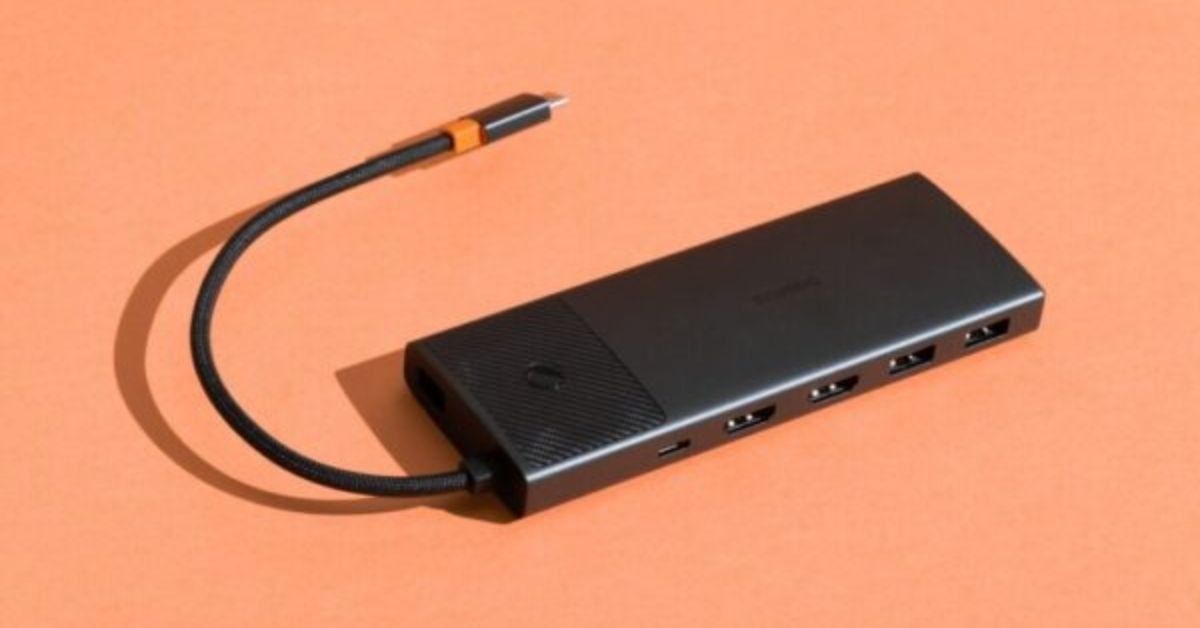
Modern laptops are often designed to be slim and portable, but their limited ports can make it difficult to connect all the accessories needed for work. A monitor, keyboard, mouse, external storage drive, webcam, and other peripherals may require more connections than the laptop provides. A USB hub can help expand the number of available ports, making it easier to connect several accessories through a single connection.
However, a basic hub is not always enough for a full desktop setup. People who regularly use external monitors, wired networking, and multiple peripherals may benefit from a more comprehensive docking solution. Understanding the differences can help you choose the right accessory for your workspace.
What Is a USB Hub?
A USB hub expands the number of available USB connections on a computer. It typically connects to one USB port and provides several additional ports for compatible accessories.
This can be helpful when a laptop has only a few ports or when you frequently connect and disconnect peripherals. Instead of plugging a mouse, keyboard, and flash drive directly into the computer one at a time, you can connect them through the hub.
Everyday Uses for a USB Hub
A hub is useful for straightforward tasks that require additional USB connections. For example, someone working from home may connect a keyboard, mouse, webcam, and external storage device to a single hub.
Students may use one to connect a flash drive, wired mouse, and other accessories to a laptop during study sessions. Travellers can also benefit from a compact hub that fits easily into a backpack.
Before choosing one, consider the accessories you use most frequently and whether they need only USB connections or additional features such as display output or wired internet.
What to Check Before Buying
The number of ports is an obvious starting point, but other specifications can affect the experience.
- Port types: Check whether you need USB-A, USB-C, or a combination.
- Data speeds: Different ports may support different transfer standards.
- Power delivery: Some hubs support charging a compatible laptop through a suitable USB-C connection.
- External power: Certain hubs require a separate power source for demanding accessories.
- Cable length: A short built-in cable may be convenient for travel but less suitable for a desktop arrangement.
- Operating-system compatibility: Check support for your computer and connected devices.
A hub should provide the ports and capabilities you need without adding unnecessary complexity.
What Is a USB-C Docking Station?
A USB-C docking station is generally designed to provide a broader range of connections through a single compatible connection to a computer. Depending on the model, it may include USB ports, display outputs, Ethernet, audio connections, memory-card readers, and power delivery.
A USB C docking station can be particularly useful for people who regularly work with an external monitor or several desktop accessories. It can reduce the number of individual cables that must be connected whenever the laptop is moved between locations.
Docking stations vary considerably, so the product’s exact capabilities matter more than the name alone.
Connecting External Displays
Some docking stations support one external monitor, while others can connect multiple displays. Supported resolution, refresh rate, and number of screens depend on the dock, computer, graphics hardware, and connection standard.
Before purchasing, confirm that the dock supports your intended monitor configuration. A dock advertised with multiple display ports does not necessarily support every combination of resolutions and refresh rates simultaneously.
This is particularly important for users who work with high-resolution displays, design applications, video editing, or multiple open documents.
Wired Networking and Other Connections
A docking station may include an Ethernet port for connecting to a wired network. This can be useful in offices or home workspaces where a stable wired connection is preferred.
Some models also offer audio connections, card readers, or additional USB ports. These features can reduce the need for separate adapters and make it easier to keep a permanent desk setup organised.
If you regularly connect several types of equipment, list the ports you need before comparing models. That will help you avoid paying for features you are unlikely to use.
USB Hub vs. USB-C Docking Station: Key Differences
Although both accessories expand connectivity, they serve somewhat different needs.
| Feature | USB hub | USB-C docking station |
| Main purpose | Adds USB ports | Expands a wider range of connections |
| Typical use | Keyboards, mice, flash drives, and other USB accessories | Desktop workstations with displays and multiple peripherals |
| External monitor support | Depends on the model; often limited | Available on compatible models, sometimes for multiple displays |
| Ethernet | Not always included | Common on many full-featured models |
| Power delivery | Available on selected models | Available on selected models, sometimes at higher power levels |
| Portability | Often compact and lightweight | Usually larger, with more connections |
| Best fit | Basic connectivity needs | More complex desk setups |
These are general differences, not universal rules. Some advanced hubs offer display and networking features, while some compact docking stations provide only a limited selection of ports.
The best choice depends on the devices you own and the connections you need to use at the same time.
How to Choose the Right Accessory for Your Workspace
Start by examining how you use your computer throughout a typical day. If you mainly connect a keyboard, mouse, and flash drive, a compact hub may be sufficient. If you regularly connect monitors, wired networking, storage devices, and other equipment, a docking station may provide a more convenient arrangement.
For Students and Everyday Laptop Users
A simple hub may be suitable for connecting basic accessories. Students who move between classrooms, libraries, and home can benefit from a compact design that is easy to pack away.
Consider whether the hub supports the devices you carry most often and whether its cable reaches comfortably from the laptop to your accessories.
For Remote Workers
Remote workers may need to connect a monitor, webcam, keyboard, mouse, and external drive. A hub can support some of these connections, but a docking station may be more convenient if the setup includes display output, Ethernet, and laptop charging.
Think about how often you disconnect your laptop. If you move it frequently but return to the same desk, a docking station can simplify the process by consolidating many connections.
For Creative Professionals
Photographers, video editors, and designers may connect external storage, card readers, high-resolution monitors, and other equipment. Data transfer rates and display support can be especially important in these workflows.
Check the specifications for each port rather than assuming all connections operate at the same speed. Also confirm that the dock supports the computer’s display capabilities and the storage devices you intend to use.
Compatibility and Power Considerations
Compatibility is one of the most important parts of choosing a hub or dock. A USB-C connector does not guarantee that a computer supports every feature offered by an accessory.
Some USB-C ports support data only, while others also support display output and power delivery. Check the computer manufacturer’s specifications to determine which functions are available through the port you plan to use.
Power requirements deserve similar attention. If you want to charge a laptop through the dock, confirm the supported power-delivery output and compare it with the laptop’s requirements. The dock may also need its own power adapter to support connected devices reliably.
If several high-power accessories will be connected at once, review the manufacturer’s recommendations. Some hubs and docks share power between ports, which can affect the amount available to individual devices.
Tips for a Cleaner Desk Setup
A good connectivity accessory should make your workspace easier to use, not create another collection of cables to manage.
- Place the hub or docking station where its ports are easy to reach.
- Route monitor and power cables away from the main working area.
- Label cables that are difficult to identify.
- Keep the dock’s ventilation openings unobstructed.
- Disconnect accessories carefully instead of pulling on their cables.
- Check that connected devices are recognised before starting important work.
- Review the manufacturer’s instructions before connecting high-power equipment.
For a permanent desk, a docking station can reduce the number of connections you need to make each morning. For a mobile setup, a smaller hub may be easier to carry between locations.
Common Mistakes to Avoid
One common mistake is buying an accessory based only on its port count. A device with many ports may still lack the display output, data speed, or charging capability your setup requires.
Another mistake is assuming every USB-C port supports video. Confirm the computer’s capabilities as well as the hub or dock’s specifications.
Some users also overlook laptop charging requirements. A docking station may support power delivery, but the available wattage may not be enough for every computer or workload.
Finally, consider your future needs without overbuying. If your current setup only requires a few USB connections, a full docking station may add unnecessary cost and size. If you expect to build a multi-monitor workspace, choosing a suitable dock from the beginning may be more practical.
Choose the Right Connection Solution
A USB hub is a straightforward way to add ports for everyday accessories, while a USB-C docking station can provide a broader set of connections for a more complete workstation. Neither option is automatically better for every user.
Make a list of your current devices, the ports they require, and the tasks you perform most often. Check data speeds, monitor support, charging output, and computer compatibility before making a decision.
The right accessory should simplify your workflow, reduce cable clutter, and provide the connections you actually use.
Would a compact USB hub cover your current needs, or would a docking station make your desk setup more convenient?
Frequently Asked Questions
What is the main difference between a USB hub and a docking station?
A USB hub primarily expands the number of USB ports. A docking station often adds a wider range of connections, potentially including external display outputs, Ethernet, audio, and laptop charging.
Can a USB hub connect a laptop to an external monitor?
Some hubs support external displays, but others provide USB connections only. Check the hub’s specifications and confirm that your computer supports video output through the relevant port.
Does a USB-C docking station charge a laptop?
Some docking stations support power delivery and can charge compatible laptops. Check the dock’s maximum output and the laptop’s power requirements before relying on it as the primary charger.
Is a docking station suitable for travel?
Compact docking stations can be useful for travel, but they may be larger and heavier than basic hubs. If you only need a few USB connections, a small hub may be easier to carry.
How do I know whether my laptop is compatible with a docking station?
Check the laptop manufacturer’s port specifications and compare them with the dock’s supported connections. Pay particular attention to display output, data standards, operating-system support, and power delivery.
See More:
How to Choose a Laptop in Mexico: Buyer’s Guide
How to Build a Retro Game Library Without Breaking the Bank
