

Not long ago, picking a laptop meant choosing a screen size, a brand, and a price, then calling it a day. These days there are more moving parts. Processors come in several families, storage varies a lot in speed, and the same budget can buy two very different machines depending on where the money goes. If you’re shopping in Mexico, there’s a local layer on top of that: prices in pesos, hot summers, uneven power in some areas, and the question of who will help if something breaks.
This guide covers the choices that matter most, in plain language, so you can match a laptop to your actual life instead of paying for features you’ll never touch.
Start With What You’ll Really Do on It
Before you look at a single spec sheet, jot down the three or four things you’ll do most. A laptop that suits a university student can frustrate a video editor, and the reverse is just as true.
Students and home users mostly need portability, decent battery life, and a keyboard that doesn’t fight back. Browsing, streaming, video calls, and documents don’t ask much of the hardware, so a top-tier processor is usually money wasted.
If you work from home or in an office, reliability and connectivity count for more than raw speed. A good webcam and microphone, a sensible set of ports, and a keyboard you can live with for eight hours will serve you better than a little extra horsepower.
Creative work and gaming are a different story. There, graphics performance and cooling take center stage, and the budget needs to stretch further.
Being honest about your use is the simplest way to avoid overspending.
Be Realistic About Your Budget
Laptop prices in Mexico cover a wide range, and the gap between tiers is about more than speed. When you’re ready to compare real machines, the laptop category at PCredcom groups a broad selection in one place, which makes it easier to see how entry-level, mid-range, and more powerful models differ before you commit. Whichever store you use, read the full specification sheet rather than trusting the headline processor name. Two laptops with similar-sounding names can behave very differently depending on memory, storage, and cooling.
In general, entry-level models handle the basics, mid-range ones balance performance with build quality, and premium ones add better screens, lighter bodies, and longer battery life. Pick a spending ceiling early, or you’ll find yourself drifting upward as you browse.
It also helps to think about what a laptop costs over its whole life, not just on the day you buy it. A slightly pricier model with a better battery and a sturdier build can outlast a cheaper one by years, and that often makes it the better deal.
The Specifications That Actually Matter
Spec sheets can read like alphabet soup. Only a few components shape the day-to-day experience, so those are worth understanding.
Processor
The processor does the thinking. Intel Core and AMD Ryzen are the two main families in most laptops, and both cover everything from entry-level to high-performance. For everyday work, a recent mid-range chip is more than enough. Higher tiers make sense if you juggle heavy multitasking, edit video, work with large programming projects, or play demanding games.
Look at the generation and model suffix, not only the family name. A newer mid-range chip can outperform an older high-end one while drawing less power.
Memory (RAM)
RAM decides how many things your laptop can handle at once. Eight gigabytes is workable for browsing, documents, and streaming. Sixteen is a comfortable step up for people who keep dozens of tabs and several apps open, or who do light creative work. Thirty-two or more is only really necessary for large video projects, virtual machines, or complex development setups.
Check whether the memory can be upgraded later. In many thin laptops it’s soldered to the board, so it’s smarter to buy a bit more than you think you need.
Storage
Go for a solid-state drive (SSD) rather than a traditional hard drive. Startup, app loading, and file transfers are dramatically faster. A 512 GB drive suits most people, while those with big photo libraries, videos, or games may want 1 TB. If money is tight, an external drive or cloud storage can make up for a smaller internal one.
Display
You’ll be staring at this screen all day, so it deserves some attention. Full HD is a sensible baseline. Check brightness, because a dim panel is hard to use near a window or outdoors, and consider an anti-glare finish if you often work in bright rooms. If you do design or photo editing, look for color accuracy details when the manufacturer provides them.
Size shapes portability, too. Laptops around 13 to 14 inches are easy to carry, 15 to 16 inches give you more room to work, and larger screens suit a desk that stays put.
Battery Life and Portability
Manufacturer battery estimates come from specific test conditions, and real use is usually shorter, especially with a bright screen, video calls, and plenty of background apps. Independent reviews that describe realistic usage are a better guide.
If you commute, study on campus, or move between meetings, weight and charger size matter as much as battery capacity. A lighter laptop with a compact charger is far nicer to carry every day than a heavier one with a slightly bigger battery. USB-C charging is also handy, since a single charger can often power your laptop, phone, and tablet.
Heat, Power, and Local Conditions
Mexico’s varied climate deserves a thought. In hot regions, laptops have to work harder to stay cool, and poor ventilation can lead to slower performance and noisy fans. A few habits help anywhere: use the laptop on a hard, flat surface instead of a bed or sofa, which can block the vents; clean dust from the vents now and then; and never leave it in a parked car or in direct sun.
Power quality is another factor. Voltage fluctuations and outages happen in some areas, so a surge protector, or a small uninterruptible power supply (UPS), is an inexpensive way to protect both the machine and your unsaved work. A laptop with a healthy battery also gives you a short cushion during brief outages.
Operating System and Software
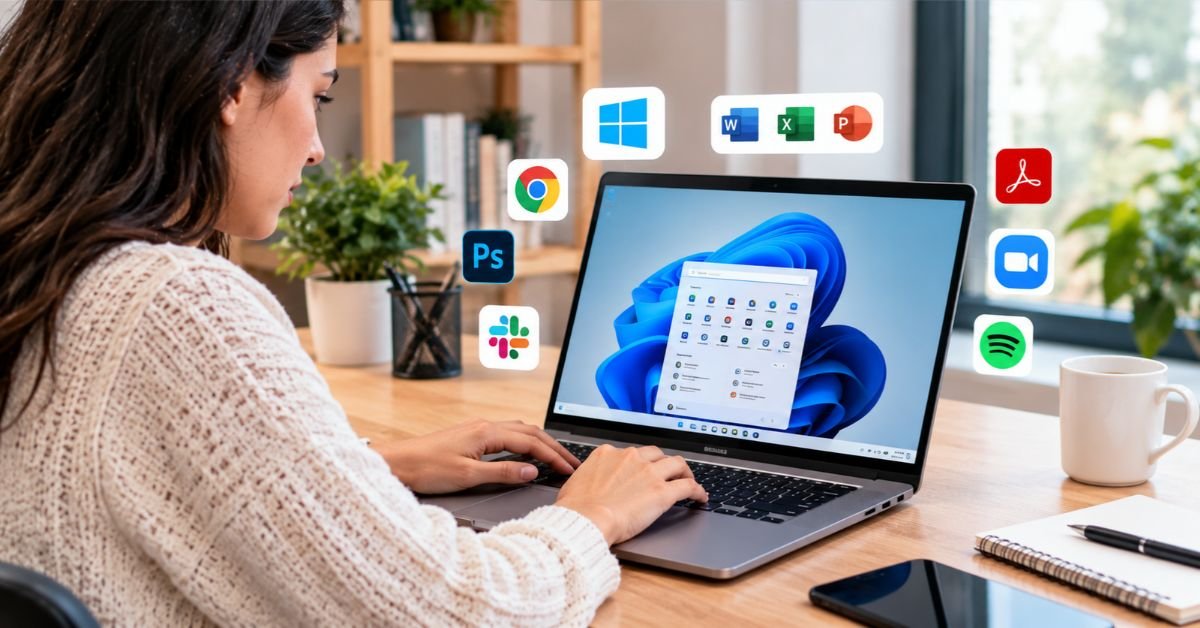
Most laptops ship with Windows, and many people prefer it for compatibility with office software, school platforms, and a wide range of professional applications. Others choose ChromeOS for its simplicity or macOS for how well it works with other Apple devices. If your job depends on specific programs, such as accounting software, design tools, or engineering suites, confirm they run on the system you’re considering before you buy.
Some budget laptops arrive with no operating system at all. That lowers the price but means you’ll have to install one yourself. Experienced users and IT professionals may not mind, but beginners are usually better off with a model that comes with the system installed and activated.
See More: Best iGPU for Gaming in 2026: Top Picks Ranked
Ports, Connectivity, and Accessories
Thin laptops often skimp on ports, so check that the machine has what you need. Think about what you actually plug in: external monitors, projectors, printers, flash drives, headsets, or a wired network adapter. USB-A and USB-C cover most peripherals and charging. HDMI is useful for projectors and external displays, especially for presentations in classrooms and meeting rooms. A headphone jack matters if you use wired audio, an SD card reader helps photographers and videographers, and Wi-Fi 6 or newer gives you faster, steadier wireless connections.
If a laptop lacks a port you need, a dock or adapter can fill the gap, but it’s one more thing to buy and carry.
A few accessories also go a long way for people who work long hours: a laptop stand, an external keyboard and mouse, and a good backpack. If you’re planning a full home office or classroom setup, it makes sense to think about a printer or projector at the same time as the laptop.
Warranty, Support, and Buying Safely
A laptop is a big purchase, so the after-sale experience matters. Before you pay, confirm what the warranty covers, how long it lasts, and where repairs are handled. Find out the return or exchange window in case the product arrives damaged or doesn’t match its description. Buy from sellers with clear contact details, transparent pricing, and good customer feedback.
If you need the purchase for business or tax reasons, ask for a proper invoice (factura) and keep it with your warranty papers. And make sure the listing says whether the laptop is new, open-box, or refurbished, so there are no surprises.
Sales events like Hot Sale and El Buen Fin can bring real discounts, but they also push people to decide fast. Check prices in the weeks beforehand so you can tell a genuine deal from a marketing label, and steer clear of sellers who can’t explain the warranty clearly.
Making Your Laptop Last
Once you’ve chosen well, a few habits will stretch its useful life. Keep the system updated, since updates improve security and often fix performance problems. Look after the battery by not leaving the laptop plugged in at full charge for months, and by not draining it to zero over and over. Back up your files to an external drive or the cloud so a hardware failure doesn’t take your work with it. A padded sleeve protects against bumps and scratches, regular gentle cleaning keeps the screen, keyboard, and vents in good shape, and reliable security software plus careful browsing habits go a long way against malware and scams.
A Quick Checklist Before You Buy
Run through these questions before you commit:
- Have you settled on your main use and a maximum budget?
- Does the processor fit your workload without being overkill?
- Is there at least 8 GB of RAM, and ideally 16 GB if you multitask?
- Does it have an SSD with enough space?
- Is the screen bright, sharp, and comfortable for long sessions?
- Does it have the ports you need?
- Are the warranty and return terms clear?
- Can you get an invoice and dependable support if something goes wrong?
Wrapping Up
The best laptop isn’t the one with the biggest numbers or the most famous logo. It’s the one that fits your routine, your budget, and your surroundings. Start with what you really need, learn what each specification does, and compare options carefully. Then pay attention to the practical details that are easy to overlook, like heat, power protection, ports, and warranty terms, because they shape how you feel about the purchase long after the box is open.
With a clear plan and a bit of patience, you can find a laptop that serves you well for years, whether you’re studying, working from home, running a small business, or just keeping in touch with the people who matter to you.
See More: Small Business Inventory Software: What It Does and How to Pick the Right One
FAQs
Are laptops allowed in Mexico?
Yes. Travelers can bring a personal laptop into Mexico, and buying or owning one there is completely normal. Customs limits only apply to the number of devices. Each traveler can bring one portable computing device, such as a laptop or tablet, without paying import tax, and carrying several devices can trigger a duty starting at 19% of their value. One site reports that the allowance was expanded to two portable devices per person in January 2026. The sources disagree, so check Mexico’s official customs (SAT/ANAM) guidance before you travel, and keep your receipts handy.
What questions should you ask when buying a laptop?
- What will I mainly use it for, and what is my maximum budget?
- Is the processor right for my workload, or is it overkill?
- How much RAM does it have, and can I upgrade it later?
- Does it have an SSD, and is the capacity enough for me?
- How bright and sharp is the screen?
- What battery life do independent tests show?
- Does it have the ports I need, such as HDMI and USB-C?
- What does the warranty cover, and where are repairs handled in Mexico?
- Is it new, open-box, or refurbished, and can I get a factura?
How much do laptops cost in Mexico?
Prices vary a lot by tier. One price guide says laptops start at about $7,500 MXN for a basic student model and reach $34,999 MXN for a MacBook Air M3. A separate 2026 buying guide puts most recommended mid-range models at roughly $11,700 to $21,500 MXN. As a rule of thumb, expect about 7,500 to 12,000 pesos for basic use, 13,000 to 22,000 for mid-range, and 22,000 or more for premium, gaming, or workstation models. These figures come from retail guides and will change with promotions, so compare the current price before you buy. Sales events like Hot Sale and El Buen Fin often move prices, though some “discounts” inflate the crossed-out price, so note the base price a week earlier.
How do you choose a laptop?
Start with your main use and your budget, then check four things: a recent mid-range processor, 16 GB of RAM if you multitask (8 GB is enough for basic use), an SSD of 512 GB or more, and a bright Full HD screen. After that, compare battery life, ports, and weight, and make sure the warranty and return terms are clear. Match the machine to what you actually do, not to the biggest numbers on the spec sheet.
