
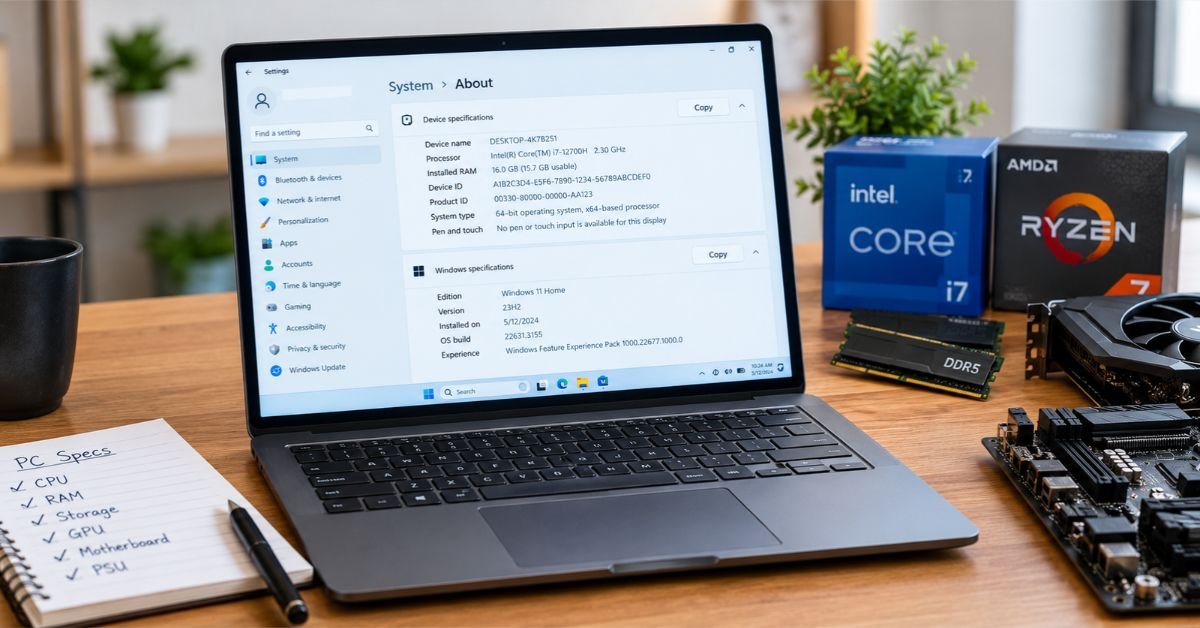
PC specifications, or “specs” for short, are the technical details that describe what’s inside a computer and what it can do. They cover the processor, memory, storage, graphics card, display, ports, and operating system.
A good way to think about them: specs are the nutrition label on your computer. They tell you what you’re getting before you buy, and what you already own when something starts running slowly or a game won’t launch.
This guide walks through each major spec, shows you how to check your own on Windows and Mac, and gives you some practical benchmarks so you can tell whether a number actually means something or is just marketing.
What Does “PC Specifications” Mean?
Specs are the hardware and software details that define a computer’s performance and compatibility. Manufacturers list them on product pages, retailers print them on shelf tags, and software developers use them to say whether a program will run on your machine.
Most people run into specs in one of three situations:
- Shopping for a computer, where you’re comparing two or three laptops or desktops.
- Installing software or games, where you’re checking “minimum” and “recommended” requirements.
- Troubleshooting or upgrading, where you need to find the weak link or confirm which parts are compatible.
Specs won’t tell you exactly how fast a machine feels in daily use. They’re still the quickest way to compare two computers without guessing.
The Core PC Specs, Explained
Processor (CPU)
The CPU is the brain of the computer. It runs your apps, carries out instructions, and keeps everything else coordinated.
When you read a CPU listing, look at:
- Brand and model. That means Intel Core (i3, i5, i7, i9, or Core Ultra), AMD Ryzen (3, 5, 7, 9), or Apple’s M-series chips on Macs.
- Cores and threads. More cores let the computer handle more tasks at once. Threads help each core juggle its workload more efficiently.
- Clock speed (GHz). This is how fast each core runs. It’s only a fair comparison between chips of the same brand and generation.
- Generation. A newer mid-range chip can easily beat an older high-end one, so the “i7” label alone doesn’t tell you much.
One thing catches a lot of buyers off guard: two laptops can both say “Core i7” and perform very differently. A low-power 15W chip in a thin laptop starts throttling much sooner than a 45W chip in a thicker machine. Always check the full model number.
Memory (RAM)
RAM is your computer’s short-term workspace. It holds the apps, browser tabs, and files you’re using right now.
With more RAM, you can keep more things open without slowing down. When it fills up, Windows starts borrowing space from your storage drive, and that’s when everything begins to feel sluggish.
| Use Case | Recommended RAM |
| Basic browsing, email, streaming | 8 GB |
| Everyday multitasking, office work | 16 GB |
| Gaming, photo editing, light video work | 16–32 GB |
| 4K video editing, 3D rendering, virtual machines | 32–64 GB |
Check the RAM type and speed too. DDR4 and DDR5 aren’t interchangeable, so confirm which one your motherboard supports before you buy an upgrade.
Storage: SSD vs. HDD
Storage is where your files, apps, and operating system live. Two details matter here: how much space there is, and what kind of drive it is.
| Feature | SSD (Solid State Drive) | HDD (Hard Disk Drive) |
| Speed | Very fast boot and load times | Noticeably slower |
| Durability | No moving parts, handles bumps better | Spinning platters, more fragile |
| Noise | Silent | Audible hum or clicks |
| Cost per GB | Higher | Lower |
| Best for | Operating system, apps, games | Bulk storage, backups |
Among SSDs, NVMe drives are much faster than older SATA models. If you’re buying a new PC, an NVMe SSD of at least 512 GB is a sensible starting point.
If you’re dealing with an older computer that still boots from a hard drive, swapping in an SSD is often the most noticeable upgrade you can make.
Graphics Card (GPU)
The GPU handles visuals. That includes games, video playback, 3D work, and a growing number of AI-based tasks.
You’ll run into two kinds:
- Integrated graphics are built into the CPU. They’re fine for web browsing, streaming, office work, and light photo editing.
- Dedicated (discrete) graphics come on a separate card from NVIDIA (GeForce RTX), AMD (Radeon RX), or Intel (Arc). You’ll want one for serious gaming, 3D design, and heavy video editing.
With dedicated cards, look at the VRAM (video memory) as well. Modern games at higher resolutions increasingly call for 8 GB or more.
Motherboard
The motherboard ties every component together. Unless you’re building or upgrading a desktop, you probably won’t shop for one by name. Still, it decides:
- Which CPUs you can install (the socket type)
- Which RAM type and maximum capacity you can use
- How many storage drives and expansion cards fit
- Which ports and wireless features you get
SEE MORE: Normal Motherboard Temperature: Safe Ranges & Fixes
Power Supply and Cooling
On a desktop, the power supply has to deliver enough wattage for all your parts, especially a powerful GPU. An 80 Plus efficiency rating is a good sign of a reliable unit.
Cooling gets overlooked more than it should. A fast CPU in a poorly cooled case will slow itself down to avoid overheating, which is called thermal throttling.
Display
On laptops and monitors, the display shapes your day-to-day experience more than most spec-sheet numbers do.
- Resolution: 1920×1080 (Full HD) is the standard baseline. 2560×1440 (QHD) and 3840×2160 (4K) are sharper.
- Refresh rate: 60 Hz is standard. 120–240 Hz feels smoother, especially for gaming.
- Panel type: IPS panels offer good color and wide viewing angles. OLED gives you deeper blacks and richer contrast.
- Brightness: Look for 300 nits or more for comfortable indoor use.
Ports and Connectivity
Ports are easy to forget until you’re standing there with a cable that doesn’t fit. Check for:
- USB-A and USB-C (and whether the USB-C port supports charging or display output)
- HDMI or DisplayPort
- Thunderbolt, for fast external drives and docks
- Wi-Fi 6, 6E, or 7, and the Bluetooth version
- Ethernet, if you want a stable wired connection
Operating System
Your OS (Windows 11, Windows 10, macOS, Linux, or ChromeOS) determines which software you can run. Program requirements often list a minimum OS version and whether you need a 64-bit system.
How to Check Your PC Specifications
You don’t need to install anything. Windows and macOS both have built-in ways to see your specs.
On Windows 11 or Windows 10
For a quick overview:
- Press Windows key + I to open Settings.
- Go to System, then About.
- Look under Device specifications for your processor, installed RAM, and system type.
For a more detailed report: press Windows key + R, type msinfo32, and hit Enter. The System Summary shows the BIOS version, motherboard, and more.
For storage, CPU, and GPU in real time: press Ctrl + Shift + Esc to open Task Manager and click the Performance tab.
For graphics details: press Windows key + R, type dxdiag, and press Enter. The Display tab lists your graphics card and VRAM.
On Mac
- Click the Apple menu in the top-left corner.
- Select About This Mac.
- Click More Info to see the chip, memory, storage, and display.
For more depth, hold Option while clicking the Apple menu, then choose System Information.
Third-Party Tools
Free tools such as CPU-Z, HWiNFO, and Speccy give a more granular breakdown, including RAM speed, motherboard model, and sensor temperatures. Download them only from the developer’s official website.
How to Read a Specs Sheet
A specs list can look like alphabet soup at first. Here’s a typical example, and what it actually says:
Intel Core i5-13420H | 16 GB DDR5 | 512 GB NVMe SSD | NVIDIA GeForce RTX 3050 6 GB | 15.6″ FHD 144 Hz
- Core i5-13420H: A mid-range Intel chip from the 13th generation. The “H” means it’s a higher-power laptop processor.
- 16 GB DDR5: Plenty of memory for everyday work and gaming.
- 512 GB NVMe SSD: Fast storage with enough room for the OS and a handful of games.
- RTX 3050 6 GB: Entry-level dedicated graphics, fine for 1080p gaming.
- 15.6″ FHD 144 Hz: A Full HD screen with a smooth refresh rate.
Put together, that’s a capable budget gaming laptop. Once you know the pattern, you can read a listing like this in about ten seconds.
Common Chip Suffixes
| Suffix | Meaning |
| K (Intel) | Unlocked for overclocking (desktop) |
| F (Intel) | No integrated graphics |
| H / HX | High-performance laptop chip |
| U / P | Low-power chip for thin-and-light laptops |
| X3D (AMD) | Extra cache, popular for gaming |
| G (older AMD) | Includes integrated graphics |
System Requirements vs. PC Specifications
People mix these terms up all the time. They’re related, but they’re not the same thing.
| Term | What It Means |
| PC specifications | What your computer actually has |
| Minimum requirements | The lowest specs a program needs to run at all |
| Recommended requirements | The specs for a smooth, intended experience |
In practice, “minimum” usually means the program will launch, and “recommended” means it’ll be pleasant to use. If your machine sits right at the minimum, expect lower settings and the occasional stutter.
Choosing a PC Based on Specs: The Upsides and Downsides
Specs are useful, but they have limits.
What they do well:
- They give you an objective way to compare machines.
- They keep you from paying for features you won’t use.
- They make upgrade planning much easier.
- They let you confirm software and game compatibility before you buy.
Where they fall short:
- They say nothing about build quality, keyboard feel, or screen quality.
- Cooling design can make a “strong” laptop perform like a weaker one.
- Marketing tends to highlight a flashy number, like 4.5 GHz, while skipping over weak spots like slow RAM.
- A big number in one area is wasted if another part holds it back.
The sensible approach is to use specs to narrow your list, then read independent reviews that test sustained performance, thermals, and battery life.
Which Specs Matter Most for Your Needs?
| If You Mostly… | Prioritize |
| Browse, stream, and do office work | 8–16 GB RAM, an SSD, any modern i3/i5/Ryzen 3/5 |
| Study or work from home | 16 GB RAM, an SSD, a good display, solid battery life |
| Play games | A dedicated GPU, 16 GB+ RAM, a fast SSD, a high-refresh display |
| Edit video or photos | A strong CPU, 32 GB RAM, a color-accurate display, fast NVMe storage |
| Run virtual machines or code heavily | A high core count, 32 GB+ RAM, a fast SSD |
Common Mistakes People Make With PC Specs
- Chasing GHz alone. Architecture and generation matter more than raw clock speed.
- Ignoring single-channel RAM. A laptop with one stick of RAM often runs slower than the same model with two matching sticks (dual-channel).
- Picking a big HDD over a small SSD. A 1 TB hard drive feels slower day to day than a 512 GB SSD.
- Overlooking upgradeability. Some thin laptops solder the RAM to the board, so you can’t add more later.
- Pairing a strong GPU with a weak CPU. The slower part holds back the faster one. That’s called a bottleneck.
When Performance Doesn’t Match the Specs
If your PC feels slower than its specs suggest, work through these checks in order:
- Open Task Manager (Ctrl + Shift + Esc) and look for a program hogging CPU, memory, or disk.
- Check disk usage. A drive stuck at 100% usually means a failing drive, a heavy background update, or too little RAM.
- Review your startup apps in Task Manager and disable what you don’t need.
- Check temperatures with HWiNFO. If your CPU hits the high 90s °C under light load, clean the vents and consider replacing the thermal paste.
- Update your drivers, especially graphics and chipset drivers, from the manufacturer’s website.
- Confirm your power mode. On laptops, “Best power efficiency” can cap performance.
- Scan for malware with Windows Security.
If all of that looks normal and the machine is still slow, the hardware may simply be too old for what you’re asking it to do.
A Quick Checklist Before You Buy
- [ ] CPU model and generation (not just “i5” or “Ryzen 5”)
- [ ] At least 16 GB of RAM for general use
- [ ] An NVMe SSD with 512 GB or more
- [ ] A dedicated GPU if you game or do 3D or video work
- [ ] Display resolution, refresh rate, and brightness
- [ ] Ports that match your accessories
- [ ] RAM and storage upgradeability
- [ ] Independent reviews that cover cooling and battery life
- [ ] Warranty length and return policy
The Bottom Line
What Is PC Specifications are the facts behind how a computer performs: the processor, RAM, storage, graphics, display, and connectivity. Once you know what each one does, a specs sheet stops being intimidating, and it gets much easier to spot weak links, compare machines, and plan upgrades.
A good first step is to check your own computer using the methods above. Knowing what you have tells you what to fix, upgrade, or look for next.
Frequently Asked Questions
What do people mean when they ask for PC specs?
They want a quick rundown of what’s inside the computer: the processor, RAM, storage, graphics card, and operating system. It’s usually asked when someone is troubleshooting, selling a PC, or checking whether a game or program will run.
What are PC specifications?
PC specifications are the hardware and software details that describe a computer’s performance. They cover the CPU, memory, storage, GPU, display, ports, and OS, and they show what a machine can handle.
What specs should I look for in a PC?
Start with the processor, RAM, and storage, since they affect everyday speed the most. For general use, a recent Core i5 or Ryzen 5, 16 GB of RAM, and a 512 GB NVMe SSD is a solid baseline. Add a dedicated graphics card only if you game or edit video.
How do I know my PC specifications?
On Windows, open Settings > System > About to see your processor, RAM, and system type. For graphics details, press Windows key + R, type dxdiag, and hit Enter. On a Mac, click the Apple menu > About This Mac.
How much RAM does my PC need?
For browsing, email, and streaming, 8 GB works. For everyday multitasking and office work, 16 GB is the safer choice. Gamers and creators should aim for 16-32 GB, and heavy video editing or virtual machines can call for 32 GB or more.
