
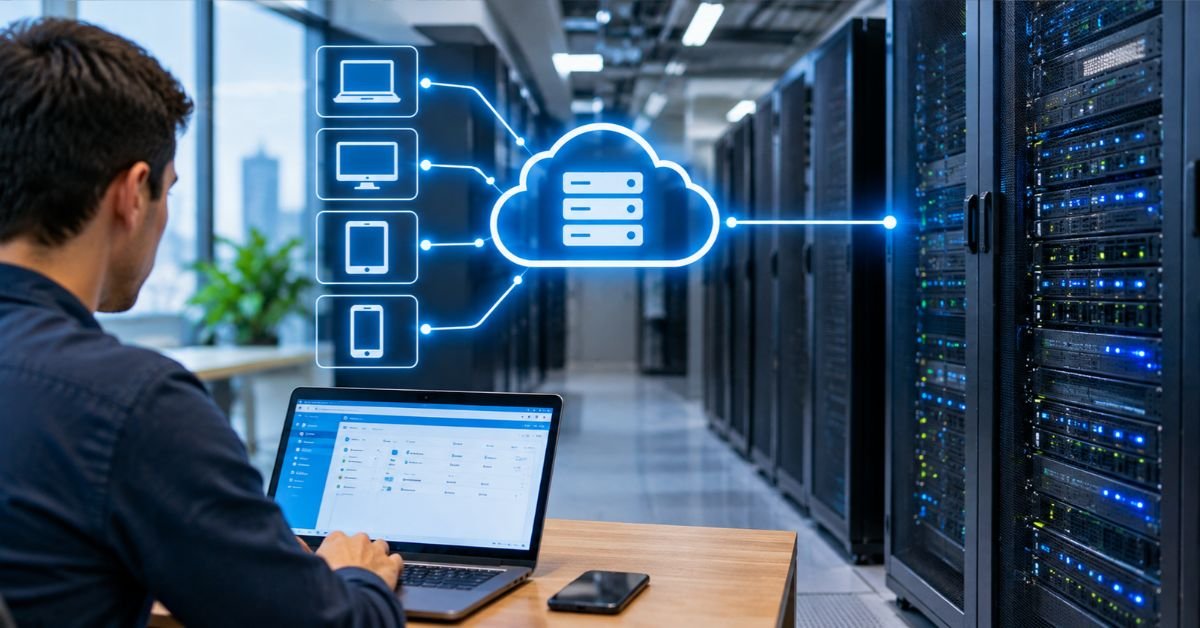
Server-based computing (SBC) is a setup where applications run on a central server rather than on each person’s computer. The user sees the application on their screen and interacts with it normally, but the actual processing and data storage happen in the data center. Only screen updates, keystrokes, and mouse movements travel across the network.
Picture a live video feed of a computer in another room. You can type and click, and it responds, but the machine doing the work isn’t the one in front of you. That’s the basic idea.
How server-based computing works
When someone connects, the process looks like this:
- The user opens a client app or a browser and signs in.
- The server checks their credentials, usually against Active Directory.
- The server starts a session and runs the requested application inside it.
- A remote display protocol compresses the screen output and sends it to the user’s device.
- Keyboard and mouse input goes back to the server the same way.
Since the application never runs on the endpoint, the device in front of the user matters much less. An old laptop, an inexpensive thin client, or a tablet can all do the job. The server handles the heavy lifting.
The main building blocks
- Session host: The server, or group of servers, that runs user sessions. In Microsoft environments, this is a Remote Desktop Session Host (RDSH).
- Remote display protocol: The language the client and server use to talk. Common ones include RDP from Microsoft, ICA/HDX from Citrix, and PCoIP and Blast from VMware (now Omnissa).
- Connection broker: Sends users to the right server and reconnects them to sessions they left open.
- Client device: A thin client, a PC, a Mac, a tablet, or just a browser.
- Network: The link that carries the display data. Its quality largely decides how good the experience feels.
- License server: Tracks client access licenses, such as Microsoft RDS CALs.
Where the term comes from
The idea is much older than most people realize. Mainframes and Unix terminals worked this way for decades. In the 1990s, Citrix popularized the phrase “server-based computing” when it made multi-user Windows sessions practical on ordinary networks, first with WinFrame and later with MetaFrame.
Microsoft followed by building Terminal Services into Windows Server. That feature later became Remote Desktop Services (RDS). Over time, the label has been stretched to cover related models like VDI and cloud-hosted desktops, and that’s where much of the confusion starts.
Server-based computing vs. related models
The differences matter when you’re choosing an architecture, so here they are side by side.
| Model | Where apps run | What each user gets | Typical use |
| Server-based computing (RDSH, session-based) | Shared server OS, many users per server | A session, not a full OS | Office apps, line-of-business software, call centers |
| VDI (Virtual Desktop Infrastructure) | Individual virtual machines on a hypervisor | A private Windows desktop | Power users, developers, strict isolation needs |
| DaaS (Desktop as a Service) | VDI or SBC hosted by a cloud provider | A subscription desktop | Remote teams, fast scaling |
| Traditional fat client | The local PC | A full local OS and apps | Heavy graphics, offline work |
| Web/SaaS apps | The provider’s servers, via browser | Browser access | Modern cloud-native tools |
The short version: SBC shares one server operating system among many users, while VDI gives each user a dedicated virtual machine. Sharing means more users fit on each server, so the cost per seat is lower. VDI trades that efficiency for stronger isolation and more personalization.
Why organizations choose it
Easier management. You patch an application once on a server or master image instead of on hundreds of laptops. That saves deployment time and keeps versions consistent.
Tighter data control. Data stays in the data center. A lost laptop doesn’t carry sensitive files with it. For teams working under HIPAA, PCI DSS, or SOC 2, centralizing access, logging, and clipboard or file-transfer rules in one place makes the job simpler.
Lower endpoint costs. Thin clients are cheaper than full PCs, use less power, and tend to last longer. The servers are a real investment, though, so the savings depend on how many users you have.
Access from anywhere. Staff can reach the same environment from the office, from home, or on the road, ideally with multi-factor authentication in front of it.
Better behavior for data-heavy apps. If an application constantly queries a large database, running it right next to that database beats pulling the data across a WAN. Only pixels cross the network.
The downsides
Every architecture has trade-offs, and these are the ones that come up most in real deployments.
- Single point of failure. If the server farm goes down, everyone stops. Redundancy isn’t optional.
- Network dependence. Weak Wi-Fi or high latency makes sessions feel laggy, and offline work is limited or impossible.
- Upfront cost. Servers, storage, licensing, and administrators add up.
- Noisy neighbors. One user running a heavy process can slow down everyone else on the same host.
- Application compatibility. Some software doesn’t support multi-user sessions, or it writes to shared locations in ways that cause conflicts.
- Graphics limits. CAD, video editing, and 3D work usually need GPU-enabled hosts, which pushes costs up.
| Factor | Upside | Downside |
| Management | One place to patch and deploy | Needs server admin skills |
| Security | Data stays centralized | A compromised server exposes many users |
| Cost per user | Low at scale | High initial investment |
| User experience | Consistent across devices | Depends on network quality |
| Scalability | Add hosts as demand grows | Capacity planning is critical |
| Flexibility | Works with older hardware | Weak for offline or GPU-heavy work |
Where it’s used in practice
Healthcare. Clinics let staff open electronic health record software from any workstation, with patient data staying on the server.
Call centers. Agents use the same small set of applications, which suits session-based hosting well.
Accounting and legal firms. QuickBooks, tax software, and document systems run on a hosted server, so remote staff work under the same controls as the office.
Schools and universities. Lab software sits on central servers instead of being installed on hundreds of machines.
Manufacturing and retail. Warehouse terminals and point-of-sale systems connect to a central ERP environment through low-cost thin clients.
See More: BypassNRO Not Working? How to Skip Windows 11 Internet Setup
Is it right for you?
Run through this checklist before committing:
- [ ] Do most users run the same set of applications?
- [ ] Do those applications work on multi-user server operating systems?
- [ ] Is connectivity between users and servers reliable and low-latency?
- [ ] Can you budget for redundant servers and backups?
- [ ] Do you need centralized control over sensitive data?
- [ ] Is your IT team (or managed provider) comfortable running a server farm?
- [ ] Have you counted licensing costs, including Windows Server, RDS CALs, and any Citrix or other vendor licenses?
If you answered yes to most of these, SBC is likely a good fit. If your users need heavy graphics, local admin rights, or frequent offline access, VDI or a hybrid approach may serve you better.
Setting up a basic environment
This outline follows a Microsoft-based setup, the most common starting point for small and mid-sized businesses.
- Plan capacity. Estimate concurrent users, application memory needs, and peak load. Base CPU and RAM per user on a pilot rather than on guesses.
- Install Windows Server on the session host and join it to your domain.
- Add the Remote Desktop Services role, including Session Host, Connection Broker, and Licensing.
- Activate the license server and install the right RDS CALs, either per user or per device.
- Install applications in multi-user mode so settings apply per user.
- Publish apps or desktops to users through collections.
- Set up profile management with a tool like FSLogix or roaming profiles.
- Lock down access with multi-factor authentication, a Remote Desktop Gateway, and tight firewall rules. Don’t expose RDP directly to the internet.
- Pilot with a small group before moving everyone over.
- Monitor and tune CPU, memory, disk, and session counts.
Troubleshooting common problems
Sessions feel slow or laggy
Start with the network. Check latency and packet loss between the client and server. Once latency climbs past roughly 100 to 150 ms, sessions start to feel sluggish.
Then look at CPU and memory on the session host, since one runaway process can drag everyone down. A few other quick checks:
- Trim visual effects, wallpapers, and heavy animations through session policy.
- Test from a wired connection to rule out Wi-Fi.
- Review display protocol settings such as compression level and color depth.
Users keep getting disconnected
Check the session timeout and idle limits in Group Policy first. Then look for unstable VPN tunnels or ISP drops, and confirm that keep-alive settings are enabled. If the cause still isn’t clear, the server’s Event Viewer often shows connection broker or licensing errors.
Black screen after login
This usually points to the user’s profile. Check for a corrupt or oversized profile, and confirm that profile disks (such as FSLogix containers) are mounting properly. Logon scripts that hang can also cause it. A quick test: log in with a brand-new user. If that works, the problem is specific to the original profile.
Licensing errors
Verify that the RDS license server is reachable and activated. Make sure the licensing mode (per user or per device) matches the CALs you installed. Also confirm the session host points to the correct license server.
Printing problems
Universal print drivers help where they’re supported. Make sure printer redirection is enabled and the drivers exist on the server. If users print from many locations, a dedicated print management tool can save a lot of headaches.
Applications crash in multi-user sessions
First confirm the app is supported on server operating systems. Then check whether it writes settings to shared folders or registry locations in a way that causes conflicts between users. When in doubt, ask the vendor about terminal server or multi-user support.
Security basics
- Require multi-factor authentication for all remote access.
- Put an RD Gateway or reverse proxy in front of session hosts.
- Apply least-privilege access and lock down the desktop.
- Disable clipboard and drive redirection for sensitive roles.
- Patch servers on a regular schedule, and test updates on a staging host first.
- Turn on logging and alerts for failed logins and unusual session activity.
- Back up server images and user profile data.
Where it’s heading
Traditional on-premises RDS farms are shrinking, but the underlying idea hasn’t gone away. Cloud-hosted options like Azure Virtual Desktop, Amazon WorkSpaces, and Citrix DaaS deliver the same session-based model without requiring you to own the hardware. Many organizations run hybrid setups, keeping sensitive workloads on-site and using the cloud when demand rises.
Browser-based SaaS has replaced some of what SBC used to handle. Legacy and regulated applications are the reason it still has a place.
Frequently asked questions
What is server-based computing?
It’s a model where applications run and store data on a central server, while the user’s device only displays the screen and sends keystrokes and mouse clicks. Because the real work happens on the server, even older or low-cost devices can run demanding software.
What does “server computing” mean?
Server computing means using a dedicated machine, or a group of them, to handle tasks for other computers (called clients) over a network. Those tasks include hosting websites, storing files, running databases, and delivering email. Instead of every device doing everything itself, the server does the shared work.
What is IaaS, with an example?
Infrastructure as a Service (IaaS) is a cloud model where a provider rents you virtual computing resources, such as servers, storage, and networking, on a pay-as-you-go basis. You manage the operating system and applications, and the provider maintains the physical hardware.
Example: A startup rents virtual machines from Amazon EC2 to host its web app instead of buying its own servers. Microsoft Azure Virtual Machines and Google Compute Engine work the same way.
What are some examples of server computers?
- Rack servers, such as Dell PowerEdge R-series or HPE ProLiant DL-series, which are mounted in data center racks
- Tower servers, which look like desktop PCs and suit small offices
- Blade servers, which are thin modules slotted into a shared chassis to save space
- Mainframes, such as IBM Z systems, used by banks and large enterprises
- Cloud virtual servers, such as an Amazon EC2 instance or an Azure VM
What are the 20 most common types of servers?
- Web server: Delivers websites to browsers (Apache, Nginx).
- Application server: Runs business logic and apps.
- Database server: Stores and serves structured data (MySQL, SQL Server).
- File server: Centralizes file storage and sharing.
- Mail server: Sends, receives, and stores email.
- DNS server: Translates domain names into IP addresses.
- DHCP server: Assigns IP addresses to devices automatically.
- Proxy server: Sits between users and the internet to filter or cache traffic.
- Print server: Manages shared network printers.
- FTP server: Transfers files over FTP or SFTP.
- Domain controller (authentication server): Handles logins and permissions, such as Active Directory.
- Terminal/Remote Desktop server: Hosts user sessions for server-based computing.
- Virtualization server: Runs multiple virtual machines on one host (VMware ESXi, Hyper-V).
- Game server: Hosts multiplayer game sessions.
- Media/streaming server: Delivers audio and video on demand or live.
- Backup server: Stores copies of data for recovery.
- Cloud server: A virtual server delivered over the internet.
- Name/Directory server (LDAP): Stores and looks up user and resource information.
- Monitoring server: Tracks the health and performance of systems and networks.
- VPN server: Provides encrypted remote access to a private network.
