
If you searched “how is Mogothrow77 software installation done,” you’re probably asking two things: how do I install it, and is it safe? This guide answers both. The honest starting point is that no official installer, publisher or set of system requirements for Mogothrow77 could be confirmed, so the guide teaches you how to check a file before you run it.
Quick Answer
No verified, official installation procedure exists for Mogothrow77. Third-party pages describe installation steps, but none we found points to a publisher, repository or documentation that confirms them.
Here is the short, safe sequence. It’s general guidance for any unfamiliar desktop software, not confirmed Mogothrow77 instructions:
- Identify the publisher and the official download page.
- Download only from that page.
- Check the installer’s digital signature.
- Compare its SHA-256 checksum with one published by the publisher.
- Scan it and look up its reputation.
- If still unsure, test in a sandbox or virtual machine, then install.
If you can’t complete steps 1 and 2, don’t install it. The sections below explain each step with commands.
What We Can and Can’t Confirm
| Question | Status |
| Is the name mentioned online as software? | Yes, on third-party sites |
| Who publishes it? | Unconfirmed |
| Is there an official site or download page? | Unconfirmed |
| Supported operating systems | Unconfirmed |
| System requirements | Unconfirmed |
| License (free, paid, open source, proprietary) | Unverified (one third-party article says proprietary, citing documentation we couldn’t check) |
| Is it safe or malicious? | Unknown, and this guide assumes neither |
A web search for the name in October 2026 returned only third-party articles, none from a publisher. Pages repeating each other don’t count as confirmation. Wait for a primary source, meaning the publisher’s own site, repository or documentation.
This guide gives no download links, filenames, versions or product-specific steps, because inventing them would put you at risk.
Step 1: Identify the Publisher and Source
Start with where you found the name:
- Someone you know sent it: ask them what it’s for and where it came from, using a second channel if possible. Hacked accounts send malware too.
- A website’s download button: the page proves the page exists, not that the file is genuine.
- An ad, pop-up or shortened link: high suspicion.
- An article mentioned it: check whether it links to a publisher or repository. If not, that tells you something.
Then look for independent evidence:
- A named publisher with a track record, support contact and documentation describing what the product does.
- The domain’s age and owner, using the ICANN lookup (lookup.icann.org). A brand-new domain claiming years of history is a warning sign. Privacy-protected registration is common and not suspicious alone. HTTPS shows an encrypted connection, not a trustworthy site.
- A public code repository, if the software claims to be open source: look for history, contributors and a license file.
- Trusted channels: search the Microsoft Store or run winget search mogothrow77 on Windows, the Mac App Store or brew search mogothrow77 on macOS, and apt search mogothrow77 (or your distribution’s equivalent) on Linux.
No results isn’t proof of anything bad, but it means a direct download is the only route, so the file checks below matter more.
Step 2: Check Your Device
Compare your system with the publisher’s requirements once they exist. Meanwhile, collect the details you’ll need:
- Windows: press Windows + R, type winver, and note the version. Settings → System → About shows 64-bit or ARM.
- macOS: Apple menu → About This Mac shows the version and whether the chip is Apple silicon or Intel.
- Linux: run cat /etc/os-release and uname -m.
Also check free disk space and make sure your important files are backed up.
Step 3: Verify the Installer
Three checks tell you different things, and none proves safety alone.
| Check | What it shows | What it can’t show |
| Digital signature | Who signed the file and that it wasn’t altered afterward | That the signer is trustworthy |
| SHA-256 checksum | Whether your copy matches a reference value exactly | That the reference value is genuine |
| Scan and reputation | Whether known threats are detected | That new or targeted threats are absent |
Digital signature
Windows: right-click the file → Properties → Digital Signatures tab. If the tab is absent, the file is unsigned. Or use PowerShell:
Get-AuthenticodeSignature “C:\Users\YourName\Downloads\installer.exe” | Format-List
Status should read Valid, and the signer in SignerCertificate should match the publisher you identified.
macOS:
codesign –verify –deep –strict –verbose=2 /path/to/App.app
codesign -dv –verbose=4 /path/to/App.app
spctl –assess –type execute –verbose /path/to/App.app
pkgutil –check-signature /path/to/installer.pkg
spctl –assess –type install /path/to/installer.pkg
The first two check and describe an app’s signature. spctl asks Gatekeeper whether it would allow the app or package. pkgutil checks .pkg files.
Linux: signatures usually work through your package manager. For a standalone file, see the GPG example below. dpkg -I file.deb shows a Debian package’s metadata, and rpm -K file.rpm checks an RPM’s signature if you have the publisher’s key.
A valid signature only means someone signed it. Attackers can sign malware with certificates they obtained. An unsigned file isn’t automatically malicious, since some small open-source tools are unsigned, but an unsigned file from an unidentified publisher deserves real caution.
SHA-256 checksum
If the publisher lists a hash on its official page, compute yours and compare every character.
# Windows PowerShell
Get-FileHash “C:\Users\YourName\Downloads\installer.exe” -Algorithm SHA256
:: Windows Command Prompt
certutil -hashfile “C:\Users\YourName\Downloads\installer.exe” SHA256
# macOS
shasum -a 256 ~/Downloads/installer.dmg
# Linux
sha256sum ~/Downloads/installer.deb
sha256sum -c SHA256SUMS # if the publisher provides a checksum file
Any difference means your file isn’t the one described. The reference hash should come from a separate, authenticated source. If an attacker controls the page, they can change both the file and the hash.
GPG signatures (Linux and advanced users)
gpg –import publisher-public-key.asc
gpg –fingerprint
gpg –verify installer.tar.gz.sig installer.tar.gz
Confirm the key’s fingerprint through a second channel, such as the project’s documentation. A key downloaded from the same page as the file proves little.
Scan and look up reputation
- Scan locally. On Windows, right-click the file and choose Scan with Microsoft Defender.
- Search the file’s SHA-256 hash on VirusTotal (virustotal.com). Searching by hash avoids uploading. Anything you upload can be seen by others in the security community, so don’t upload files containing private data.
- Read results carefully. A few detections from obscure engines may be false positives. Zero detections doesn’t mean safe, especially for new files. A file nobody has submitted gives you no reputation data.
A Windows SmartScreen warning or a macOS Gatekeeper block means the system has no established reputation for the file or its signer. Investigate it; don’t override it.
Step 4: Test in Isolation if You’re Still Unsure
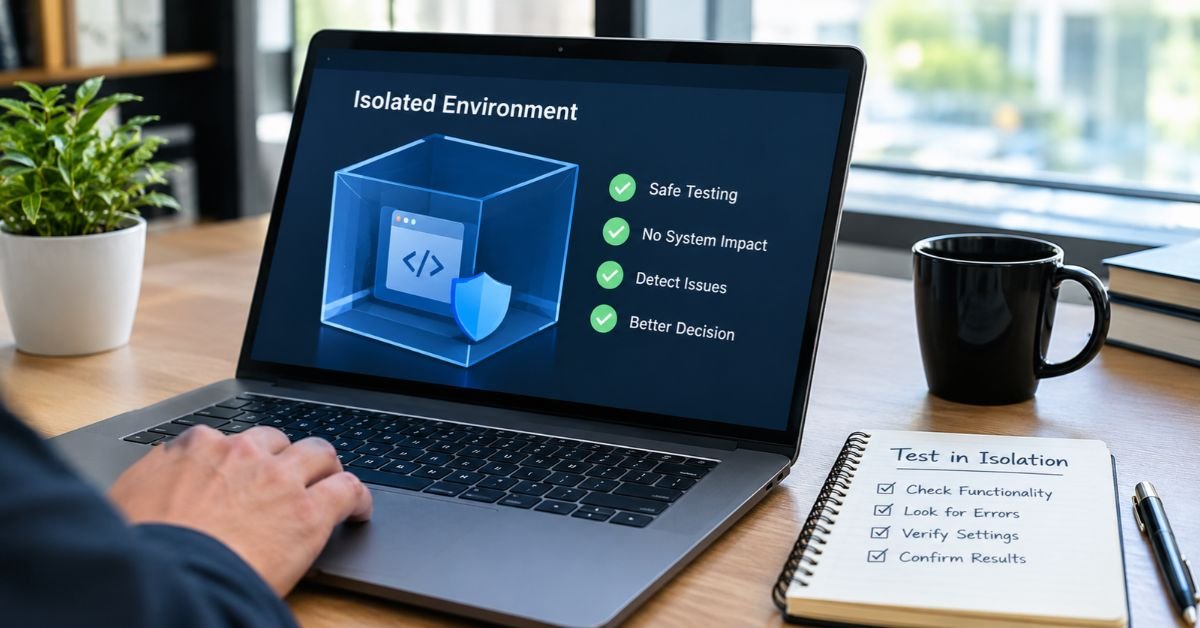
- Windows Sandbox is a disposable Windows environment available on Windows 10 and 11 Pro, Enterprise and Education, not Home. Enable it under “Turn Windows features on or off.” Everything inside is erased when you close it.
- A virtual machine (Hyper-V, VirtualBox, VMware, Parallels or UTM) works on any system. Take a snapshot before installing.
- A spare device with no personal accounts signed in also works.
Don’t sign into personal accounts or copy real files into the test environment. Isolation lowers risk but doesn’t eliminate it.
Step 5: Install (General Guidance)
These steps apply to any verified desktop software. They are not confirmed Mogothrow77 instructions, and you should follow the publisher’s own documentation if it exists.
Windows
- Run the installer. In the User Account Control prompt, check that the verified publisher name matches what you found.
- Read each wizard screen and decline bundled toolbars, extensions or unrelated programs.
- Keep the default install location (typically under Program Files) unless you have a reason to change it.
- Let it finish, restart if asked, and confirm the app appears in Settings → Apps → Installed apps.
macOS
- Open the .dmg and drag the app to Applications, or run the .pkg and follow the prompts.
- If Gatekeeper blocks the app, finish the verification above first. Overrides on recent macOS versions are handled in System Settings → Privacy & Security, and you should only use them for an app you’ve verified.
- Grant camera, microphone, file or screen-recording access only when the app clearly needs it.
Linux
- Prefer your package manager, for example sudo apt install ./package.deb for a verified local file.
- Avoid commands that pipe a remote script into a shell, such as curl … | sudo bash. Download the script, read it, then decide.
- Use sudo only when a documented step requires it.
Check behavior after launch
A completed install doesn’t prove the software is trustworthy. Watch for requests for passwords or payment details unrelated to its purpose, browser changes or new extensions, unexpected startup entries, and unexplained network activity or slowdowns.
On Windows, check Task Manager → Startup apps (the Startup tab in Windows 10) or Microsoft’s Autoruns from Sysinternals. On macOS, check System Settings → General → Login Items. On Linux, use systemctl list-unit-files –state=enabled and crontab -l.
Should You Install It? A Decision Guide
| Your situation | What to do |
| Publisher identified, valid signature, matching checksum, clean scan | Optionally test in a sandbox, then install |
| Publisher identified, but unsigned or no checksum | Ask the publisher through its verified channel for a signed build or checksum. Test only in isolation meanwhile |
| Publisher can’t be identified | Don’t install it on your main device |
| Signature invalid, checksum mismatch, or security tools flag it | Delete the file |
| You already ran it | See the next section |
Red flags that should stop you: no identifiable publisher; a download from an ad or unsolicited message; a very new or anonymous domain; instructions to disable antivirus, SmartScreen or Gatekeeper; a file type that doesn’t match the platform (an .exe offered for a Mac app); bundled unrelated programs; administrator access with no stated reason; and commands you can’t read or understand.
If you don’t know what you need it for, start from the task instead. Search for established tools in the Microsoft Store, winget, the Mac App Store, Homebrew or your distribution’s repositories. If a colleague or school sent you the name, ask what task it’s meant to handle. A well-documented alternative often exists.
If You Already Ran an Unverified Installer
One unverified install isn’t proof of compromise, but check it. Work through these in order:
- Disconnect from the network if anything behaved oddly or security tools raised alerts.
- Stop entering passwords on that device.
- Run a full scan. On Windows, run a full Microsoft Defender scan, then Microsoft Defender Offline scan (Windows Security → Virus & threat protection → Scan options). On macOS and Linux, use a reputable scanner.
- Look for what was added: installed apps, startup items, scheduled tasks and browser extensions. On macOS, also check ~/Library/LaunchAgents, /Library/LaunchAgents and /Library/LaunchDaemons.
- Remove what you can identify through normal uninstall methods.
- From a different, clean device, change passwords for email, banking and other important accounts, and turn on multi-factor authentication.
- Check your accounts for unfamiliar activity. If you entered payment details, contact your bank.
- Tell IT if it’s a work or school device.
- If problems persist, back up personal documents only, then reset or reinstall the operating system.
- Report it. In the US, report scams to the FTC at reportfraud.ftc.gov and cybercrime to the FBI’s IC3 at ic3.gov.
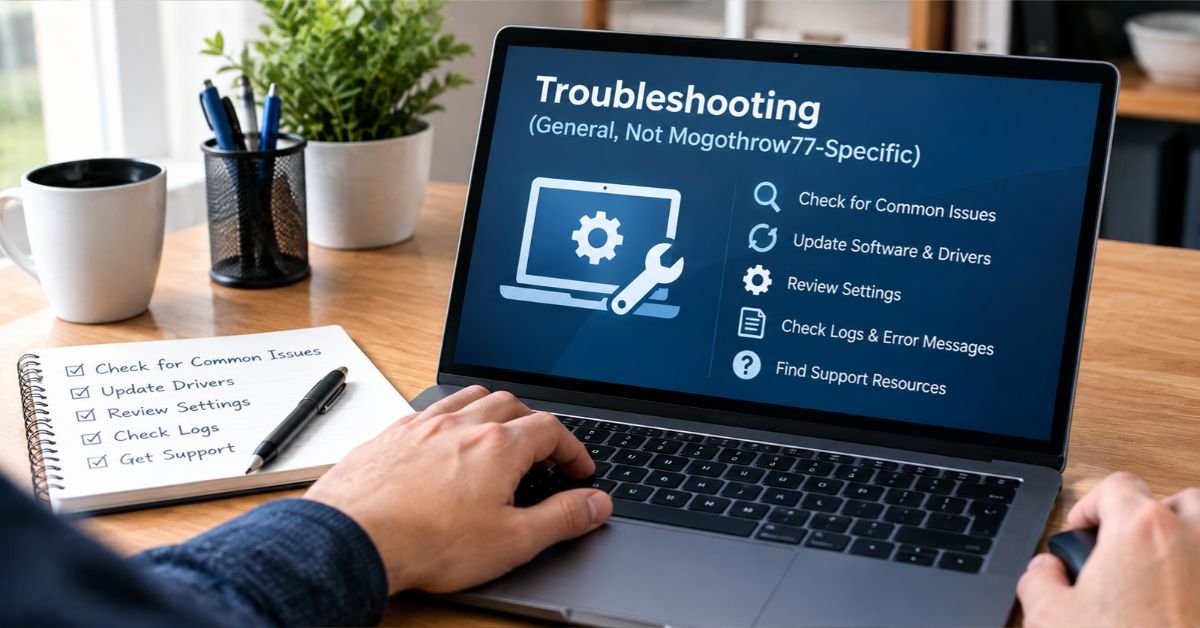
Troubleshooting (General, Not Mogothrow77-Specific)
No product-specific error documentation exists, so these are general diagnostic steps.
| Symptom | Likely cause | Safe first step |
| Installer won’t open | Wrong OS or architecture, or a corrupt download | Recheck the file type and OS; recompute the checksum |
| SmartScreen warning | No established reputation for the file or signer | Verify publisher and signature; don’t override unless verified |
| macOS says the app can’t be opened | Gatekeeper block (unsigned, not notarized, or altered) | Run the codesign and spctl checks; don’t bypass |
| Permission or “access denied” error | Account lacks rights to the target folder | Use the default location; elevate only if verified documentation requires it |
| Installation stalls | Low disk space or a failed component | Free space, close other apps, wait, then check the installer log |
| Missing runtime or dependency | Required component not installed | Get it only from its official source, never random DLL sites |
| Installs but won’t launch | Incompatibility or damaged install | Check Windows Event Viewer, macOS Console or Linux journalctl |
| Antivirus quarantines the file | Real detection or false positive | Note the detection name, search the hash on VirusTotal, contact the verified publisher. Don’t add an exclusion just to proceed |
Record the exact error text and change one thing at a time. Repeating the same installer or downloading “replacement” files from unknown sites rarely helps.
Updating and Uninstalling
Updating: use a verified update mechanism if one exists, and ignore update pop-ups from unrelated sites. Back up any data the app stores first.
Windows: Settings → Apps → Installed apps → Uninstall. Then check Task Scheduler and Startup apps for leftovers, and review %AppData% and %LocalAppData% for folders tied to the app, deleting only what you recognize.
macOS: quit the app and drag it from Applications to the Trash. Check ~/Library/Application Support, ~/Library/Preferences, the LaunchAgents folders above and Login Items.
Linux:
sudo apt remove package-name # removes the program
sudo apt purge package-name # also removes system-wide configuration
sudo apt autoremove # clears unneeded dependencies
Check ~/.config, ~/.local/share and ~/.config/autostart for per-user files.
If an app can’t be removed normally or keeps returning, scan the device and consider the steps in the previous section.
Frequently Asked Questions
1. What Is Server-Based Computing?
Server-based computing is a system where a central computer provides applications, data, and resources to other devices over a network. It helps businesses manage information and software efficiently.
2. What Does “Server Computing” Mean?
Server computing means using a computer to process requests and deliver services to other devices, such as storing files, hosting websites, or managing databases.
3. What Are Five Examples of Servers?
- Web Server: Delivers website pages to users.
- File Server: Stores and shares files across a network.
- Database Server: Organizes and retrieves information.
- Mail Server: Sends and receives emails.
- Application Server: Runs software and processes application requests.
4. What Are Examples of Server Software?
Common server software includes Apache HTTP Server, Nginx, Microsoft IIS, MySQL, PostgreSQL, and Microsoft SQL Server. Each supports different tasks, from hosting websites to managing databases.
5. What Are the 20 Most Common Types of Servers?
The 20 common server types are:
- Web server
- Application server
- Database server
- File server
- Mail server
- DNS server
- DHCP server
- Proxy server
- VPN server
- FTP server
- Print server
- Authentication server
- Directory server
- Backup server
- Storage server
- Game server
- Media server
- Virtualization server
- Cloud server
- Load-balancing server
6. Is Google a Server or Client?
Google can be both. Its data centers run servers that process requests, while Google Search accessed through your browser acts as a client-server interaction: your browser requests information, and Google’s servers return the results.
Conclusion
The installation steps are the easy part. Identifying what you’re installing is harder. Because the publisher, official source and requirements for Mogothrow77 haven’t been confirmed, the safe sequence is to verify the source, check the signature and checksum, scan the file, test in isolation if you’re unsure, and install only if everything holds up. If it doesn’t, skip it and look for a documented alternative. If a verifiable primary source for Mogothrow77 appears, this guide will be updated with product-specific instructions.
Tools and references mentioned: VirusTotal (virustotal.com), ICANN Lookup (lookup.icann.org), Microsoft documentation for Windows Sandbox, Get-FileHash, Get-AuthenticodeSignature and Sysinternals Autoruns (learn.microsoft.com), Apple’s Gatekeeper documentation (support.apple.com), FTC (reportfraud.ftc.gov), FBI IC3 (ic3.gov).
